This guide explains how a Super Admin or deployment operator reviews product licensing inside Migdafa Smart School and activates the installation when the environment requires it.
Before you start
- Confirm whether this deployment is expected to use
disabled,remote, orofflinelicensing mode. - Use a Super Admin account before opening the in-app licensing workspace.
- For
remotemode, make sure the main app and the standalone license server are configured together. - For
offlinemode, prepare the signed payload that contains bothdataandsignature. - Do not revoke a remote binding unless you intend to block the purchase code on the authority server.
Important: the current local audit environment is running with licensing enabled but the mode set to disabled. In that state, the license tab is real and usable for status checks, but activation and deactivation controls are intentionally hidden.
Navigation path
Settings -> License
Step 1: Open the License tab in System Settings
Go to Settings, then open the License tab inside the System Settings workspace. In the current local UI, the tab label still falls back to a translation-key style string, but it opens the correct licensing panel.
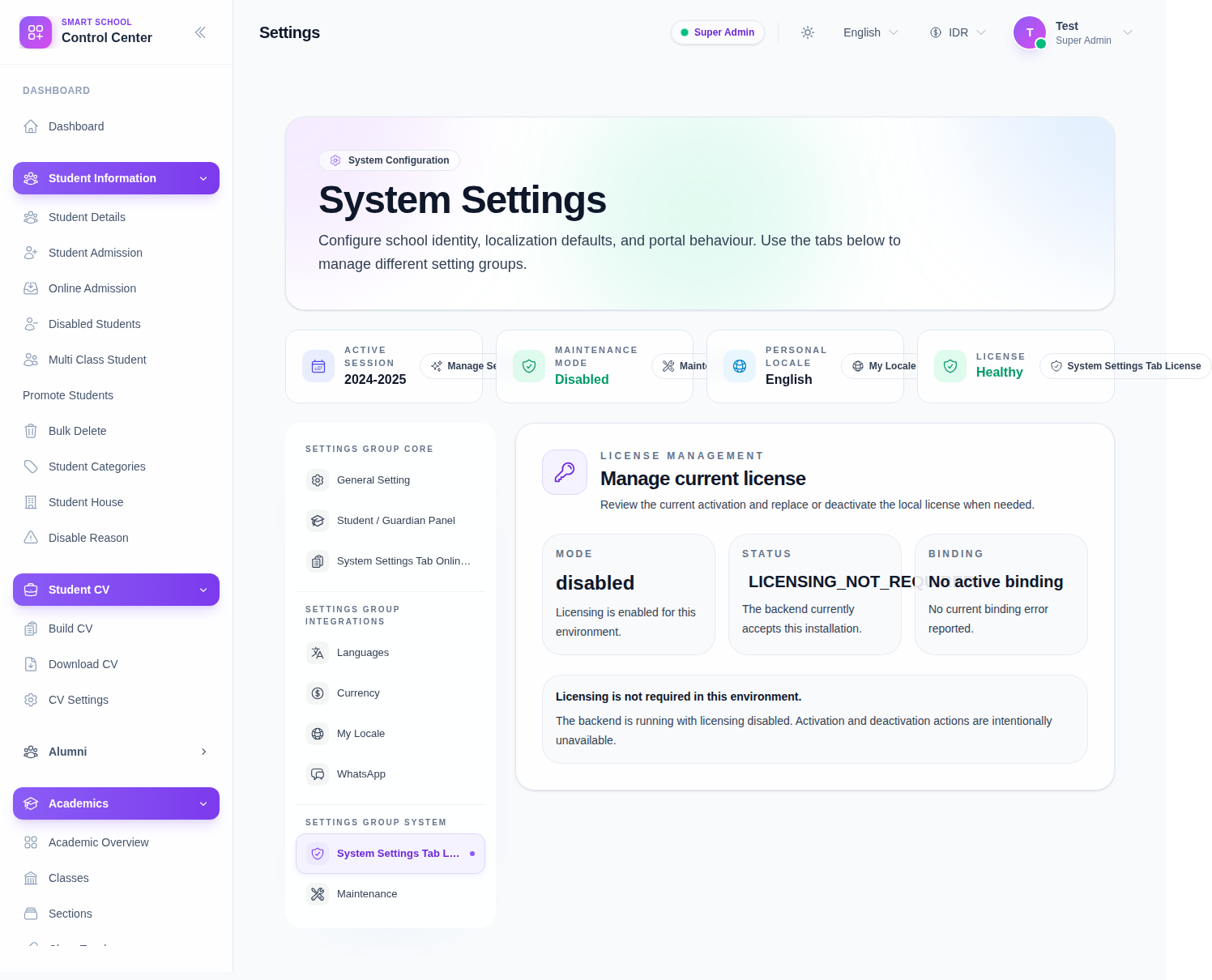
Step 2: Read the three status cards first
The top of the license panel summarizes the current state through three cards:
- Mode shows whether the deployment is using
disabled,remote, oroffline - Status shows the current license acceptance state
- Binding shows the current domain or indicates that no activation is bound
Always read these cards before attempting any change. They tell you whether the installation needs activation, already has one, or is intentionally running without license enforcement.
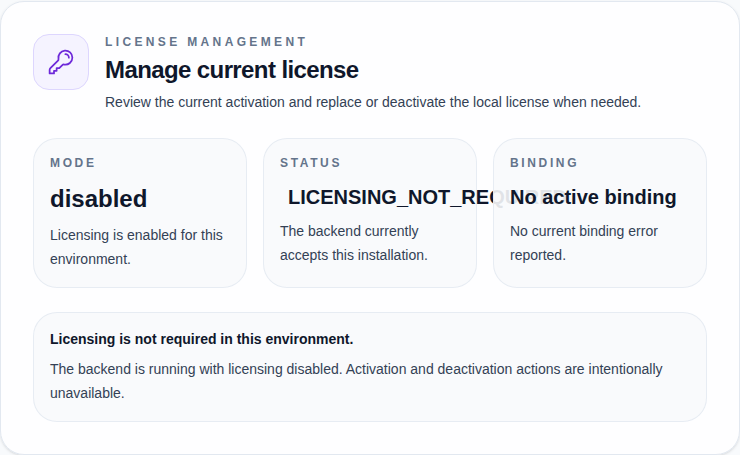
Step 3: Stop here if the mode is disabled
If the Mode card shows disabled, the environment does not require a product activation.
What to expect in this state:
- the panel displays an informational message that licensing is not required
- activation and deactivation actions are unavailable
- the app continues operating normally without a local binding
Use this state for local development or other deployments where product licensing is intentionally turned off.
Step 4: Activate the installation when the mode is remote or offline
When the environment is not in disabled mode, the same panel exposes the activation form.
Use the correct input for the active mode:
- in
remotemode, enter the purchase code - in
offlinemode, paste the signed payload JSON
Then click Activate License. If the installation is already licensed, the same form becomes a replacement flow and the action label changes to Replace License.
What happens next:
- the backend verifies the submitted license material
- the current installation record is updated
- the status panel refreshes with buyer, item, type, and verification timestamps
Step 5: Verify the activation details
After a successful activation, review the Current activation section and confirm:
- buyer username
- product item name
- license type
- last verification time
- next scheduled check
If the environment uses remote licensing, the authoritative binding should also match the current domain and installation identity.
Step 6: Use deactivation, release, and revoke carefully
The product distinguishes between normal replacement and authority-level blocking:
- use Deactivate Local License when you want to release the current activation cleanly before re-activating this or another installation
- use remote release when an installation binding must be freed without banning the purchase code
- use remote revoke only when the purchase code should be blocked on the standalone authority server
If LICENSE_SERVER_ADMIN_TOKEN is configured in the main app, the in-app panel can also show:
- current remote binding details
- exact purchase-code lookup
- cross-install authority search
- release and revoke actions for looked-up bindings
Step 7: Run readiness checks before production rollout
Before treating a remote licensing deployment as ready, run the shipped readiness checks on both sides.
License server codebase:
/var/www/html/migdafa-smart-school-project/migdafa-license-server
Recommended checks:
# Standalone license server
php /var/www/html/migdafa-smart-school-project/migdafa-license-server/scripts/check_remote_staging_readiness.php --base-url=https://licenses.your-domain.com

# Main Smart School app
php artisan licensing:check-remote-readiness --ping --require-admin
These checks help confirm that keys, tokens, storage, and remote probes are configured before operators depend on the activation flow.
Verify the result
Use this checklist after reviewing or activating product licensing:
- confirm the mode matches the intended environment
- confirm the status is healthy or intentionally not required
- confirm the binding matches the current installation when licensing is active
- confirm the buyer and item information are populated after activation
- confirm remote lookup or search works before using release or revoke in production
Expected result: the deployment either remains intentionally unlicensed in disabled mode or shows a valid activation record that matches the current installation.
Troubleshooting
| Issue | Likely cause | What to do |
|---|---|---|
| License tab shows no activation form | The environment is running with disabled mode, or the operator is not a Super Admin | Confirm the licensing mode and sign in with a Super Admin account |
| The panel says licensing is not required | This deployment is intentionally running without enforcement | Treat it as a status-only environment and do not expect activation controls |
| Activation fails after submitting the purchase code | Invalid purchase code or remote/offline verification is misconfigured | Recheck the submitted code or payload and verify app and license-server settings |
| Remote binding tools do not appear | Remote mode is not active or admin-token support is missing | Confirm LICENSING_MODE=remote and configure LICENSE_SERVER_ADMIN_TOKEN where required |
/system/license or /system/public-license redirects away | The app is not currently blocked by a licensing issue | Open the normal Settings license tab instead; recovery routes only stay active during a real license blocker |