This guide explains how to reuse previous lesson-plan content through Copy Old Lessons.
Short summary
Use Copy Old Lessons to select lesson topics from an earlier session, map them into a new target session and subject context, then copy them forward instead of rebuilding the same content manually.
Before you start
- Confirm the source session contains the lessons and topics you actually want to reuse.
- Confirm the target session is different from the source session.
- Decide whether you are copying a full lesson’s topic set or only selected topics.
- Confirm the target subject context is correct before starting the copy.
Navigation path
Lesson Plan -> Copy Old Lessons
Step 1: Open Copy Old Lessons
In the sidebar, open Lesson Plan and choose Copy Old Lessons.
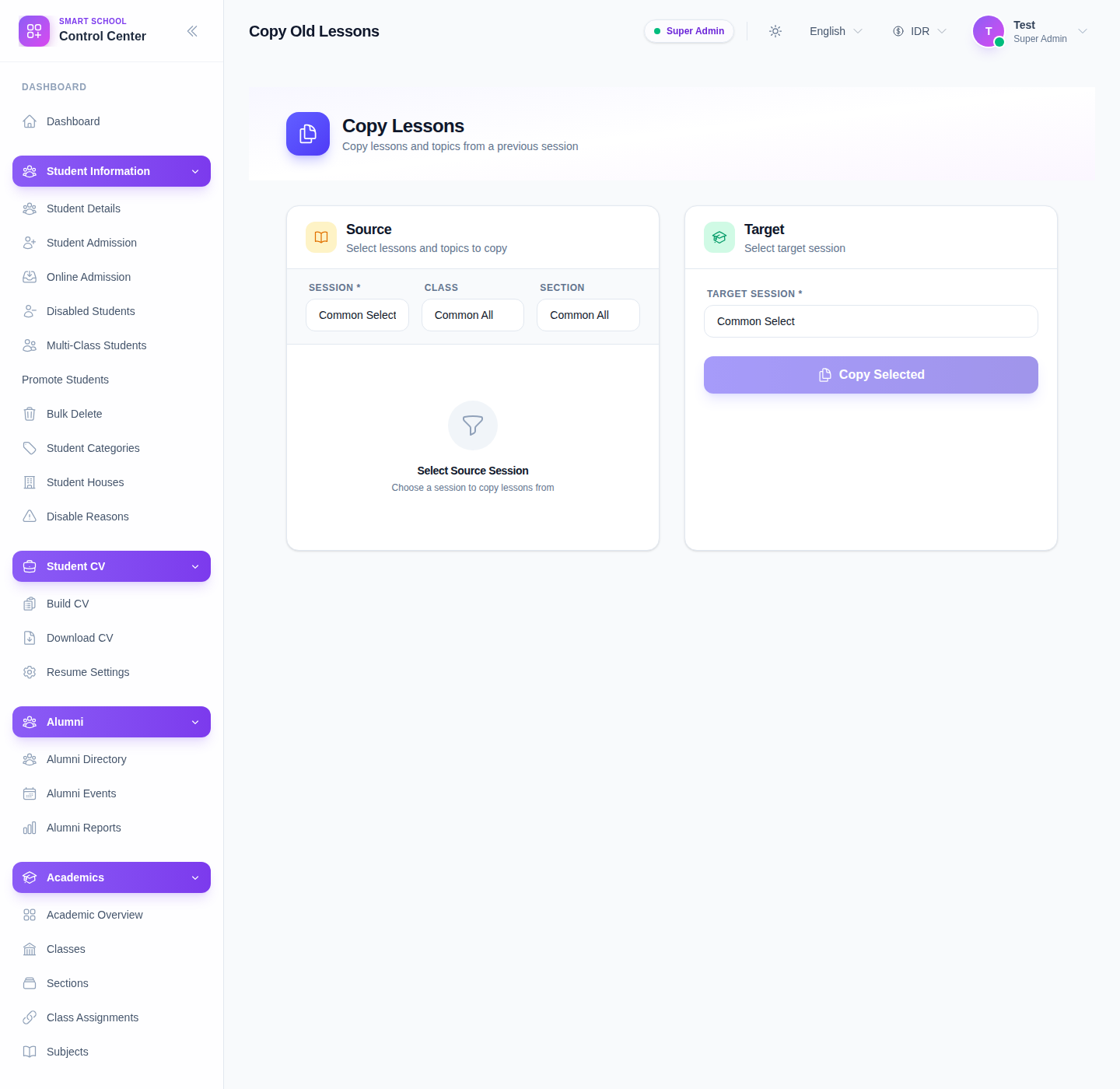
The page is divided into:
- a Source panel
- a Target panel
- a disabled Copy Selected action until enough context is provided
Step 2: Choose the source lesson context
Start with the source side of the page.
The current source filters support:
- Session
- Class
- Section
- optional subject-group filtering where available
After the source session is selected, the page loads lessons and their topics so they can be expanded and selected.
Step 3: Select the topics you want to reuse
Once source lessons are available:
- expand the relevant lessons
- review the topic rows under each lesson
- select the topics that should be copied
If an entire lesson should move forward, select all topics under that lesson rather than mixing unrelated content from different academic intentions.
Step 4: Fill the target context
On the target side, provide:
- Target Session
- Target Subject
- any required target class-section mapping if the page exposes it
The copy action only becomes available when:
- at least one source topic is selected
- target context is complete
- source and target sessions are different
Step 5: Copy and verify in the lesson-plan workspace
When the button becomes active:
- click Copy Selected
- confirm the action if prompted
- wait for the success message
- review the destination in Manage Lesson Plan
After the copy completes, verify that the new session now contains the intended lesson-plan content.
Important notes
Session rule: the current workflow explicitly prevents copying into the same session. If the source and target sessions match, the copy action remains unavailable.
Local dataset note: the current local page loaded the full copy workflow shell, but source data still depends on the selected session context. An empty source panel means the academic source has not been chosen yet or does not contain matching lesson data.
Verification checklist
- source session is correct
- target session is different from the source session
- only the intended topics are selected
- target subject or class mapping is correct
- copied content appears in the destination lesson-plan context
Troubleshooting
| Issue | Likely cause | What to do |
|---|---|---|
| Copy button stays disabled | No topics selected or target context is incomplete | Select topics and complete the target panel |
| No source lessons appear | Source session or class context is incomplete | Choose the correct source session and filters |
| Staff copy into the wrong future context | Target subject or class mapping was chosen incorrectly | Stop and recheck the target panel before copying |
| Nothing seems to change after success | Verification is being done under the wrong lesson-plan filters | Check the destination in Manage Lesson Plan using the new session context |