This guide explains how to use Add Income to record non-tuition incoming funds inside the Income Console.
Short summary
Use Add Income when the school receives money that should be tracked in finance records but does not belong to the student fee-collection flow. The current page combines summary cards with a structured income-entry form.
Before you start
- Confirm that the correct Income Head already exists.
- Keep the income name clear enough to be searchable later.
- Prepare the reference date, amount, and invoice number before saving.
- Keep the attachment ready if your school stores supporting proof with the entry.
Navigation path
Income Console -> Add Income
Step 1: Open Add Income
In the sidebar, open Income Console and choose Add Income.
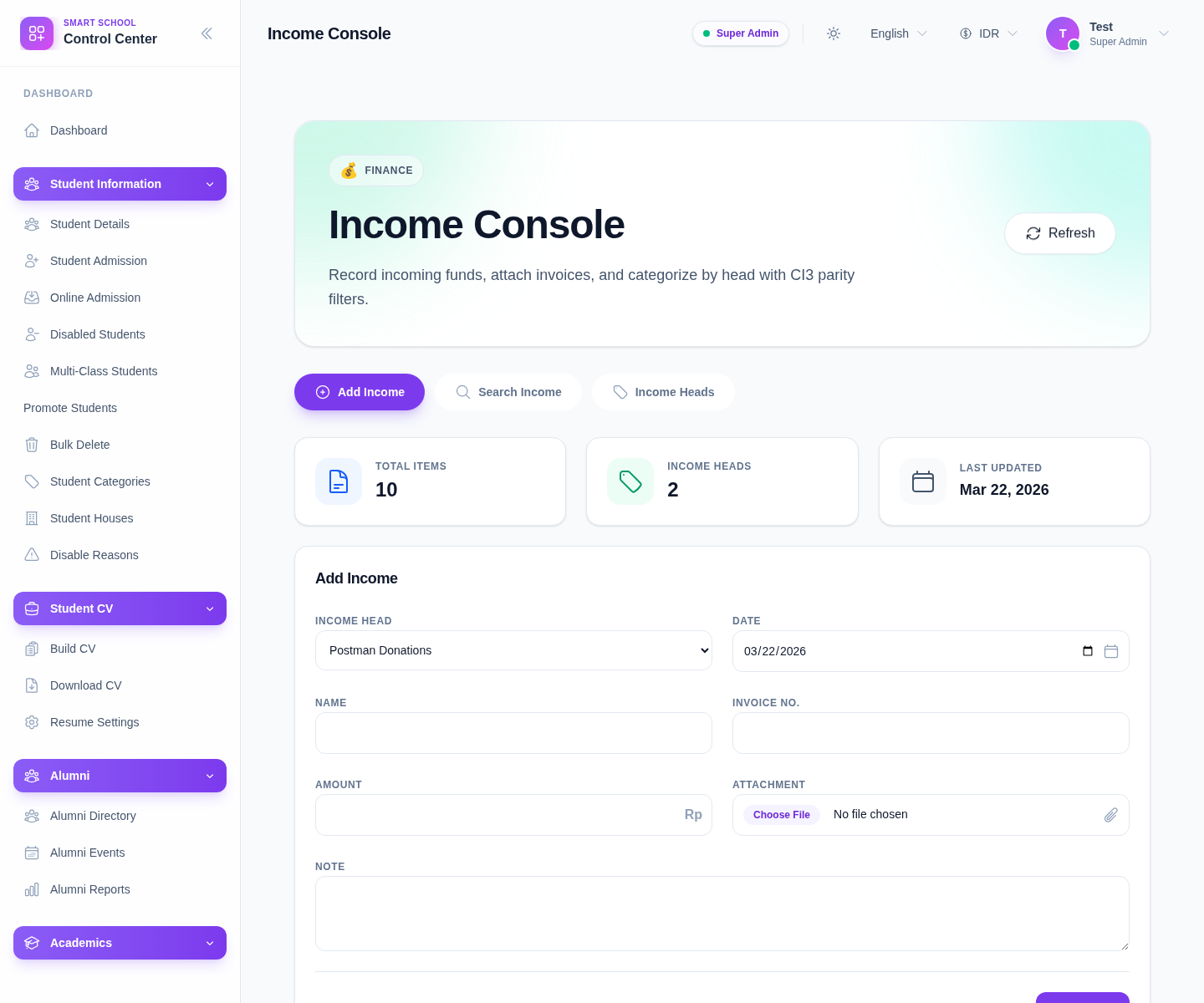
The current visible fields are:
- Income Head
- Date
- Name
- Invoice No.
- Amount
- Attachment
- Note
Step 2: Choose the right income head
Start with Income Head.
This matters because the head is the main finance category used later when filtering income records and reviewing non-fee finance activity. If the correct category does not exist yet, create it first from Income Heads instead of forcing the entry into the wrong bucket.
Step 3: Complete the income details
Fill the remaining fields:
- set the Date
- enter a clear Name
- add Invoice No. if your workflow uses one
- enter the Amount
- upload an Attachment when evidence should travel with the entry
- add a Note if finance staff need context later
The current UI accepts document or image attachments, which is useful for scanned receipts or supporting reference files.
Step 4: Save the record
Click Save after reviewing the form.
Use Reset when:
- the wrong head was selected
- the operator started the entry with the wrong receipt
- the form should be cleared before a different income record is entered
Step 5: Verify the record through the console
After saving:
- confirm the form clears or returns to a ready state
- review the top summary cards if totals refresh
- open Search Income to confirm the new row is searchable and stored with the right head
Operational note: Income Console is meant for non-fee finance entries. Do not mix normal student tuition collection into this workflow unless your school deliberately treats it as a separate income record outside the fee ledger.
Verify the result
- the entry is saved under the correct income head
- the amount matches the supporting document
- invoice number and note are present when needed
- the record is visible from the income-search workflow
Troubleshooting
| Issue | Likely cause | What to do |
|---|---|---|
| Save does not produce a usable record | Required fields were left incomplete | Recheck the head, date, name, and amount |
| The receipt lands in the wrong category | The wrong income head was selected | Correct the record after saving or recreate it under the right head |
| The file is missing from the entry | The attachment was not uploaded before save | Reopen the record and add the supporting file if your workflow requires it |
| The entry should appear in search but does not | Search filters are too narrow | Clear the search filters and review the date range |