This guide explains how to use User Log to inspect login history and broader user-triggered activity inside Migdafa Smart School.
Before you start
- Decide whether you need Login History or Activity Log before you start filtering.
- Prepare a date range if the incident or review window is already known.
- Use a user ID when you need to isolate one actor quickly.
- Treat clear actions carefully because they permanently remove matched login-history rows.
Important: the destructive cleanup action only applies to Login History, and it requires both From and To dates before the system will allow the purge.
Navigation path
Reports -> User Log
Step 1: Open User Log and confirm the current mode
Open User Log from the Reports menu. The page loads with the report hero, action buttons, filter area, and result table.
At the top of the filter panel, the page provides two tabs:
- Login History
- Activity Log
Use Login History when you want to review sign-ins across staff, student, and parent accounts. Use Activity Log when you need broader user-triggered actions that include action names and detail payloads.
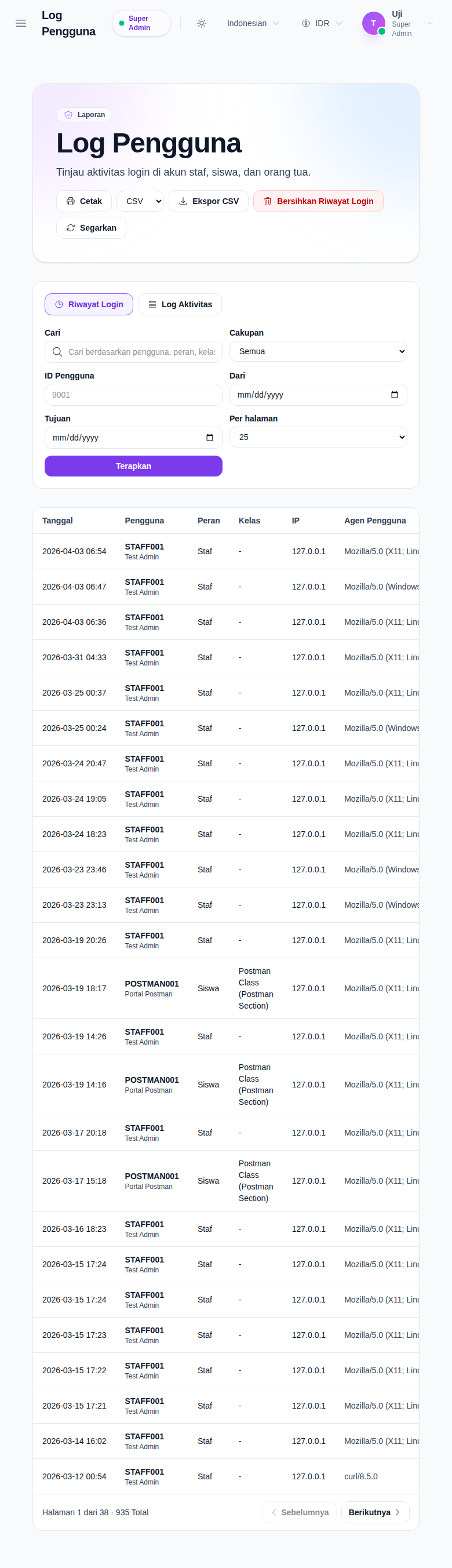
Step 2: Apply the right filters for the mode you selected
The shared filters are:
- Search
- Scope
- User ID
- From
- To
- Per page
- Apply
Scope behavior changes with the selected mode:
- Login History supports
All,Staff,Student, andParent - Activity Log supports
All,Staff, andPortal
Activity Log also adds an Action filter so you can target a specific action name. The search box is broader than the action filter and can match user names, IPs, user agents, and other record text depending on the mode.
Step 3: Read the table based on the active mode
When Login History is active, the table shows:
- Date
- User
- Role
- Class
- IP
- User Agent
This mode is best for reviewing who signed in, which account type was used, whether the account belonged to a class-linked student, and what client environment was involved.
When Activity Log is active, the table shows:
- Date
- User
- Action
- IP
- Details
- User Agent
This mode is better for tracing broader operational activity because the Details column can store event-specific payload text.
Step 4: Print or export the filtered result
The current UI supports:
- CSV export
- XLSX export
- Refresh
Use export when you need to hand the current slice to another team or archive evidence outside the app. Use print when you need a fast formatted summary of the records currently shown.
The exported filename changes with the selected mode, so login-history exports and activity-log exports stay separate.
Step 5: Clear login history only when retention cleanup is intentional
If you have permission to clear logs, the page shows Clear Login History while the Login History tab is active.
Before the cleanup can run:
- From and To dates must both be filled
- the system asks for confirmation
- only matched login rows in the selected range are removed
The clear button does not appear for Activity Log, so treat activity-log review as read-only from this page.
Verify the result
Use this quick check after filtering or exporting:
- confirm the selected tab matches the kind of log you intended to review
- confirm the scope is correct for the user channel you are investigating
- confirm the user ID, dates, and search terms are narrow enough to explain the result set
- confirm exported or printed output matches the filtered page state
Expected result: you can isolate the relevant user-log records, understand the actor and client context, and export or print the result without changing unrelated log data.
Troubleshooting
| Issue | Likely cause | What to do |
|---|---|---|
| Too many results appear | Mode, scope, or search is still too broad | Narrow the mode first, then reduce the scope, date range, or user ID |
| The Action filter is missing | You are still on Login History | Switch to Activity Log to expose the action-specific filter |
| Clear Login History is disabled or unavailable | Dates are missing or your role lacks permission | Fill both date fields and confirm you have log-clear permission |
| The record you need is hard to read | The page is showing the wrong mode for the investigation | Use Login History for sign-ins and Activity Log for broader actions |
| Exported data looks different from what you expected | Filters were not applied before export | Review the filters, click Apply, then export again |