This guide documents the Online Exam Evaluation page in the current local Smart School UI.
Short summary
Use Online Exam Evaluation to select an online exam, review submitted attempts, and save marks for the answers that require manual evaluation.
Before you start
- Confirm the online exam already has students and questions attached.
- Confirm students have actually submitted attempts.
- Decide whether subject filtering is needed before reviewing answers.
Navigation path
Online Exams -> Online Exam Evaluation
Step 1: Open the evaluation workspace
Go to Online Exam Evaluation from the online-exam sidebar group.
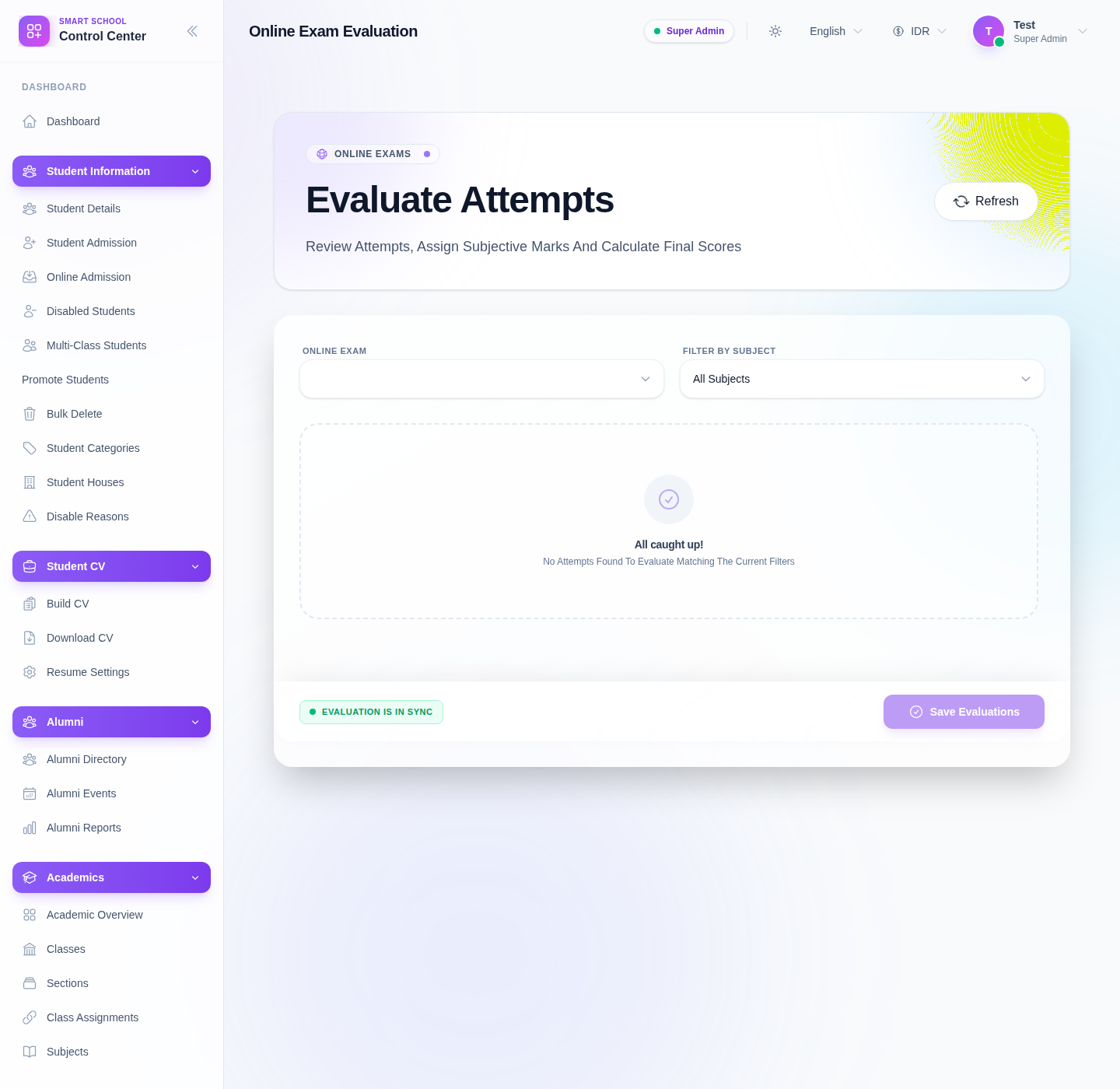
The current page exposes:
- Online Exam
- Filter by Subject
- the attempt-review area
- Save Evaluations
Step 2: Select the online exam
Choose the target Online Exam first.
This tells the workspace which attempt set should be loaded for review.
Step 3: Narrow the review scope when needed
Use Filter by Subject when the exam contains multiple subject areas and you want to evaluate one slice at a time.
If you need a full review, leave the subject filter broad.
Step 4: Review attempt answers and assign marks
When attempt rows are available, use the answer-review area to:
- inspect each attempt
- review the submitted answers
- enter or adjust the marks that require manual evaluation
Then save the updated marks from the evaluation action bar.
Step 5: Save the evaluation state
Click Save Evaluations after confirming the marks you entered.
The page status area should return to an in-sync state after a successful save.
Important notes
Local limitation: during this audit, the evaluation filters and save area were verified, but the page remained in an All caught up! empty state with no attempts available to evaluate. In practice, that means your environment must already contain real student submissions before this page becomes useful for scoring work.
Verification checklist
- the correct online exam is selected
- subject filtering is used only when it helps the review
- submitted attempts are available before scoring begins
- score changes are saved successfully
- the evaluation state returns to synced after save
Troubleshooting
| Issue | Likely cause | What to do |
|---|---|---|
| No attempts appear | Students have not submitted the exam yet | Confirm the exam has live student submissions |
| The page only shows an empty state | Earlier workflow stages are incomplete | Recheck builder, student assignment, and question assignment |
| Save Evaluations is unavailable | No score changes are present or no attempt data is loaded | Load a valid exam with submissions and enter marks first |
| Review scope feels too broad | Multiple subjects are mixed in one exam | Use the subject filter to focus the scoring session |