This guide explains how to use Homework Templates to standardize repeated homework instructions before assigning them to students.
Short summary
Use Homework Templates to create reusable assignment shells with a title, instructions, subject linkage, session scope, default marks, and default dates. Operators can then duplicate, edit, or reuse those templates when creating student work.
Before you start
- Decide whether the template should be generic or tied to a specific academic session.
- Prepare the reusable instruction text, rubric notes, or expected marks.
- Confirm the correct Subject Group Subject if the template should be linked to one teaching stream.
- Decide whether default dates should be prefilled or left open for each future assignment.
Navigation path
Homework -> Homework Templates
Step 1: Open Homework Templates
In the sidebar, open Homework and select Homework Templates.
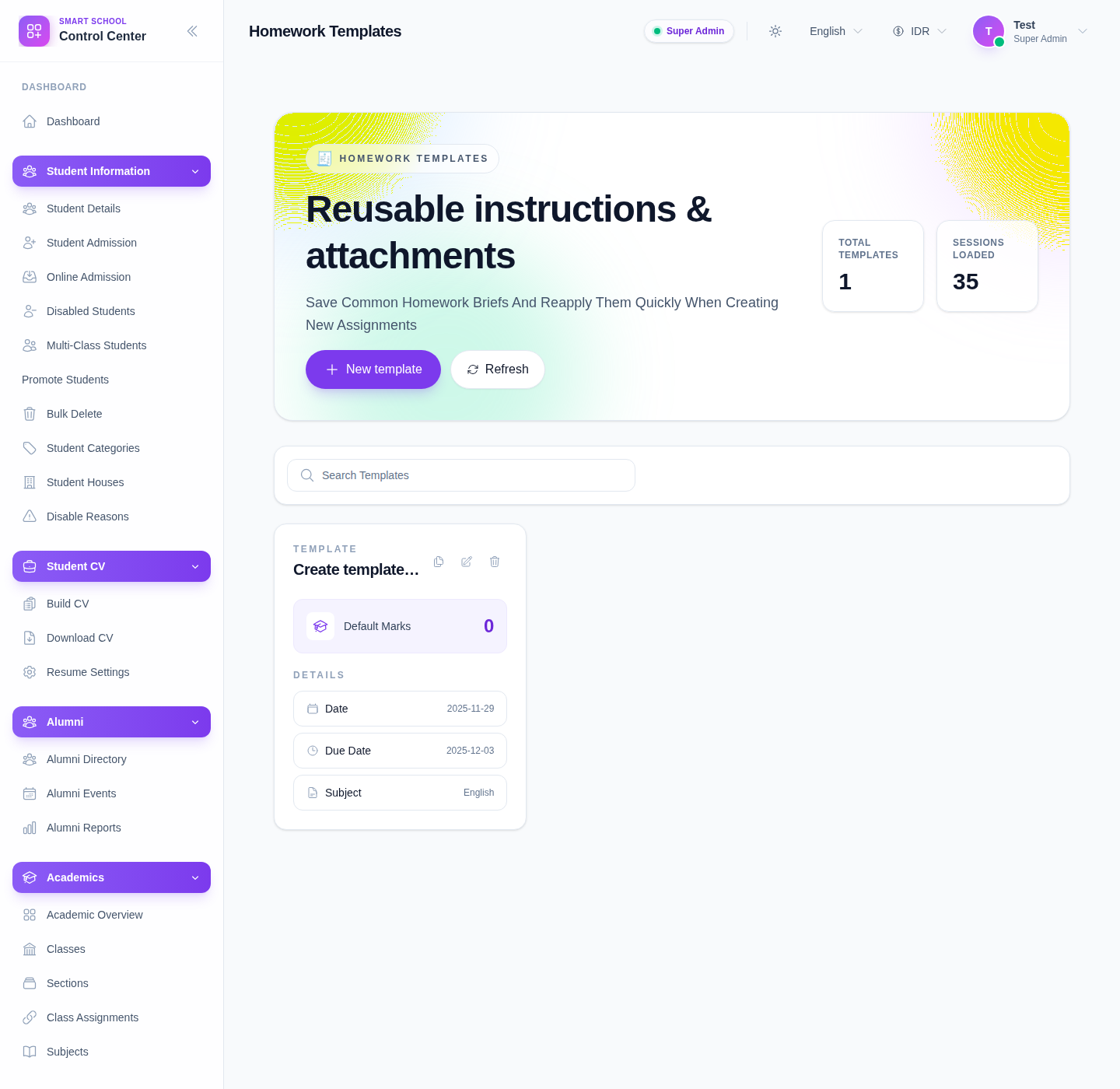
The current local workspace includes:
- a Total templates counter
- a Sessions loaded counter
- Search Templates
- Refresh
- New template
- row-level actions such as Duplicate, Edit, and Delete
Step 2: Review the existing template list first
Before creating a new template, check whether a reusable version already exists.
Use the search field to look for:
- the assignment title
- the subject
- an existing session-specific version
If a close match already exists, duplicating it is often faster than rebuilding the form manually.
Step 3: Open the template form
Click New template to create a new record, or use Edit on an existing row when you need to revise it.
The form supports these core fields:
- Title
- Description / Body
- Subject Group Subject
- Session
- Default Marks
- Default Date
- Default Due Date
Step 4: Fill the template in a reusable way
Treat the template as a reusable shell rather than a one-off assignment.
Recommended approach:
- use a stable title staff will recognize later
- place repeated guidance, rubric notes, or submission expectations in Description / Body
- connect the template to a Subject Group Subject only if it should stay constrained to that teaching context
- use Session if the template belongs to a specific academic period
- fill Default Marks only when the same scoring rule is reused often
- use Default Date and Default Due Date only when preset dates save time instead of causing later cleanup
Step 5: Save and verify the row actions
Click Create Template or Update Template.
After saving:
- confirm the template appears in the list
- verify the title and subject context are correct
- test whether Duplicate, Edit, and Delete are available on the row
- confirm the template can be recognized easily by the staff who will reuse it later
Important notes
Local dataset note: the current local environment already contains a seeded template row with duplicate, edit, and delete actions visible. Use that as a reference when checking how a saved template should appear in the list.
Operational advice: do not overload templates with one-time dates or narrow instructions unless the school genuinely reuses that exact pattern. Overly specific templates create cleanup work later.
Verification checklist
- the title is specific enough to be reused safely
- body text contains reusable guidance, not one-off notes
- subject linkage is correct or intentionally left open
- session linkage matches the intended scope
- default marks and dates reflect the real operating pattern
- the saved row can be found through search
Troubleshooting
| Issue | Likely cause | What to do |
|---|---|---|
| The template is hard to find later | Title is too generic | Rename it with subject or workflow context |
| A teacher applies the wrong template | Subject or session scope is unclear | Edit the template and tighten the title or linked context |
| Default dates are causing bad future assignments | Template stores dates that should have stayed flexible | Remove the default date fields and save again |
| Duplicate content appears in the list | Staff created near-identical templates | Keep one canonical template and delete or rename the extras |