This guide documents the Assign Online Exam Questions page in the current local Smart School UI.
Short summary
Use Assign Online Exam Questions to choose the target exam, review available question-bank items, and save the question set that will be used in the online exam.
Before you start
- Create the online exam first.
- Decide whether you will reuse question-bank items, create new questions, or import by CSV.
- Confirm question metadata is available if your school depends on subject or question-type filtering.
Navigation path
Online Exams -> Assign Online Exam Questions
Step 1: Open the question-assignment workspace
Go to Assign Online Exam Questions from the online-exam menu group.
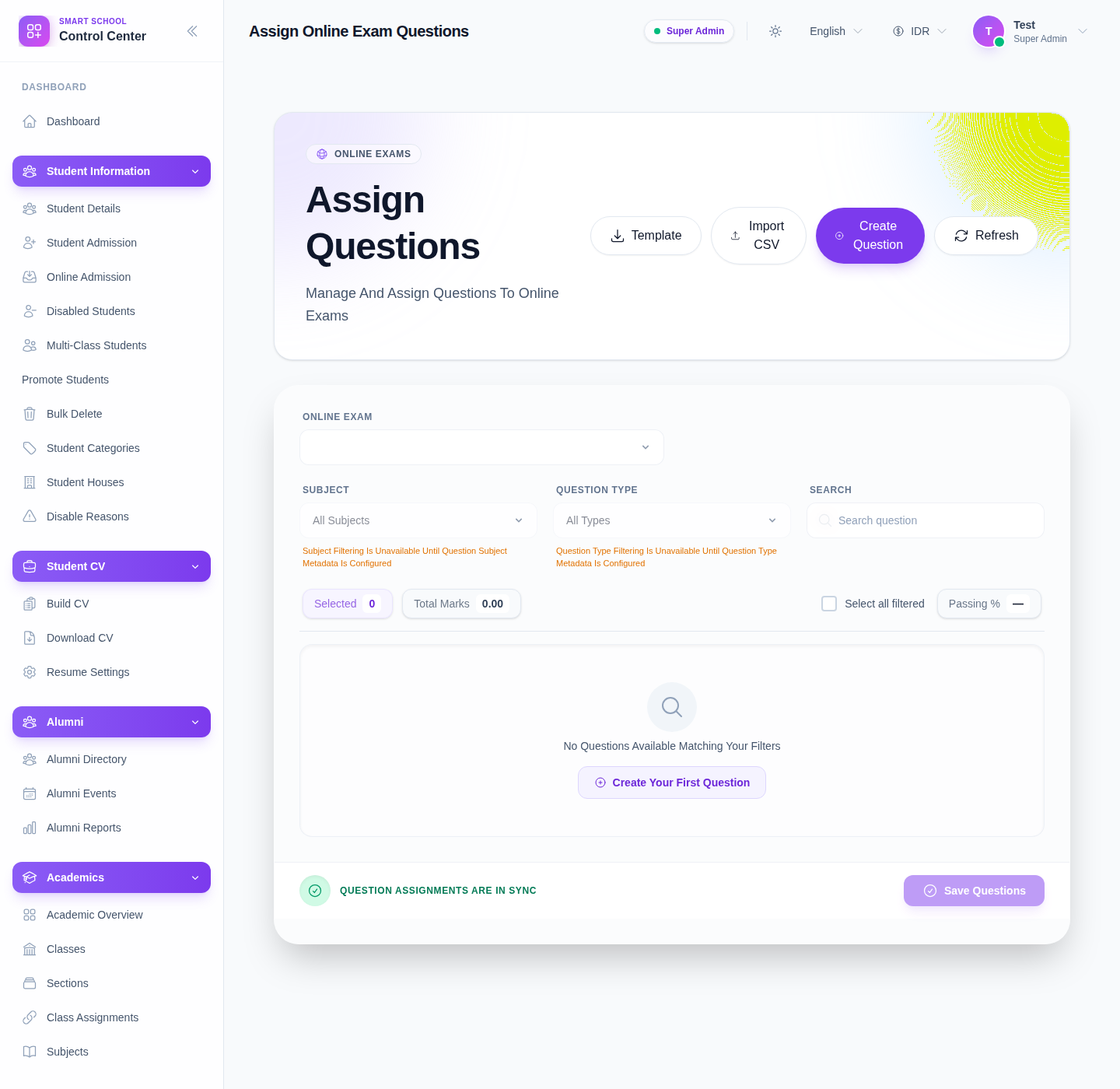
The current toolbar exposes:
- Template
- Import CSV
- Create Question
- Refresh
Step 2: Choose the target online exam
Select the Online Exam first so the page loads the correct assignment context.
This is the anchor for every later question-selection action.
Step 3: Review the available filters
The current page includes filters for:
- Subject
- Question Type
- Search
It also shows summary fields for:
- Selected
- Total Marks
- Passing %
Use these indicators to confirm how complete the exam paper is becoming.
Step 4: Add or source questions
Depending on the school workflow, use one of these entry points:
- Template to download or review the import structure
- Import CSV to bring in question-bank data in bulk
- Create Question to add a new item directly
After questions are available, select the rows that belong in the exam and confirm the marks total.
Step 5: Save the assignment
Use Save Questions after the selected question set matches the intended paper.
The status bar should return to a synced state when the assignment is stored successfully.
Important notes
Local limitation: during this audit, the page structure, action toolbar, filters, and totals were verified, but the workspace stayed in an empty state with No Questions Available Matching Your Filters. The local UI also indicated that subject and question-type filtering were unavailable until question metadata is configured.
Verification checklist
- the correct online exam is selected
- the question source method is chosen intentionally
- selected-count and total-marks indicators match the intended paper
- filters are used only when the required metadata is available
- the page returns to a synced state after save
Troubleshooting
| Issue | Likely cause | What to do |
|---|---|---|
| No questions appear | The question bank is empty or the current filters are too narrow | Reset filters and confirm questions exist in the bank |
| Subject or type filtering is unavailable | Metadata support is not configured in the current dataset | Use general search or configure question metadata first |
| Save Questions stays unavailable | No question rows are selected | Select at least one valid question for the exam |
| Teachers cannot build the paper | Create or import actions are unavailable | Check permission scope and question-bank readiness |