This guide explains the current Fees Reminder workflow in the shipped Smart School UI.
Short summary
Use Fees Reminder to configure when the system should treat fee reminders as active before or after due dates. The current page is schedule-oriented configuration, not a one-click send campaign screen.
Before you start
- Confirm the school’s reminder policy for before-due and after-due follow-up.
- Decide which reminder rows should stay active and which should be disabled.
- Confirm the day values before saving changes.
Navigation path
Fees Collection -> Fees Reminder
Step 1: Open Fees Reminder
In the sidebar, open Fees Collection and choose Fees Reminder.
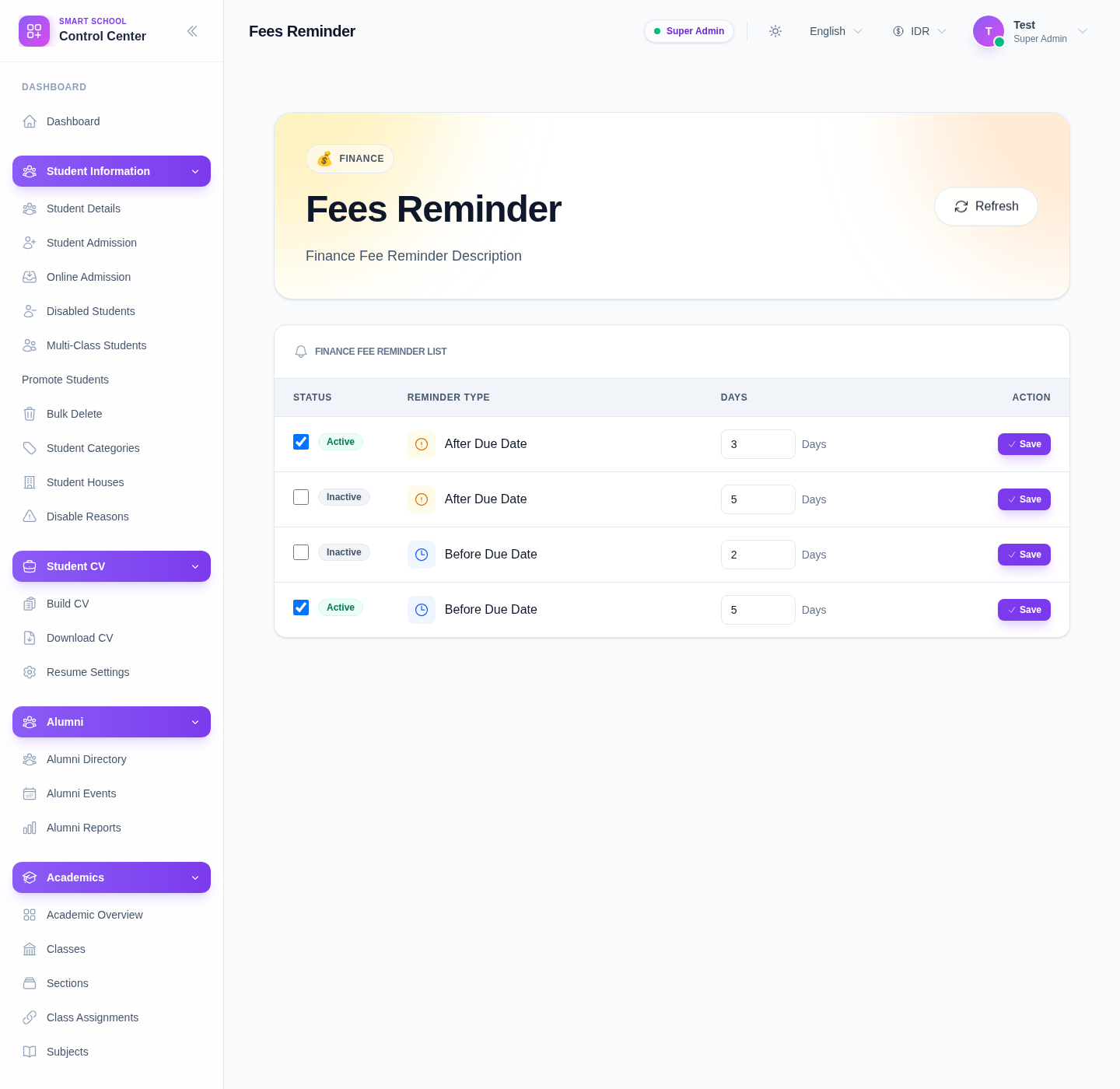
The page currently exposes reminder rows with:
- active or inactive state
- reminder type
- number of days
- Save
Step 2: Understand the reminder rows before editing
The current rows are built around reminder timing such as:
- Before Due Date
- After Due Date
Treat each row as a reminder template entry that controls timing behavior, not as a single outgoing message.
Step 3: Activate or deactivate the relevant rows
Use the row toggle to decide whether each reminder rule is active.
Keep only the rows that match the school’s real reminder policy. Disable the others instead of leaving conflicting reminder windows active.
Step 4: Set the correct day values
For each active rule, enter the number of days that should control the reminder:
- days before due date
- days after due date
Be careful with duplicate or conflicting values, especially when multiple before-due or after-due rows already exist.
Step 5: Save the reminder configuration
After checking the row:
- confirm the active state
- confirm the reminder type
- confirm the day value
- click Save
Repeat this process for any other reminder rows that need adjustment.
Important notes
Current-UI note: the shipped page currently behaves as a reminder-template configuration screen. It does not expose a separate one-click “send reminder now” workflow in the visible UI.
Local dataset note: the local environment already contains multiple active and inactive reminder rows, which makes it possible to verify the configuration pattern directly.
Verification checklist
- the intended reminder rows are active
- unnecessary reminder rows are inactive
- the day values match school policy
- each edited row is saved successfully
- staff understand this page controls timing rules, not just manual sending
Troubleshooting
| Issue | Likely cause | What to do |
|---|---|---|
| Reminder timing looks inconsistent | Multiple rows have conflicting active values | Review all active before-due and after-due rows together |
| Staff expect a send-now button | The current page is being misunderstood | Explain that this screen configures reminder timing rules |
| Wrong day value was saved | The row was edited too quickly | Reopen the page, correct the value, and save again |
| Too many reminders may be triggered | Too many rows are active at once | Disable the unnecessary reminder rows and keep only the intended policy set |