This guide explains how to use Student Information Reports after the reports remediation work. The current product uses one report-family layout with permission-based child routes, not one generic table for every student-related report.
Before you start
- Confirm which academic session, class, and section you need before opening the report family.
- Check which report branch you actually need: student roster, guardians, student history, account access, class subjects, admission register, sibling groups, profiles, ratios, or online admissions.
- Make sure your role includes the permission for the child report you want to open. Tabs are hidden when your role does not have access.
Tip: Opening
Reports -> Student Information Reportssends you to the first child route your account is allowed to access.
Navigation path
Reports -> Student Information Reports
Step 1: Open the Student Information report family
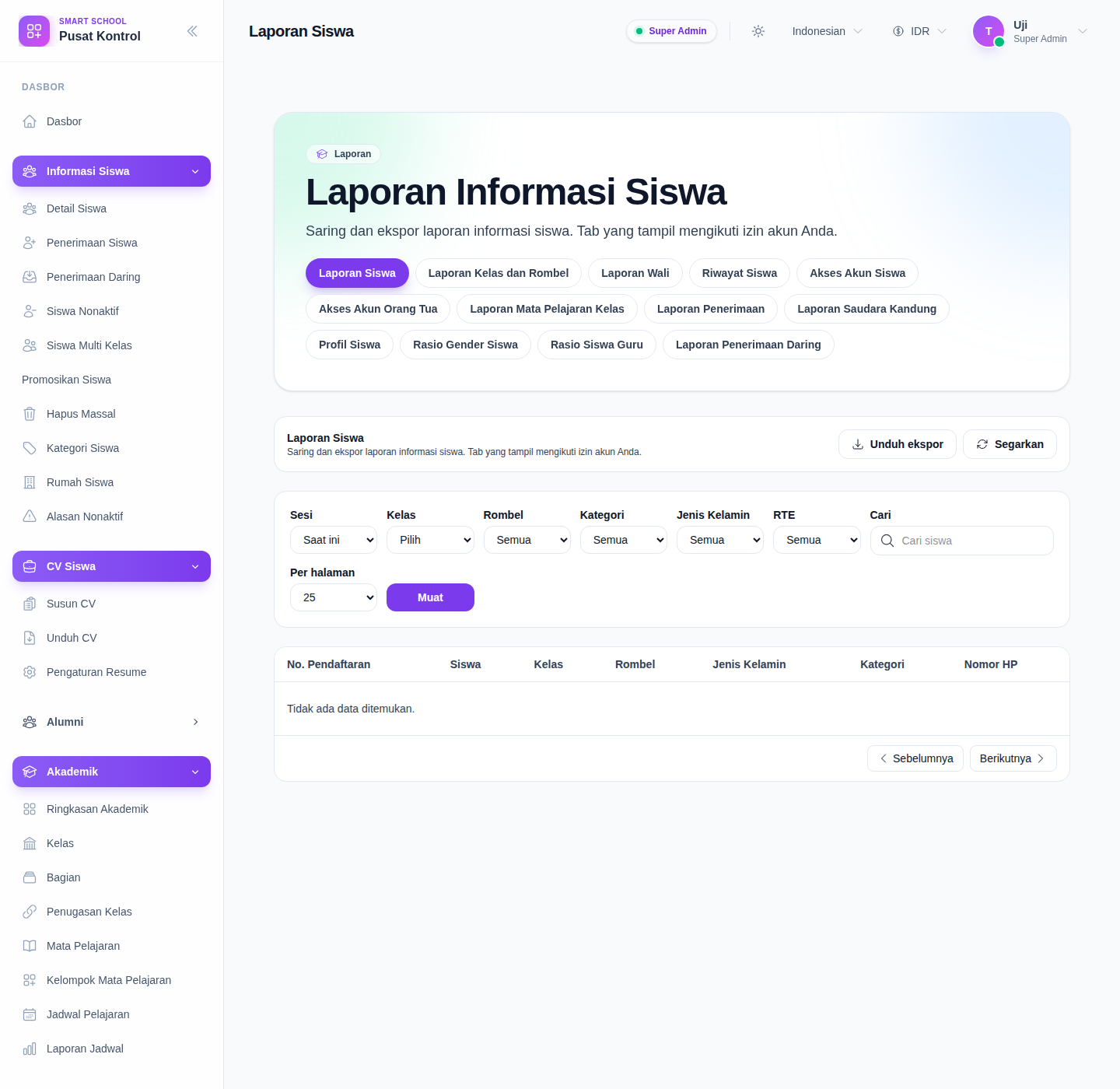
Open Student Information Reports from the Reports hub.
Step 2: Choose the report tab that matches your question
The current Laravel and Vue implementation can expose these child reports:
- Student Report
- Class Section Report
- Guardian Report
- Student History
- Student Account Access
- Parent Account Access
- Class Subject Report
- Admission Report
- Sibling Report
- Student Profile
- Student Gender Ratio
- Student Teacher Ratio
- Online Admission Report
Use the report tab to switch the reporting lens without leaving the same report family.
Step 3: Apply the filters for the active child report
The filters are not identical across every route. The active child report controls its own filter form:
- Student Report uses session, class, section, category, gender, RTE, search, and per-page controls.
- Guardian Report, Student Account Access, Parent Account Access, Class Subject Report, Sibling Report, and Student Profile are class-and-section-driven reports.
- Student History uses session, class, year, search, and paging.
- Admission Report uses class, section, date range, search, and paging.
- Student Gender Ratio and Student Teacher Ratio use session-based loading.
- Online Admission Report uses class, section, enrolled status, search, and paging.
Some routes require a minimum filter set before they will load. For example, the roster requires a class, while several child reports require both class and section.
Step 4: Review a standard child report
Use a standard list report when you need operational rows for follow-up or handoff.
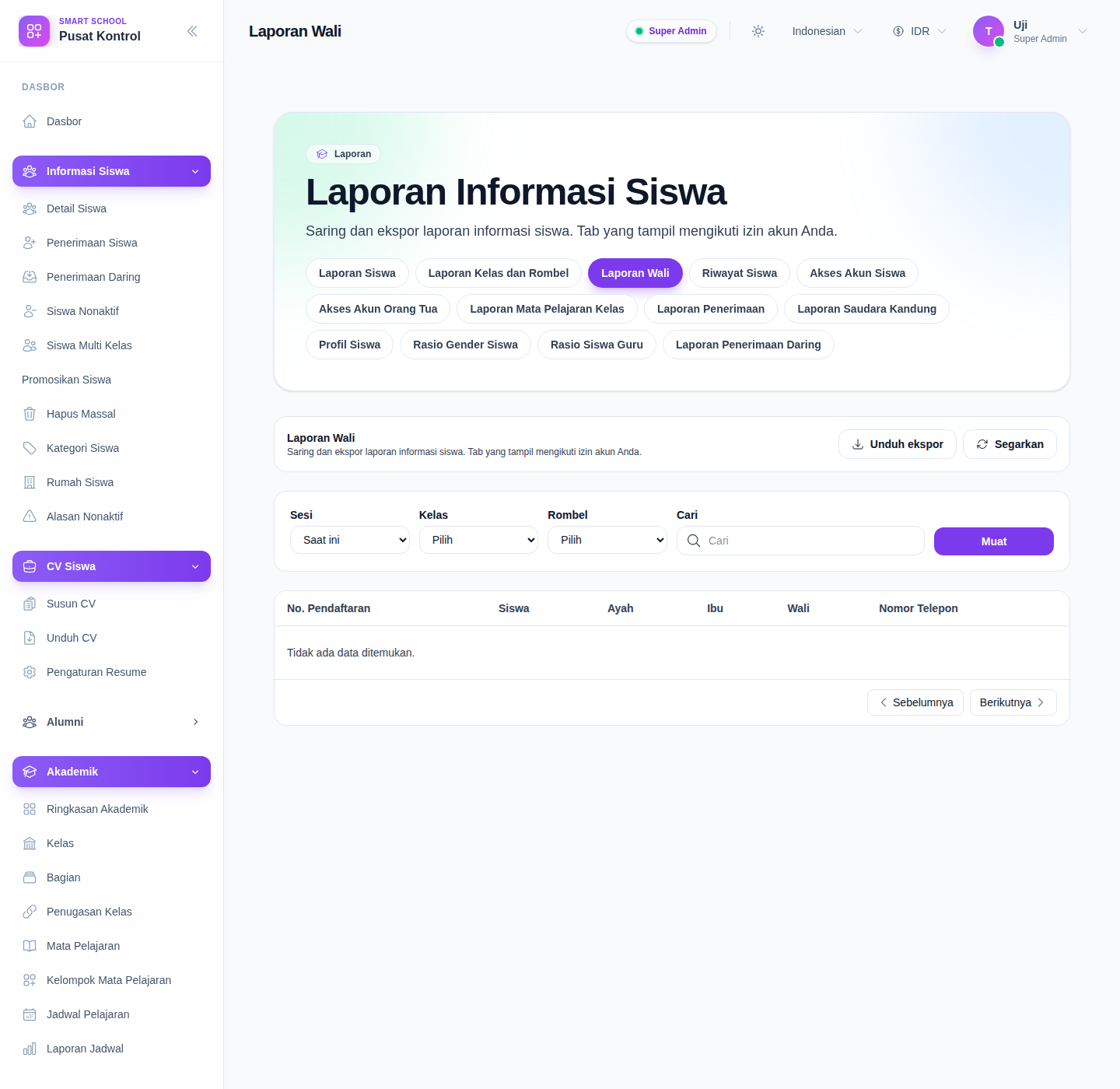
Typical list reports help you answer questions such as:
- which students belong to a class or section
- which guardian contact details are currently on file
- how a student’s admission history has changed across sessions
- which sibling groups share the same parent or guardian context
- which online admission submissions are pending, approved, or rejected
Step 5: Use the specialized routes when you need account-access or admissions-specific detail
The specialized child routes cover data that the older documentation did not describe clearly, especially login-access and admission-specific branches.
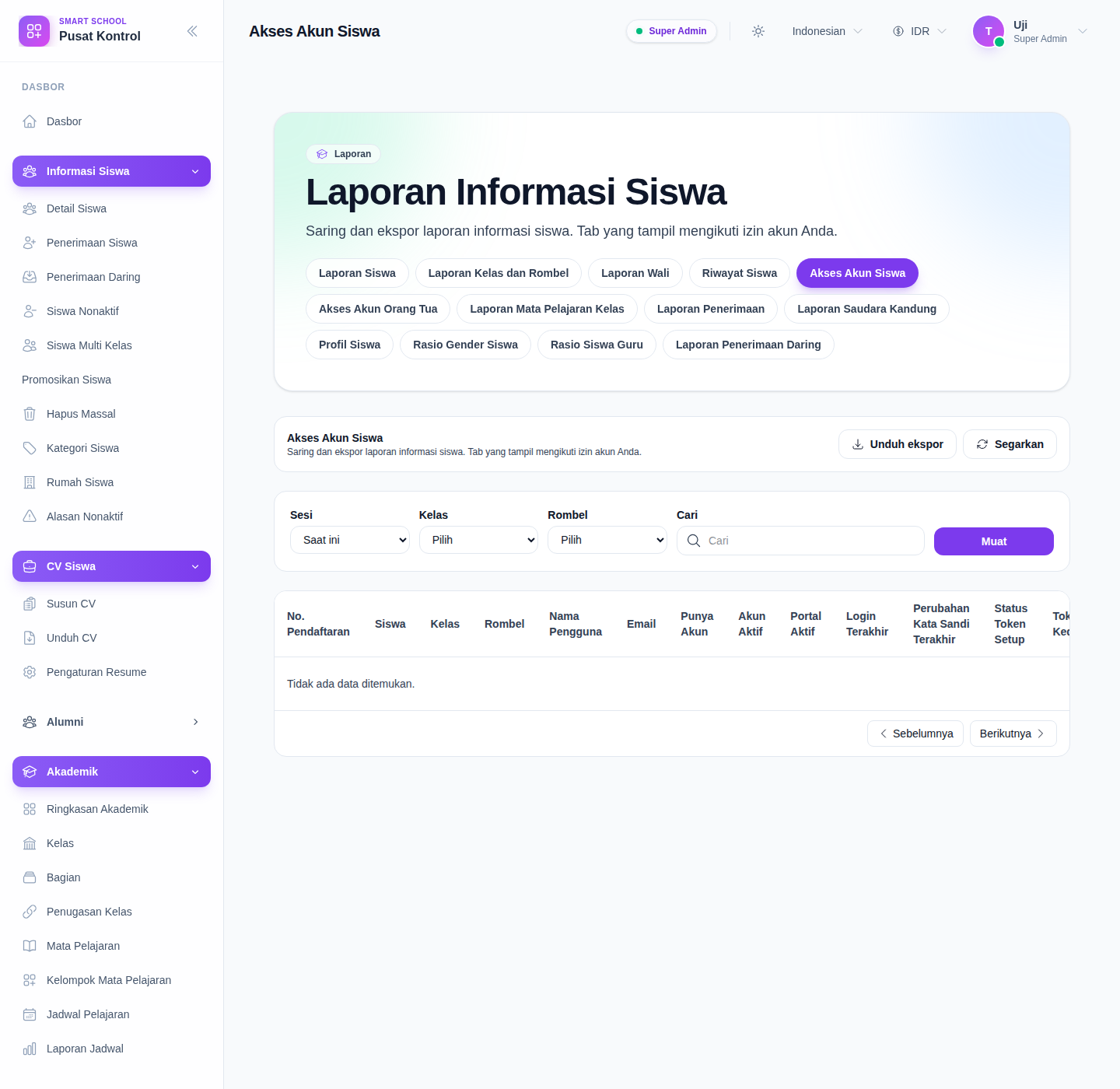
Use these routes when you need:
- Student Account Access or Parent Account Access for portal-login readiness and account troubleshooting
- Admission Report for class-and-date-range admission register output
- Student Profile for deeper demographic and guardian profile fields
- Student Gender Ratio or Student Teacher Ratio for summary-style staffing and population review
Step 6: Export or refresh the active report
Use Download export to queue or download the CSV for the active child report only.
Use Refresh when:
- student, guardian, or admissions data changed in another module
- you changed the route-specific filters and want to reload the results
- you want to verify the current empty state is real
If the active route is missing required filters, export is blocked until you complete the needed inputs.
Verify the result
- you landed on the correct child report for your task
- the visible tabs match your role permissions
- the filter set matches the active route, not a different report branch
- the rows, ratio cards, or empty state reflect the current filter combination
- the CSV export matches the active route and current filters
Troubleshooting
| Issue | Likely cause | What to do |
|---|---|---|
| A tab is missing | Your role does not have that report permission | Ask an admin to confirm the required report permission |
| The report does not load | The route requires class or class-and-section filters first | Complete the required filters, then load or refresh again |
| The export is empty or incorrect | The active child report or filter set changed before export | Reopen the correct tab, confirm the filters, then export again |
| The page opens on a different tab than expected | The family route redirects to the first permitted child report | Open the tab you need from the visible tab row |
| The table is empty | The current data slice has no matching students, guardians, or admissions rows | Broaden the filters or confirm that the empty state is expected |