This guide shows how to use the Setup workspace inside Front Office.
Short summary
Front Office setup controls the lookup values that power enquiry, visitor, and complaint workflows. Sources, references, visitor purposes, and complaint types all live in one shared workspace so front desk staff can keep their dropdown values aligned.
Before you start
- Decide which lookup tab you need before opening the drawer.
- Confirm whether the item is a source, reference, visitor purpose, or complaint type.
- Gather the display name and optional description before adding the item.
Navigation path
Front Office -> Setup
Step 1: Open the Setup workspace
Go to Front Office and select Setup.
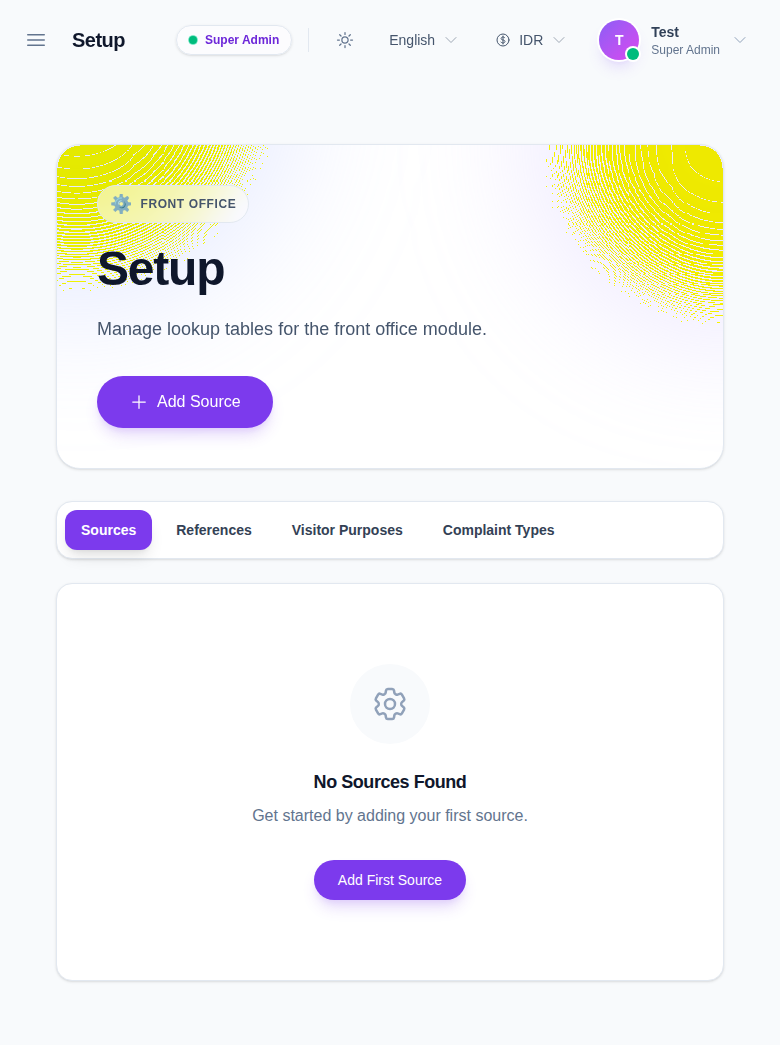
Use the tabs to switch between:
- Sources
- References
- Visitor Purposes
- Complaint Types
Step 2: Add or update a lookup value
Click Add Source or the matching add button for the active tab.
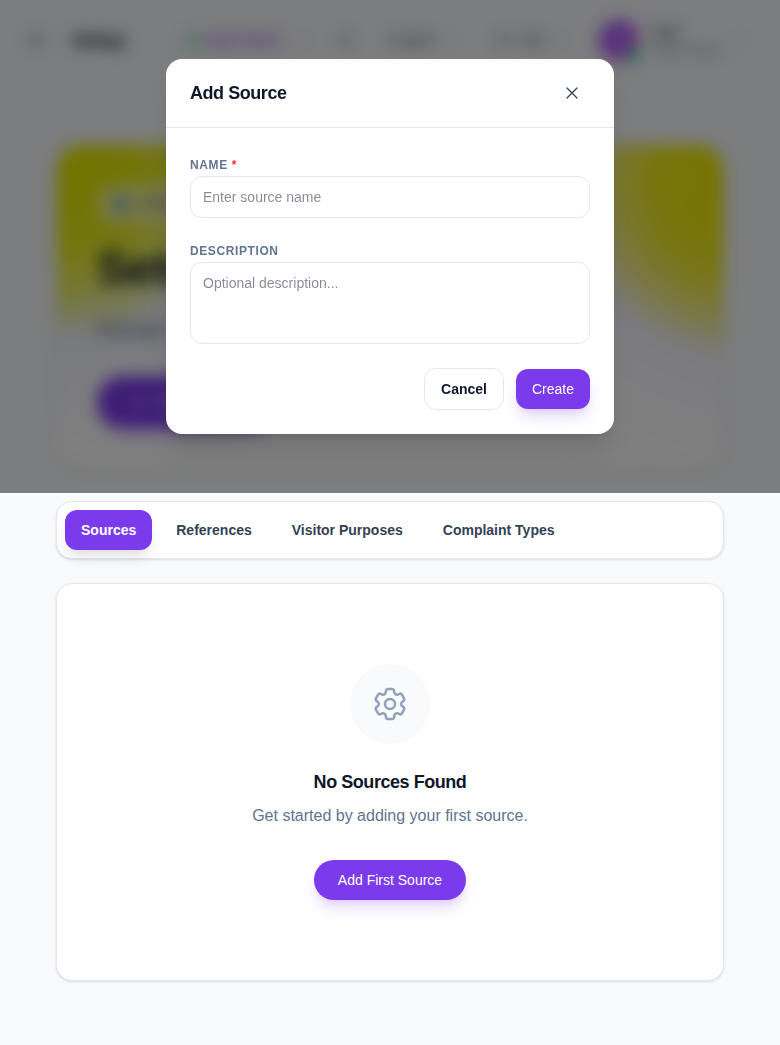
Complete the modal fields:
- Name
- Description
Use Create to save the lookup value. Edit and delete actions use the same workspace pattern.
Step 3: Verify the lookup value is available in other workflows
After saving:
- Open the related Front Office workflow.
- Check the matching dropdown list.
- Confirm the new value appears in the enquiry, visitor, or complaint drawer.
- Return to Setup if you need to correct the label or description.
Important notes
Important: Front Office setup is not a cosmetic screen. These lookup values control the options staff see in the operational drawers, so inconsistent labels will spread into live records.
Verification checklist
- The active tab matches the lookup type you intended to edit.
- The new value appears in the correct dropdown elsewhere in Front Office.
- The saved row appears in the setup table.
Expected result: Front Office lookup tables stay aligned with the enquiry, visitor, and complaint workflows.
Troubleshooting
| Issue | Likely cause | What to do |
|---|---|---|
| Save fails | The name field is empty | Enter the lookup name and try again |
| The new value is missing in a drawer | The related workflow has not been refreshed | Reopen the workflow or reload the page |
| Wrong tab is active | The setup page opened on the previous query state | Switch to the correct tab and reload the list |
| Delete is blocked | The lookup is still used by records | Review the dependent rows before deleting |