This guide explains how to work in the Issues & Returns workspace to track active library circulation and open the issue form for new loans.
Short summary
The library circulation screen combines search and status filters, a detailed issues table, a guided Create Issue modal, and an issue detail drawer for renew, return, lost, and damaged follow-up actions.
Before you start
- Confirm the member already has a valid library card.
- Confirm the selected book still has available circulation quantity.
- Decide the due date and any fine rule you want applied to the issue.
Navigation path
Library -> Issues
Step 1: Open Issues & Returns
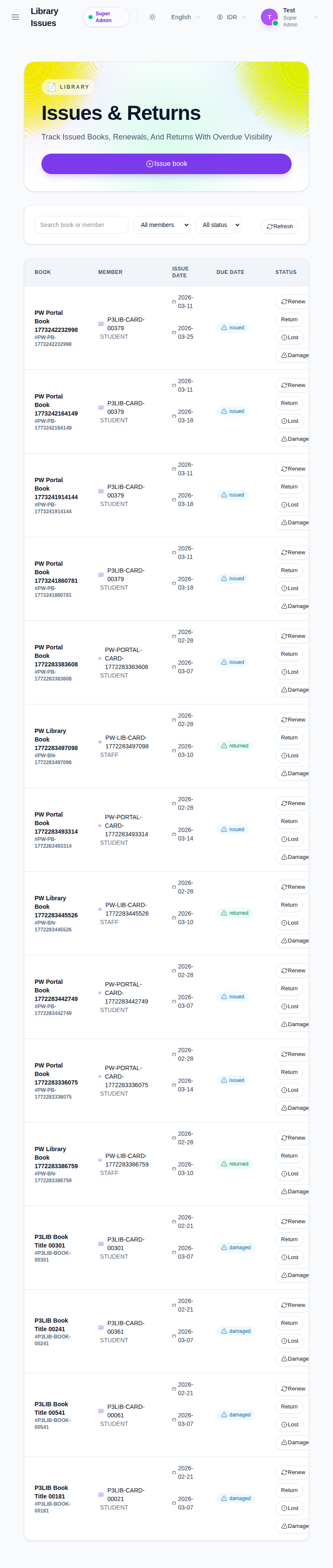
Go to Library in the sidebar and open Issues.
Step 2: Filter existing circulation records
Use the top controls to narrow the issue list:
- Search book or member
- All members
- All status
- Refresh
This helps you review issued, overdue, returned, lost, or damaged records before creating a new issue or processing a return.
Step 3: Start a new issue
Click Issue book.
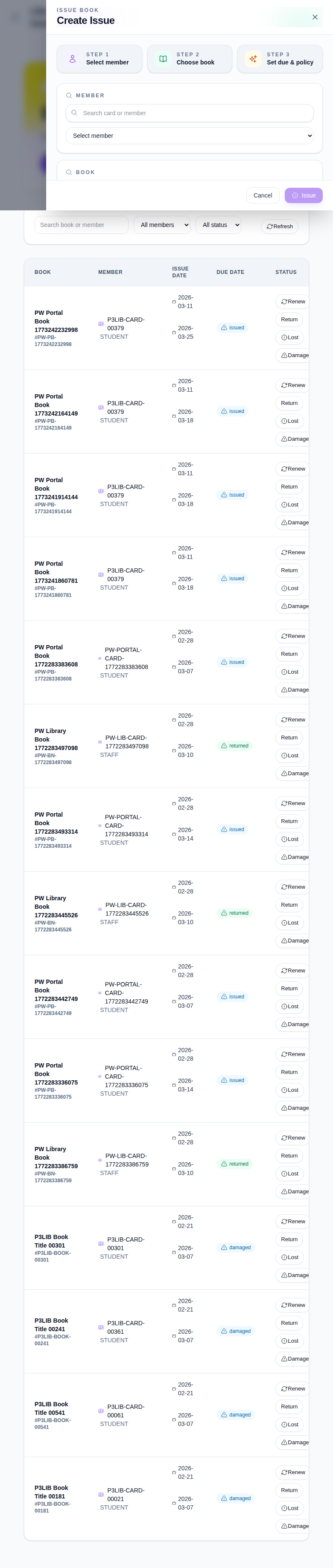
The issue form exposes three stages:
- Select member
- Choose book
- Set due & policy
Step 4: Complete the issue form
Fill the available fields:
- Search card or member
- Select member
- Search title / ISBN
- Select book
- Due date
- Fine rule
Review the policy summary at the bottom of the modal before clicking Issue.
Step 5: Review issue details and follow-up actions
From the issue table, click a book title to open the issue detail drawer.
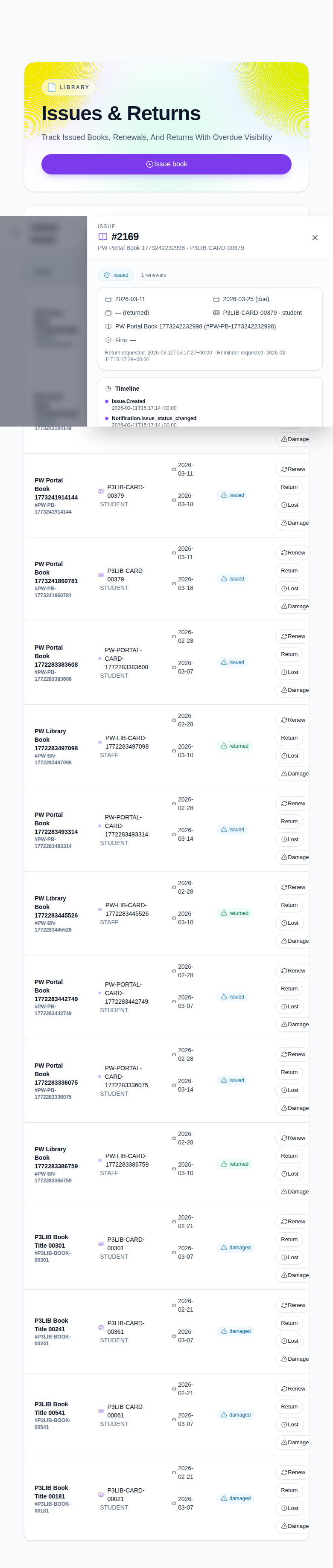
From this drawer you can review:
- issue status
- renewal count
- issue and due dates
- timeline entries
- fine-rule details
- Renew
- Return
- Mark lost
- Mark damaged
Step 6: Verify the circulation state
After issuing or updating an item:
- Return to the main table.
- Confirm the record appears with the correct member, due date, and status.
- Reapply filters if you need to inspect only issued, returned, overdue, lost, or damaged items.
Important notes
Important: lost and damaged actions are operational exceptions. Review the issue detail drawer first so the fine rule, timeline, and member context are correct before changing the record state.
Verification checklist
- The member and book are correctly matched in the issue modal.
- The due date and fine rule reflect the intended circulation policy.
- The issue appears in the table with the expected status.
- The issue detail drawer shows the correct timeline and follow-up actions.
Expected result: the library item is tracked in the Issues & Returns workspace and can be managed through issue-detail actions until the circulation cycle is complete.
Troubleshooting
| Issue | Likely cause | What to do |
|---|---|---|
| Member cannot be selected | Search terms do not match a valid card or member record | Search by card number or confirm the member exists in the library system |
| Book does not appear in the selector | Book availability or search terms are too narrow | Search by title or ISBN and confirm the book still has available copies |
| Wrong issue record opens | A different book title was selected from the table | Close the detail drawer and reopen the correct row |
| Status is hard to find in the list | Filters still point to another member type or issue state | Reset filters and reapply only the values you need |