This guide documents the Online Exams landing workspace in the current local Smart School UI.
Short summary
Use Online Exams as the control page for the digital exam workflow. It shows the four-step process, permission diagnostics, and the main search area used to monitor online-exam progress.
Before you start
- Confirm whether you need to create a new online exam or continue an existing one.
- Confirm the role has the permissions needed for the step you want to open.
- Treat this page as a workflow hub, not as the only place where work is completed.
Navigation path
Online Exams -> Online Exams
Step 1: Open the Online Exams workspace
Open Online Exams from the dedicated online-exam sidebar group.
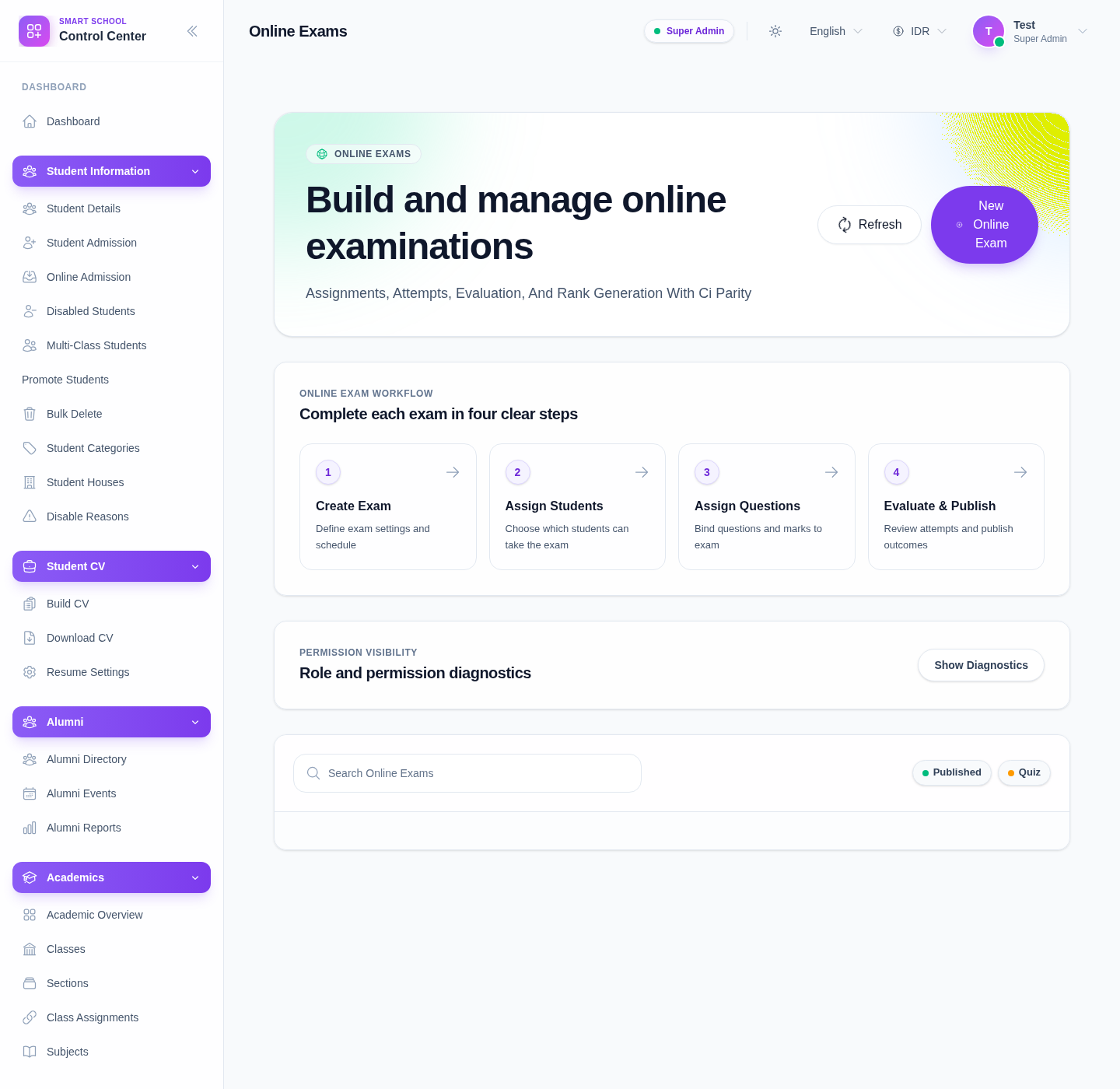
The page currently exposes:
- a New Online Exam entry point
- a four-step workflow panel
- a Role and permission diagnostics panel
- a search field for online exams
Step 2: Read the four-step workflow first
The workflow panel currently presents these steps:
- Create Exam
- Assign Students
- Assign Questions
- Evaluate & Publish
Use this order as the primary operating sequence. It matches the dedicated child pages exposed in the sidebar.
Step 3: Review permission diagnostics when a step is blocked
Open Show Diagnostics when a teammate cannot continue to the next stage.
Use the diagnostics panel to confirm whether the current role can:
- create an online exam
- assign students
- assign questions
- evaluate and publish
Step 4: Search and inspect the current workspace state
Use Search Online Exams to find the exam you want to continue.
The current page also surfaces status badges such as:
- Published
- Quiz
Use them as quick visual context before moving into the detailed builder, student, question, or evaluation page.
Step 5: Continue work in the correct child page
Use the workflow cards or quick action entry points to move into the exact operational page:
- Online Exam Builder
- Assign Online Exam Students
- Assign Online Exam Questions
- Online Exam Evaluation
This keeps the page useful even when the operator is not performing the final action from the landing screen itself.
Important notes
Local limitation: during this audit, the landing page rendered the hero, workflow, diagnostics, and search controls correctly, but the exam-list area stayed in an incomplete local state. Treat the page as a verified workflow hub and use the child pages for the detailed operational steps documented below.
Verification checklist
- the operator can see the four-step workflow in the correct order
- the right downstream page is chosen for the current task
- permission diagnostics are reviewed when access seems incomplete
- search is used before assuming an exam is missing
- the next action is taken in builder, student assignment, question assignment, or evaluation
Troubleshooting
| Issue | Likely cause | What to do |
|---|---|---|
| A user can see Online Exams but cannot continue to the next step | Step-specific permission is missing | Open diagnostics and confirm which permission is unavailable |
| Team members do not know where to continue | The landing page is being treated like a one-page workflow | Use the step cards to move into the dedicated child page |
| The search area shows little or no useful data | Local seed data is incomplete | Continue verification from the builder and assignment pages instead |
| Operators skip directly to evaluation | Earlier workflow stages were not completed | Return to create, student assignment, and question assignment first |