This guide explains how to manage school website pages from FrontCMS → Pages inside Smart School.
Short summary
The Pages workspace is the editorial surface for a school’s public site. It lets staff search existing pages, review homepage and sidebar state, open a page drawer for content editing, and control publication status without touching the separate SaaS landing page.
Before you start
- Confirm the page belongs to the school’s FrontCMS site, not the product landing page.
- Prepare the page title, slug, content, and any feature image you plan to use.
- Decide whether the page should be published immediately and whether it should appear in the sidebar.
Navigation path
Front Cms -> Pages
Step 1: Open the Pages workspace
Go to Front Cms in the sidebar and open Pages.
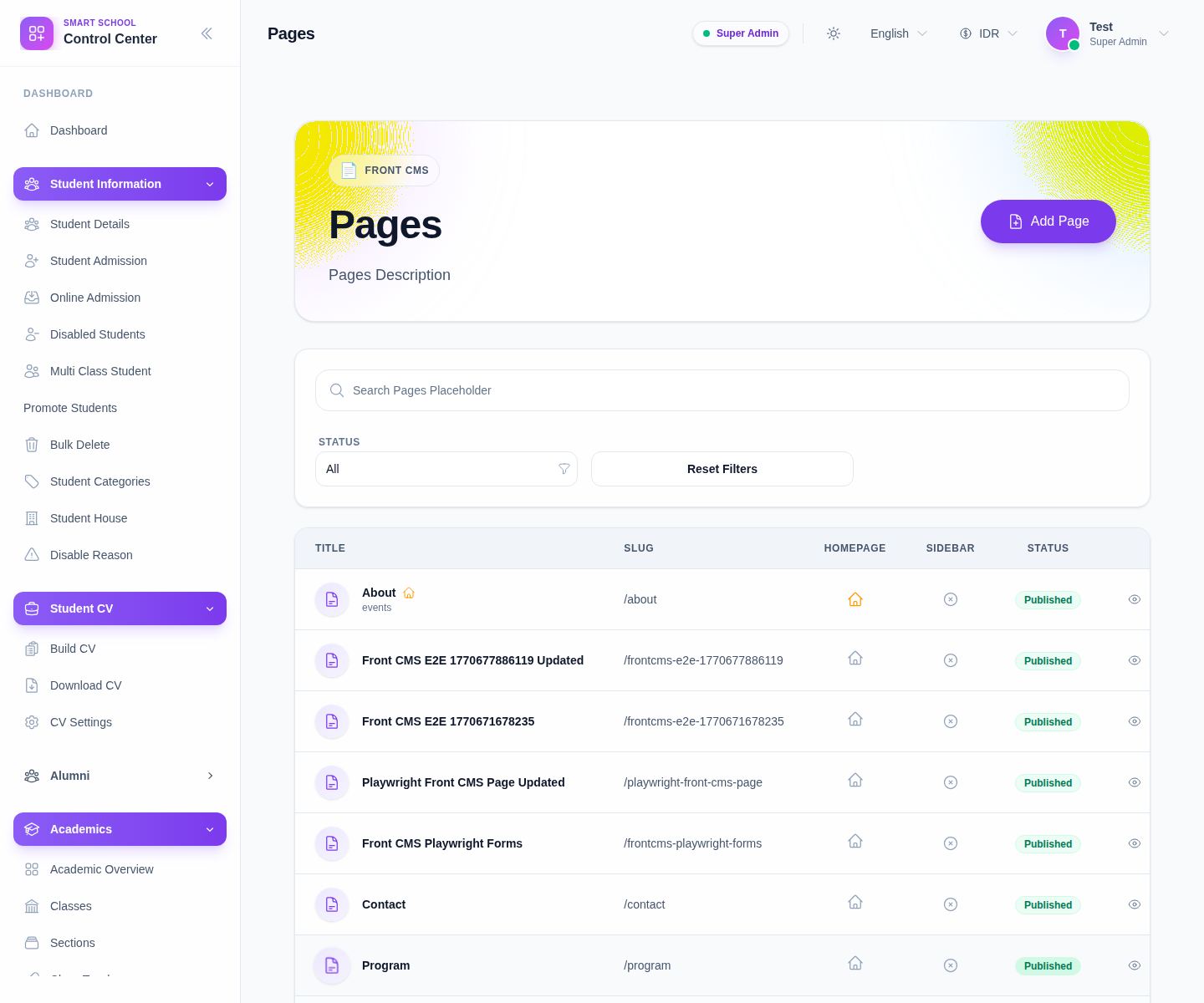
From this list you can:
- search for a page by title or slug
- filter by Status
- review whether a page is the homepage
- check whether the page shows in the sidebar
- use row actions such as View, Edit, Delete, and Set As Homepage
Step 2: Start a new page
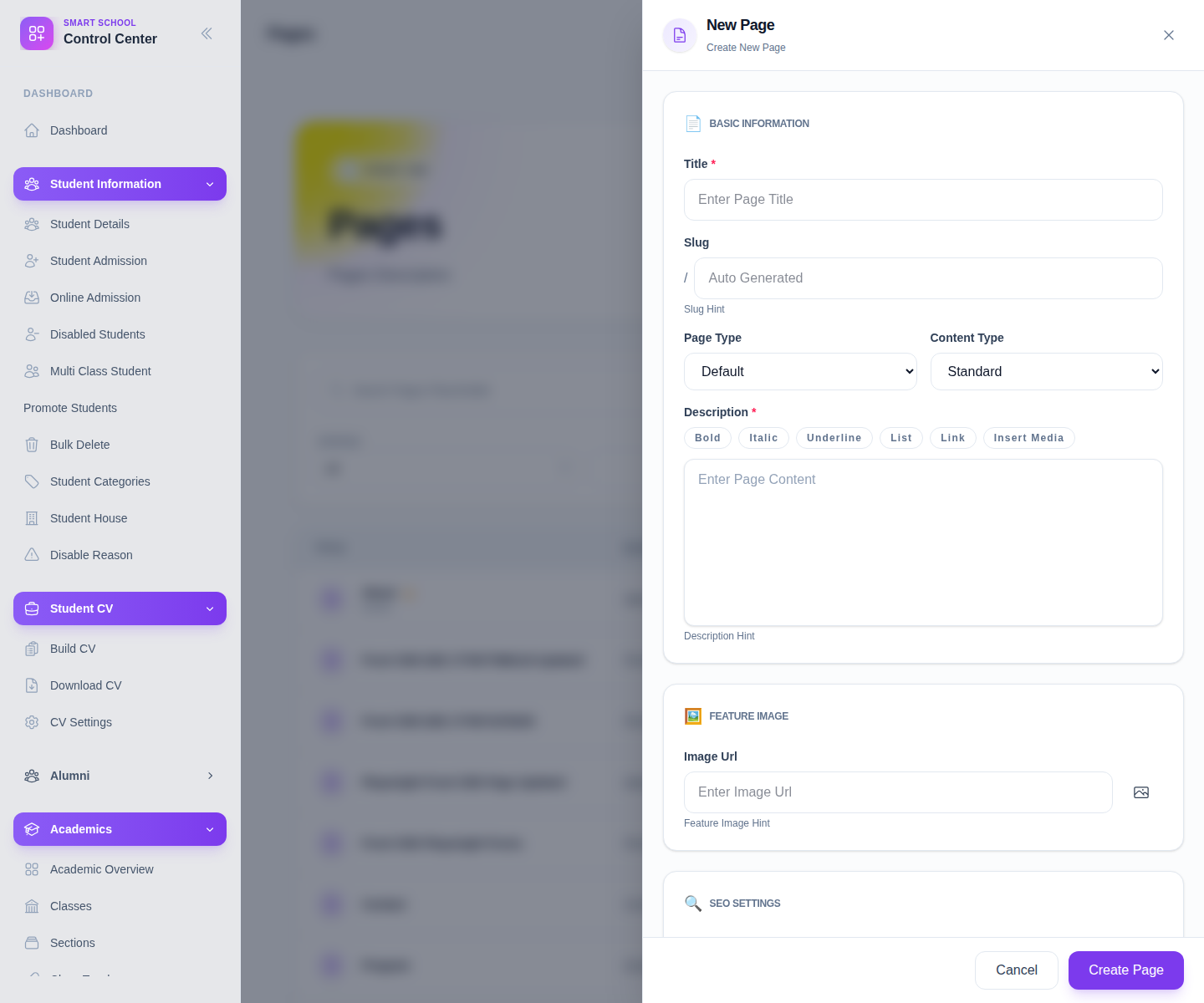
Click Add Page to open the page drawer.
Step 3: Complete the page content
Use the drawer sections to fill the page:
- Title
- Slug
- Page Type
- Content Type
- Description
The title can generate a slug automatically for new pages. Use the editor controls for formatting, links, and media insertion where needed.
Step 4: Add media and SEO details
Complete the supporting sections:
- Image URL or media-picker selection for the feature image
- Meta Title
- Meta Description
- Meta Keywords
These values help shape how the page appears on the public site and in search results.
Step 5: Control publishing
In the publishing section, decide:
- the Publish date
- whether the page is Active
- whether Published should stay enabled
- whether Show Sidebar should be enabled
Then click Create Page or the save action for an existing page.
After the page is saved, return to the table and use the row actions to:
- preview the page through View
- reopen the drawer with Edit
- set the page as homepage
- toggle publication status from the status badge
Step 6: Verify the public result
After publishing:
- Use View from the row action.
- Confirm the page loads on the school FrontCMS site.
- Check the title, slug, content, and sidebar behavior.
- If the page should lead visitors into online admission, confirm the content still points to the correct FrontCMS route.
Important notes
Important: FrontCMS manages each school's own public site inside Smart School. It is not the same thing as the separate Migdafa SaaS landing page and documentation site.
Audit note: the local FrontCMS Pages screen is usable, but some visible labels still render placeholder or fallback text such as generic description and search-copy strings in the current environment.
Verification checklist
- The page title and slug match the intended public URL.
- Publishing status is correct before you leave the drawer.
- Homepage and sidebar state match the intended public layout.
- The public page loads through the FrontCMS site after saving.
Expected result: the school page is available in the Pages manager and can be published, edited, or promoted to the homepage as needed.
Troubleshooting
| Issue | Likely cause | What to do |
|---|---|---|
| Slug looks wrong | Title was changed after the initial auto-generated slug | Edit the slug manually before saving |
| Page is saved but not public | Published is disabled or the page remains inactive | Reopen the page and check publish and status settings |
| Homepage indicator is wrong | Another page is still marked as homepage | Use Set As Homepage on the intended page and recheck the table |
| Some labels look generic | The local UI still has placeholder translation copy in a few FrontCMS labels | Validate the actual field meaning and saved data, not only the label wording |
Related guides
- FrontCMS And Portal
- How To Configure FrontCMS Settings
- How To Manage Banner Images
- How To Manage FrontCMS Notices
- How To Manage FrontCMS Events
- How To Manage FrontCMS Galleries
- How To Manage FrontCMS Menus
- How To Manage Media Library
- How To Manage Online Admission Form
- How To Manage Front Office Records