This guide explains how to work with the QR Scan Audit Logs page in Migdafa Smart School.
Before you start
- Know the date window you want to inspect.
- Decide whether you are investigating by status, device, or student code.
- Keep the scanner identifier in mind if multiple stations are in use.
- Expect the page to show an empty state when no logs match the filter set.
Important: audit logs are only useful when the filter context is intentional. Start broad, then narrow by status, device, or admission code as you identify the event pattern you need.
Navigation path
Attendance -> QR Scan Audit Logs
Step 1: Open QR Scan Audit Logs
Go to Attendance and choose QR Scan Audit Logs.
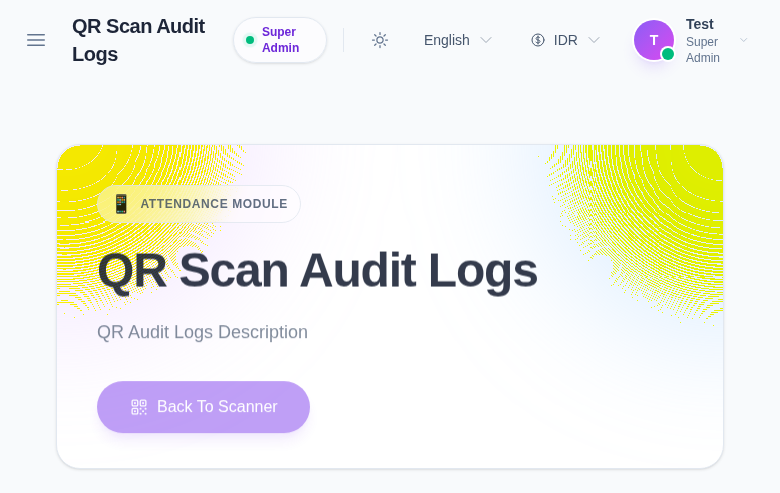
The current page exposes:
- search by Admission No Or Code
- Date
- Status
- Device
- Reset Filters
- Clear Filters
Step 2: Start with the broadest useful filter
Begin with Date when reviewing a day’s scan activity. Then add:
- Status when investigating duplicates, errors, or rejected scans
- Device when the issue might be tied to one scanner station
- admission code search when the issue is tied to one student
This reduces false conclusions caused by over-filtering too early.
Step 3: Review scan status patterns
Use the Status filter to isolate the type of event you need to understand.
Operational examples:
- accepted scans for normal successful capture
- duplicate scans when a code was used too quickly again
- rejected or error states when validation or formatting went wrong
The goal is to separate scanner behavior from user behavior before taking action.
Step 4: Review device-specific behavior
Use Device when one scanner location appears unreliable or when you need to compare one station to another.
This is especially useful after changing:
- scanner context
- device registration
- staff operating procedures at one scanning point
Step 5: Reset filters and compare again
Use Reset Filters or Clear Filters when you need to return to a broader view. This is often necessary after investigating one code or one device because the empty state can otherwise look like missing data.
Verify the result
Use this checklist after an audit review:
- the date range matches the event window you care about
- the status filter reflects the right class of issue
- device filtering matches the scanner station under review
- the audit interpretation is based on the filtered evidence, not assumptions
Expected result: QR scan events can be isolated by date, status, device, or student code so operators can review scanner behavior and attendance-capture outcomes more reliably.
Troubleshooting
| Issue | Likely cause | What to do |
|---|---|---|
| No logs are shown | Filters are too narrow or there are no matching events | Clear filters, then start again from date-only review |
| A device seems missing from the analysis | The wrong device filter is selected | Reset the device filter and recheck the station name |
| It is hard to identify one student’s events | The list is too broad | Search by admission number or code after setting the date |
| Duplicate or rejected events are hard to interpret | Status filtering has not been applied yet | Narrow by one status at a time before drawing conclusions |