This guide explains how to create a homework assignment from the Homework workspace and manage it through the list and filter controls.
Short summary
The Homework workspace uses a filter-driven list and a slide-in assignment form. You define context (session, class, section), add details such as due date and submission date, then save the assignment with optional marks, template, and attempts settings.
Before you start
- Confirm the target session is currently active or relevant to your assessment cycle.
- Confirm the class and section selected in the page filter have the intended students.
- If you use templates, prepare a template name and optional marks rubric before opening the create form.
- Decide whether resubmissions and max attempts are allowed for this assignment.
Navigation path
Homework -> Homework
Step 1: Open the Homework workspace
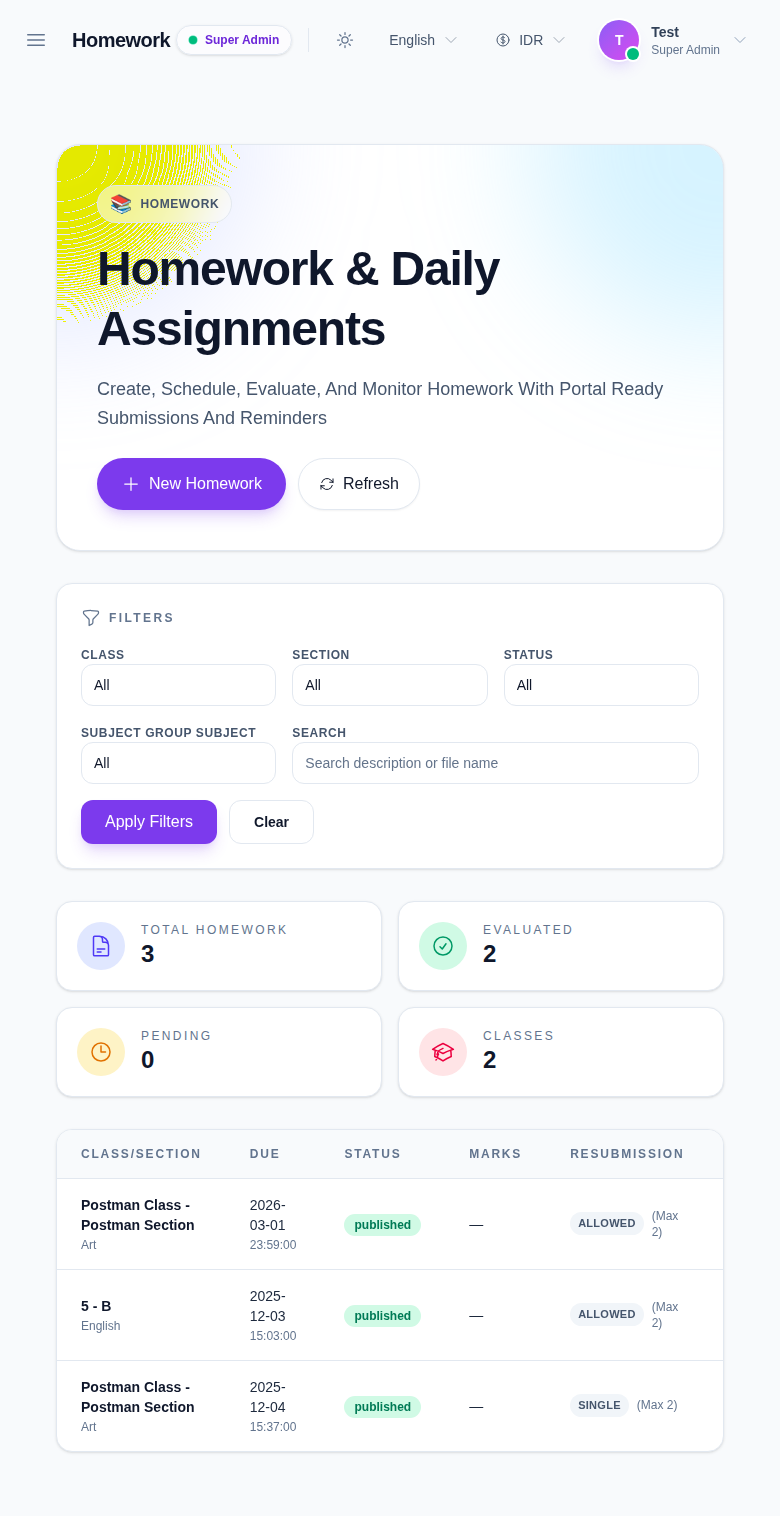
Go to Homework in the sidebar and choose Homework.
Step 2: Set context filters
Use the top filter controls to reduce the list to the target workgroup:
- Session
- Class
- Section
- Status
- Subject Group Subject
You can also use search to narrow the list after selecting the context.
Step 3: Open the New Homework form
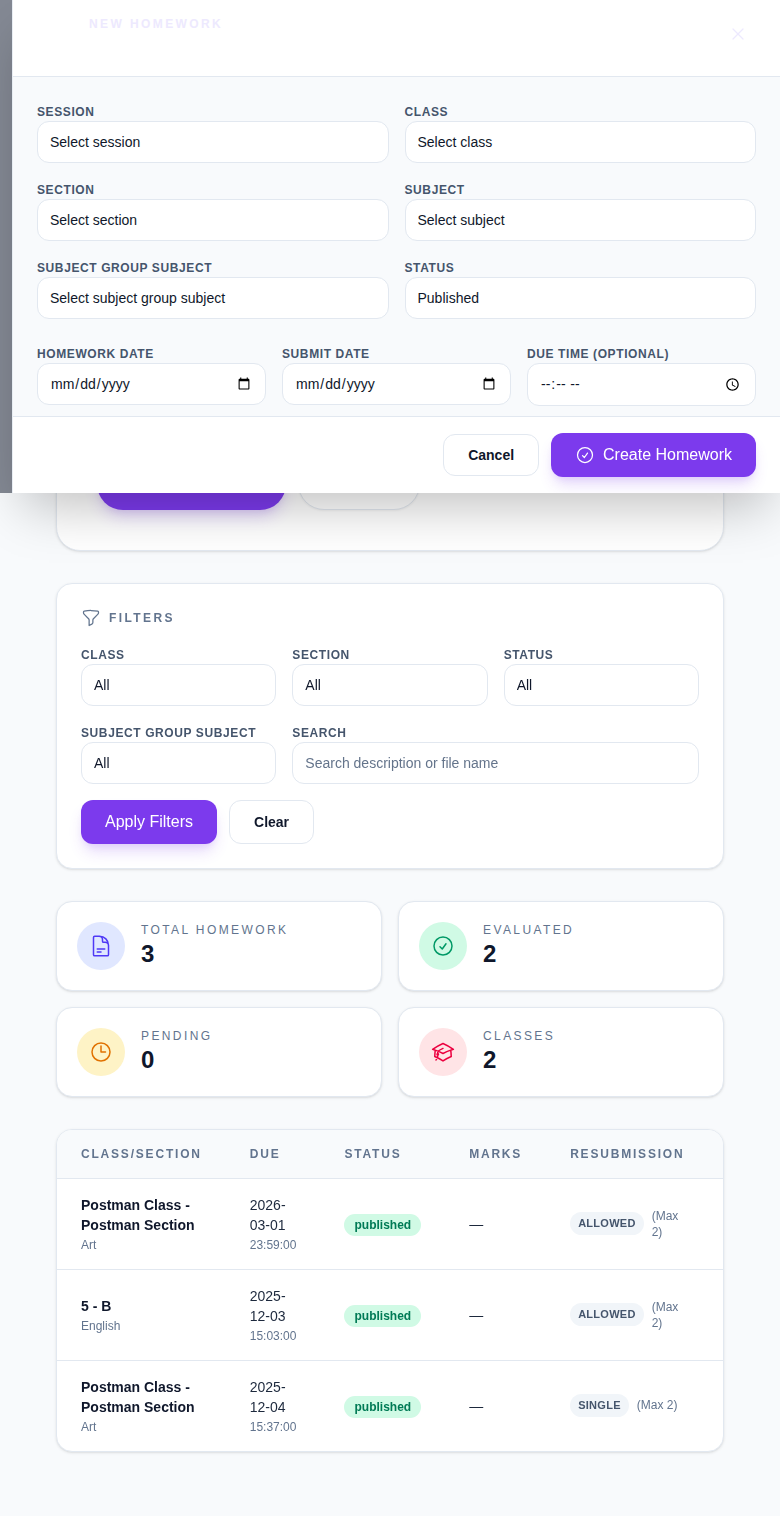
Click New Homework.
This opens the assignment form with structured fields for class targeting, timing, submission controls, scoring settings, and description.
Step 4: Complete required assignment details
At minimum, populate:
- Class
- Section
- Subject
- Subject group subject
- Homework date
- Submit date
- Description
Then configure optional controls based on your policy:
- Due time (optional)
- Marks (optional)
- Allow resubmission
- Max attempts (optional)
- Template (optional) and optional Apply
Step 5: Save and verify
- Click Create Homework.
- Return to the list and confirm the new assignment appears.
- Confirm status and section/class match your target context.
- Use the list filters if needed to validate placement.
Important notes
Note: the list is context-sensitive. If you created the assignment with an unexpected class/section, it may not appear until you switch context to that target group.
Verification checklist
- Session/class/section are correct.
- New homework appears with the expected title and subject.
- Homework date and submit date are visible in the list.
- Optional mark/attempt settings match the expected policy for this assignment.
Expected result: the new homework item is saved and visible in the Homework workspace for the selected context.
Troubleshooting
| Issue | Likely cause | What to do |
|---|---|---|
| New assignment is not visible | List context does not match created class/section/session | Switch filters to match the created assignment context |
| Subject or subject-group subject is not selectable | Filter combination is too restrictive | Recheck session/class/section first, then open New Homework again |
| Create action fails | Required values are missing or invalid | Fill all mandatory fields and verify dates are valid |
| Homework appears in wrong section | Source section/class selected was not intended | Update the assignment by re-opening the form from the list entry if the workflow exposes edit |