This guide explains how to use System Settings inside Administration to manage the global configuration that affects the whole school instance.
Before you start
- Confirm you are working with the correct school instance before saving changes.
- Decide which global settings should change and which should stay as-is.
- Gather any updated school name, contact, branding, language, currency, or WhatsApp details before you edit.
- Check whether the License tab is available for your role.
Important: changes made here can affect almost every other workflow in Smart School. Review each tab carefully before saving, especially when the setting changes portal behavior or maintenance state.
Navigation path
Administration -> System Settings
Step 1: Open the System Settings page
Go to Administration and open System Settings.
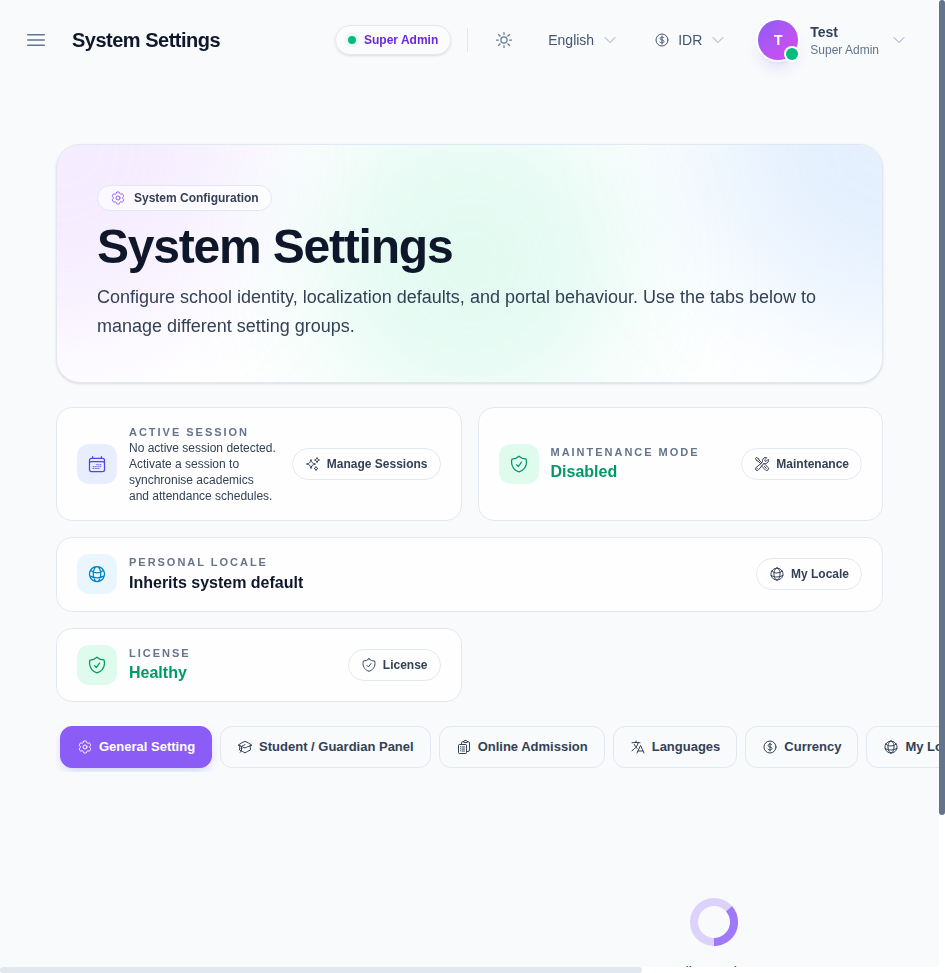
The top of the page shows summary cards for:
- active session
- maintenance mode
- personal locale
- license status
The tab row below the summary cards is the main control surface for the configuration area.
Step 2: Review the active session and global status cards
Before you edit anything, review the summary cards at the top of the workspace.
They help you confirm:
- which academic session is currently active
- whether maintenance mode is enabled or disabled
- which locale the current user inherits
- whether the license is healthy
If the session or license state is not what you expect, stop and confirm the wider system state before changing settings.
Step 3: Configure the General Setting and Student / Guardian Panel tabs
Use General Setting when you need to manage the core school identity and operational defaults.
Use Student / Guardian Panel when you need to change the portal-facing experience for students or guardians.
Typical checks in these tabs include:
- school name and address
- contact and branding information
- portal visibility options
- student-facing display preferences
Keep these values consistent with the school’s official identity and portal policy.
Step 4: Review the admission and localization tabs
Switch to Online Admission, Languages, Currency, and My Locale when you need to adjust the supporting configuration around admissions and localization.
These tabs are useful when you need to:
- control the online admission flow
- review language availability
- maintain the active currency set
- check the current user’s locale preference
In the current UI, the localization area is tied to the language and currency setup cards rather than being hidden in a separate settings screen.
Step 5: Check the WhatsApp, License, and Maintenance tabs
The remaining tabs are for operational system-level maintenance:
- WhatsApp for messaging integration details
- License for Super Admin licensing controls
- Maintenance for system maintenance state and related actions
If the License tab is not visible, your account likely does not have the required Super Admin access.
Step 6: Save and recheck the result
After making changes:
- Save the updated values in the tab you edited.
- Return to the summary cards and confirm the visible state still looks correct.
- Reopen the relevant tab if you need to verify the saved values.
- Refresh the page if the UI does not immediately reflect the new data.
Verify the result
Use this checklist after updating system settings:
- the school identity values match the official configuration
- portal-facing tabs still reflect the intended behavior
- localization values are correct for the active school environment
- the license and maintenance cards still look healthy
- no unintended changes were made to other tabs
Expected result: the school-wide settings reflect the approved configuration and the summary cards still show a healthy system state.
Troubleshooting
| Issue | Likely cause | What to do |
|---|---|---|
| A tab is missing | Your role does not have access to that setting group | Confirm Super Admin or the required settings permission |
| Changes do not appear after saving | The tab was not saved or the page needs a refresh | Save again, then refresh the page |
| License tab is not visible | You are not a Super Admin | Use a Super Admin account to manage licensing |
| The wrong locale or currency is shown | Another global preference is still active | Review My Locale, Languages, and Currency before saving |
| Maintenance status looks unexpected | Another operator changed the system state | Confirm the current maintenance policy before editing |