This guide explains how to prepare a student-promotion batch from the Promote Students page in Migdafa Smart School.
Before you start
- Confirm the current academic session, class, and section that still hold the source students.
- Confirm the target session, class, and section that will receive the promoted records.
- Review whether any students should repeat the class instead of passing forward.
- Decide whether students who are leaving should be marked as alumni.
- If your finance process uses outstanding balances, coordinate with finance before final confirmation.
Important: promotion is not only a class move. The workflow stores the relationship between the current academic session and the target academic session, so the selected source and destination must be intentional.
Navigation path
Student Information -> Promote Students
Step 1: Open Promote Students
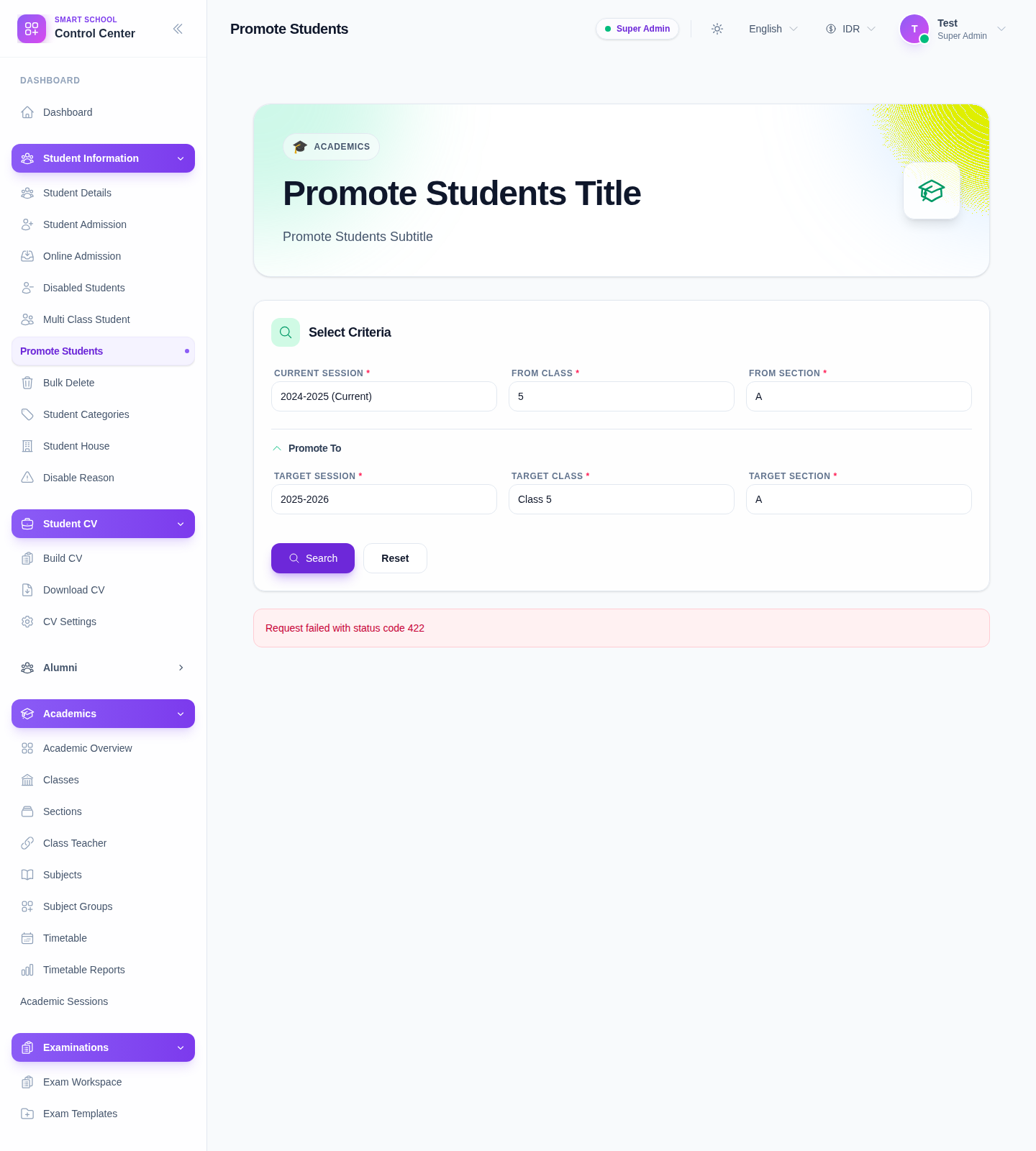
From Student Information, choose Promote Students. The page starts with a criteria form that defines the source group and the destination group for the promotion batch.
Step 2: Select the current student group
Fill the source side of the criteria card:
- Choose Current Session.
- Choose From Class.
- Choose From Section.
The section selector stays disabled until a class is selected. This prevents running the search with an incomplete source context.
Step 3: Select the target class and session
In the Promote To area:
- Choose Target Session.
- Choose Target Class.
- Choose Target Section.
Use the real destination where promoted students should continue next. If you are preparing a repeat batch, students can still be reviewed individually after the search.
Step 4: Run the search
Click Search after all six fields are complete.
What the search is designed to do:
- load eligible students from the selected source session, class, and section
- prevent mixing source and target context
- prepare a student list for individual pass or repeat decisions
- load fee-balance information used by the carry-forward warning banner
In the current UI logic, each loaded student starts with:
Result = PassNext Status = Continue
This means the default assumption is to promote each student unless you change the row-level decision.
Step 5: Review the loaded student list
When results are returned, the page shows a table with:
- selection checkboxes
- admission number
- student name
- father name
- date of birth
- result buttons (
PassorFail) - next status buttons (
ContinueorLeave) - fee balance
How to interpret the controls:
Pass + Continuemeans the student moves to the target class and target sessionFail + Continuemeans the student repeats rather than advancingLeavemeans the student should be handled as an exit/alumni outcome instead of continuing normally
Step 6: Adjust pass, repeat, and leave decisions
Review each student before finalizing:
- keep Pass for students who should move forward
- switch to Fail for students who must repeat
- switch Next Status to Leave for students who should not continue in the next regular class placement
Use the row-level controls instead of treating the whole batch the same when you have mixed outcomes in one section.
Step 7: Review fee warnings if they appear
The promotion page is designed to show a warning banner when some selected students still have unpaid fee balances.
What to review:
- how many selected students still have pending balances
- the total outstanding amount in the batch
- whether unpaid balances should remain in the old session or be carried forward
This is especially important when the academic rollover and finance rollover happen together.
Step 8: Select students and open the confirmation modal
Choose the students to include by:
- selecting rows one by one, or
- using the header checkbox to select the whole visible list
Then click Promote. The confirmation modal summarizes:
- total selected students
- how many will be promoted
- how many will repeat
- how many will be marked as alumni
If selected students have unpaid balances, the modal also exposes a checkbox to carry those balances forward into the new session.
Step 9: Confirm the promotion
Click Confirm in the modal when the summary is correct.
Expected outcome after a successful submission:
- promoted students move out of the current batch list
- a success message summarizes promoted, repeated, and alumni counts
- the remaining list can be reviewed again if only part of the batch was processed
Verify the result
After the promotion completes, verify these points:
- promoted students no longer appear as pending in the same promotion batch
- the new session or class context reflects the expected student placement
- repeat students remain aligned with the repeat decision
- alumni or leaving students are not treated as normal continuations
- any fee carry-forward decision has been coordinated with finance
Expected result: selected students are processed according to the chosen result and status, and the batch summary clearly separates promoted, repeated, and alumni outcomes.
Troubleshooting
| Issue | Likely cause | What to do |
|---|---|---|
| Search button stays disabled | One or more source or target fields are still missing | Complete all six required selectors first |
| Section field stays disabled | The class has not been selected yet | Select the class before choosing the section |
| No students are returned | No eligible students match the current source-target combination, or they were already processed | Recheck the source session, class, section, and destination criteria |
| Fee warning appears | Some selected students still have unpaid balances | Confirm the finance decision before final submission |
| Search returns a validation error about fee balances | The current environment may not be accepting the fee-balance query flag correctly | Retry after checking the environment, then verify the promotion API or local build configuration |