This guide explains how to use the current Inventory workspace for reporting. In the remediated Laravel and Vue product, inventory reporting is not a separate report hub page. It is handled through the Stock and Issued Item tabs inside the main inventory workspace.
Before you start
- Confirm that the inventory items you want to review already exist.
- Decide whether you need a balance view, a stock-intake history view, or an issue-and-return view.
- Prepare item, category, store, supplier, staff, or date filters before exporting.
- Make sure your role includes inventory viewing access. Entry and return forms only appear when the related manage permissions are available.
Important: Inventory reporting is split across tabs. Stock contains both Stock Report and Add Item Report, while Issued Item contains the issue-item report. Export always follows the currently active report state.
Navigation path
Fees & Finance -> Inventory
Step 1: Open the Inventory workspace
Open Inventory from the finance area. The workspace keeps item setup, stock intake, issue handling, and reporting in one place.
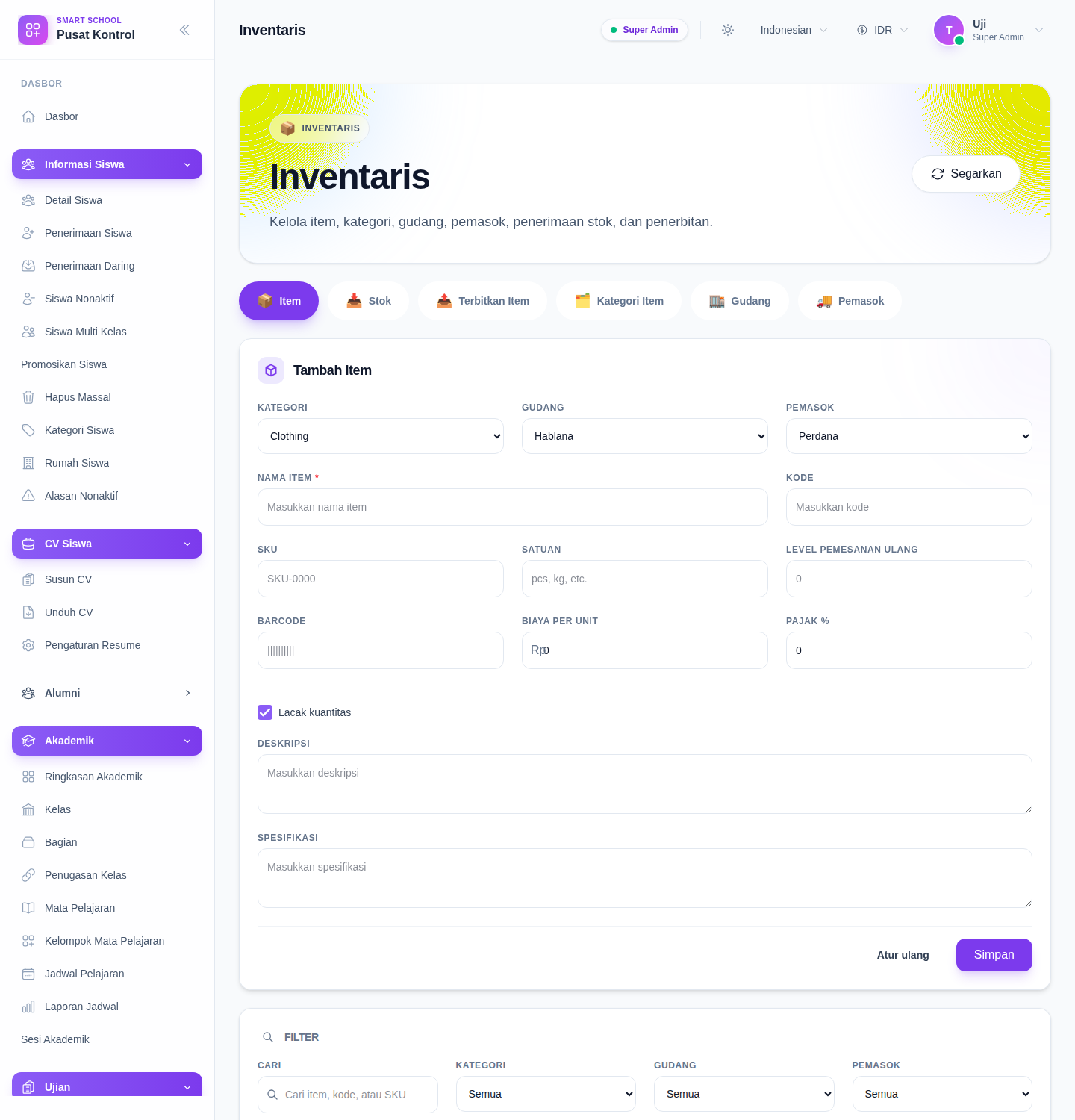
The current tabs are:
- Item
- Stock
- Issued Item
- Item Category
- Store
- Supplier
Step 2: Open the Stock tab and choose the report mode
Use Stock when your reporting question is about stock availability or stock intake.
The Stock tab contains two report modes:
- Stock Report
- Add Item Report
Both modes share the same filter row:
- Item
- Category
- Store
- Supplier
- From
- To
The same panel also provides:
- Reset
- Apply Filters
- Export CSV
Step 3: Use Stock Report for current balance and movement summary
Choose Stock Report when you need one row per item and store combination with movement totals.
The current report includes summary cards for:
- total items
- current available quantity
- received quantity in range
- issued quantity in range
- outstanding issued quantity
The table then shows the same report per row, including category, supplier, store, current stock, received quantity, issued quantity, returned quantity, and outstanding issued quantity.
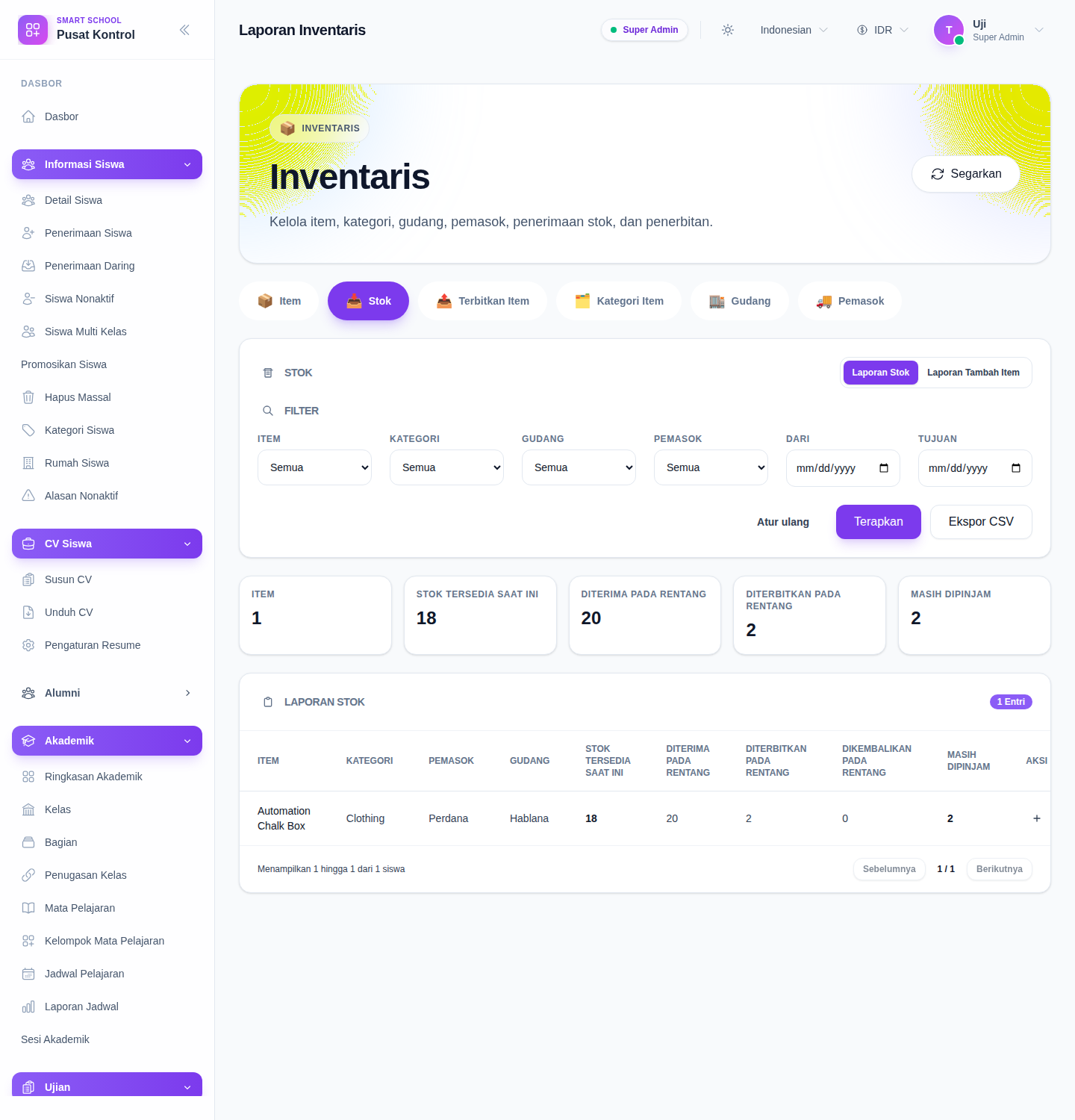
Use this mode when you need to answer questions like:
- how much stock is currently available
- which store currently holds the item balance
- how much was received or issued in the selected period
- whether any issued quantity is still outstanding
Step 4: Switch to Add Item Report for stock-intake history
Choose Add Item Report when you need the history of stock entries rather than the current balance.
This mode adds summary cards for:
- entries
- total quantity
- total purchase value
- total items
It also shows the embedded Add Stock form when your role can manage stock, followed by the add-item history table.
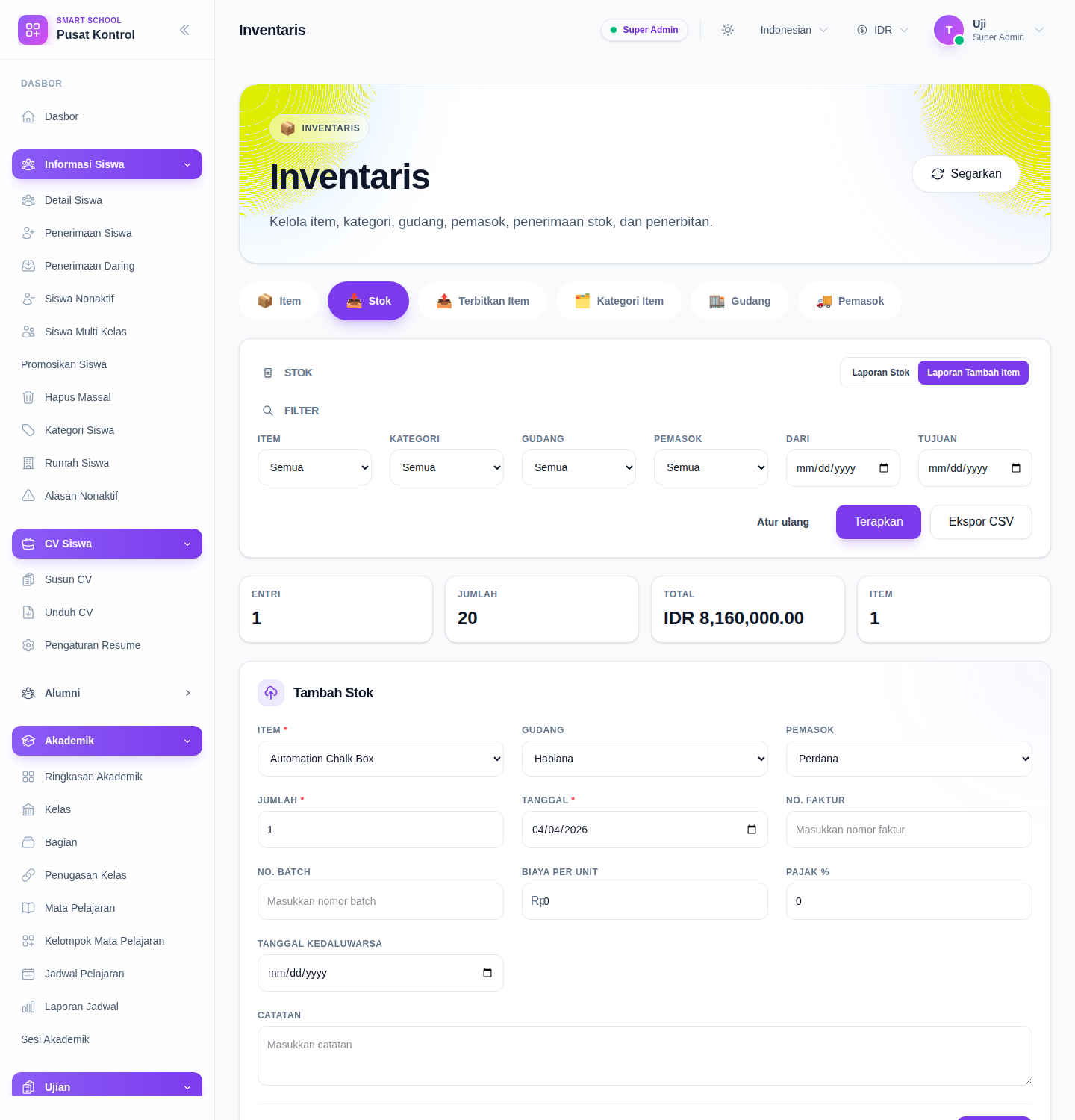
Use this mode when you need to review:
- intake quantity by date
- purchase value trends
- invoice or batch references
- which supplier or store was attached to a stock entry
Step 5: Open Issued Item for issue and return reporting
Switch to Issued Item when you need to review items handed to staff and their return status.
This report uses a dedicated filter set:
- Item
- Category
- Store
- Issued To
- Status
- Date range
The issued-item report includes summary cards for:
- entries
- issued
- returned
- quantity
The table shows the item, notes, category, store, issued-to staff, issued-by staff, quantity, status, issue date, expected return date, and return date.
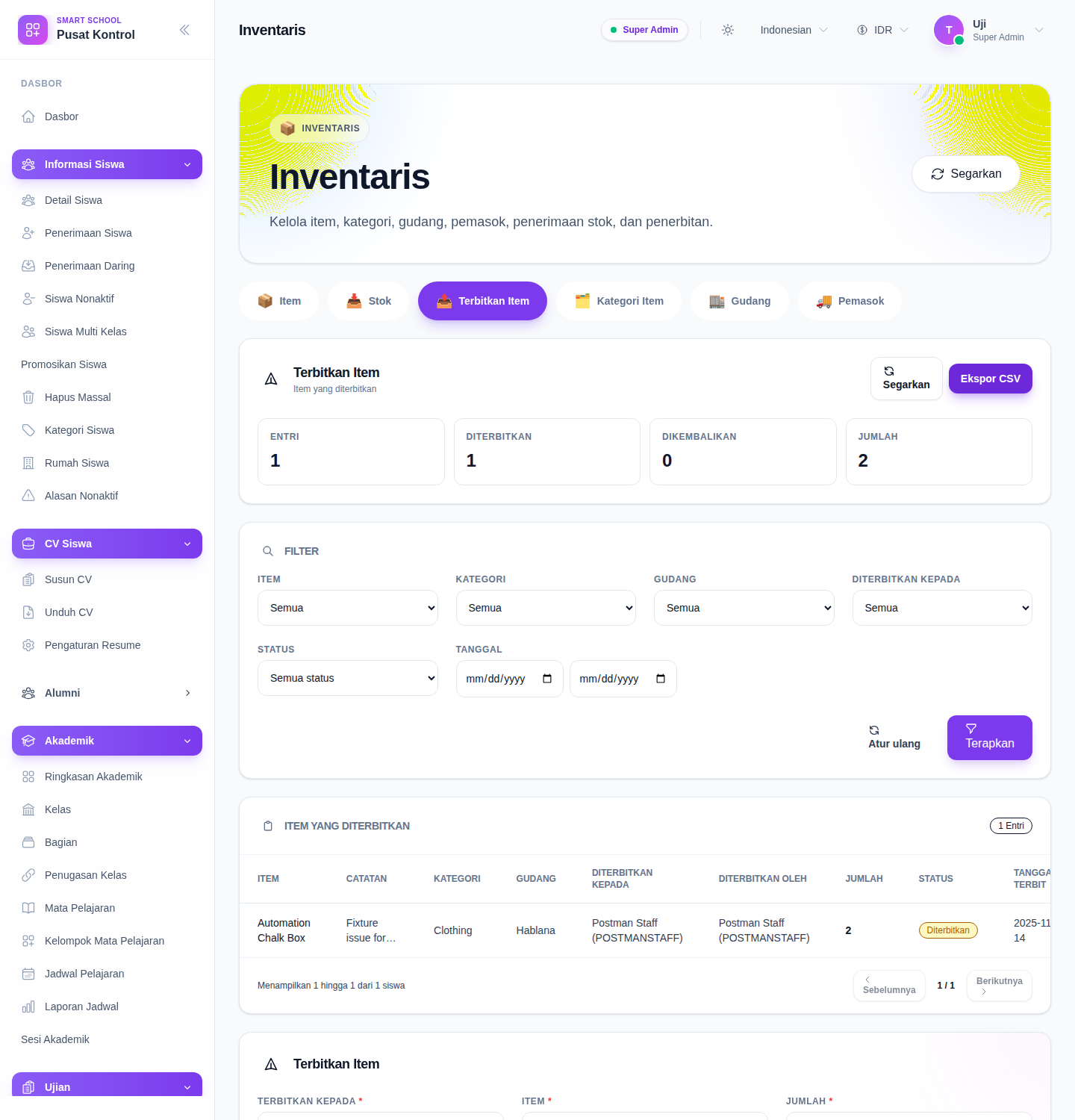
When your role can manage issues, this tab also exposes the issue form and the return action for rows that are still open.
Verify the result
- the active tab matches the report family you need
- the Stock tab is using the correct mode: Stock Report or Add Item Report
- the selected filters match the intended item, store, supplier, staff, or date window
- the summary cards and table rows change when you switch tabs or report modes
- the CSV export matches the active report, not a previous tab
Expected result: the Inventory workspace loads the correct stock or issue report, shows the matching summary cards and rows, and exports the same filtered state to CSV.
Troubleshooting
| Issue | Likely cause | What to do |
|---|---|---|
| The wrong report appears | The workspace is still on another tab or Stock sub-mode | Recheck the active tab and whether Stock Report or Add Item Report is selected |
| The table is empty | The filter combination is too narrow or there is no matching inventory activity | Clear filters or broaden the date range |
| CSV export does not match what you expected | Export follows the active report mode or tab | Confirm the selected tab, report mode, and filters before exporting |
| You cannot add stock or return an item | Your role only has view access | Ask an administrator for the related inventory manage permission |
| Stock numbers look inconsistent | The current item has issue activity or outstanding issued quantity in the selected period | Compare the stock balance report with the issued-item report for the same filters |