This guide explains how to use Search Expense to review previously recorded outgoing finance entries.
Short summary
Use Search Expense when the finance team needs to locate, filter, and review expense rows after they are entered. The current page uses a filter panel, a paginated results table, and row-level edit and delete actions.
Before you start
- Decide whether the review should be limited by date range.
- Use the correct expense head when you already know the spending category.
- Search by name or invoice reference when many similar rows exist.
Navigation path
Expense -> Search Expense
Step 1: Open Search Expense
In the sidebar, open Expense and choose Search Expense.
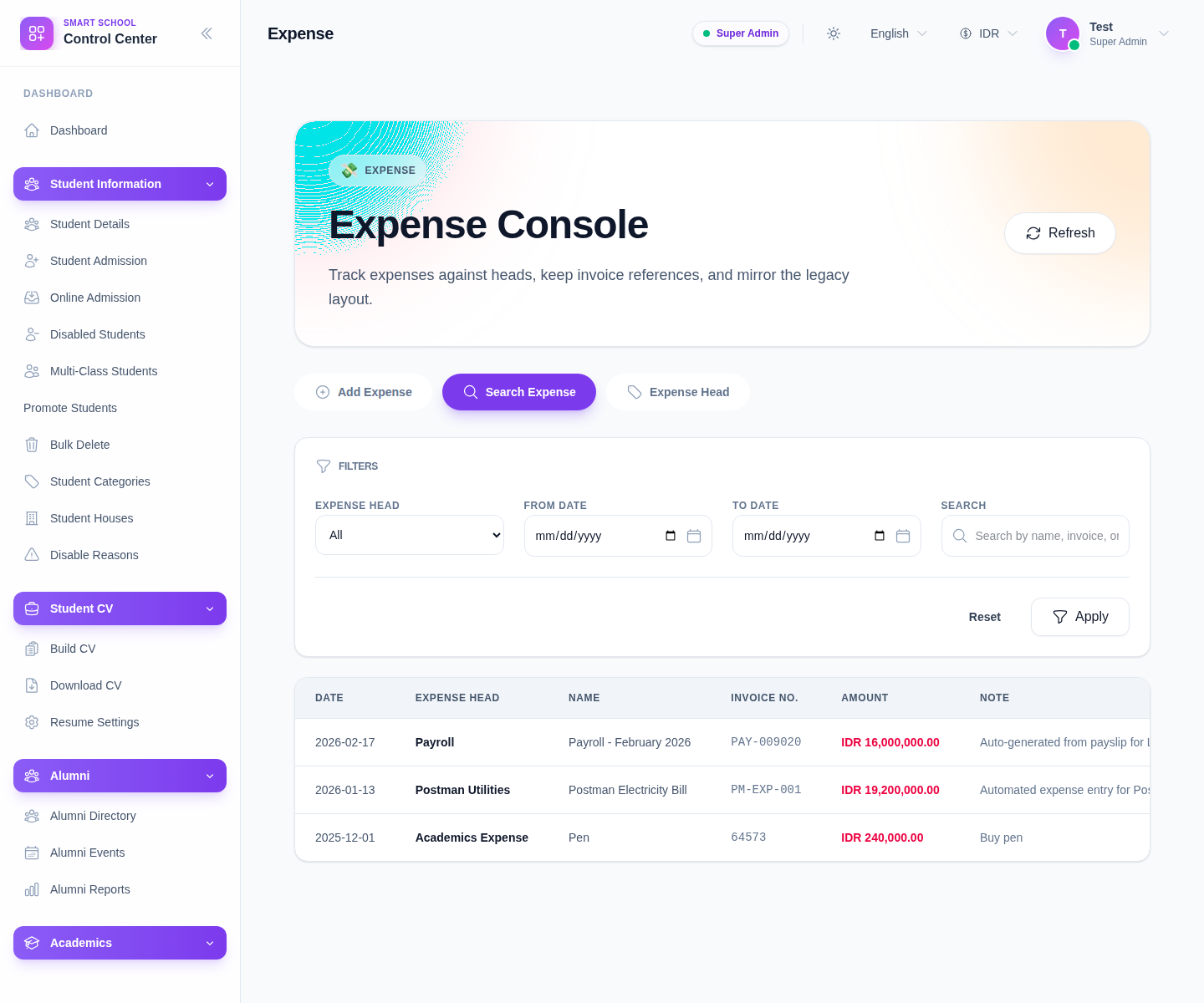
The current filters are:
- Expense Head
- From Date
- To Date
- Search
Step 2: Narrow the results set
Use the filters in the order that best matches the review task:
- choose Expense Head
- set From Date and To Date
- enter a Search term for the name or invoice number
- click Apply
Use Reset to clear the current filter mix when the table becomes too narrow.
Step 3: Review the expense table
The current table shows:
- Date
- Expense Head
- Name
- Invoice No.
- Amount
- Note
- Actions
This is the main place to confirm whether an outgoing payment was logged under the correct category and amount.
Step 4: Edit or delete the correct row
The current UI supports:
- clicking the row to open edit
- using the row Edit action
- using the row Delete action when allowed
Use Edit when category, note, amount, or name details need correction. Use Delete only when the row should be removed from the finance ledger according to your school’s process.
Step 5: Review pagination when the list is long
The page exposes pagination controls:
- Previous
- Next
If the result set is large, check the page number before assuming a missing row failed to save.
Verify the result
- the filter combination reflects the intended review scope
- the expected expense rows appear in the table
- the expense head and amount match the source documents
- edits or deletions are reflected after refresh
Troubleshooting
| Issue | Likely cause | What to do |
|---|---|---|
| No rows appear | Filters are too restrictive | Reset the filters and widen the date range |
| Similar rows are hard to distinguish | Names or invoice values are too close | Compare date, head, and amount before changing a row |
| The row seems missing | Pagination or the current search term is hiding it | Move pages or clear the search box |
| Finance staff edit the wrong record | They rely only on one field | Verify multiple fields before opening the row |