This guide explains how to manage the Multi-Class Students workflow in Migdafa Smart School.
Before you start
- Confirm why the student needs more than one class-session record.
- Know which academic session and class-section should be added.
- Decide whether the new session should become the student’s default login context.
- Confirm any related transport fee or discount values before saving.
Important: multi-class history is operational data, not just a note. Add sessions carefully so the student timeline stays accurate across current and past academic placements.
Navigation path
Student Information -> Multi-Class Students
Step 1: Open the linked-session workspace
From Student Information, choose Multi-Class Students. The page is designed to show students who have enrolments across multiple academic sessions.
At the top of the workspace, the current UI provides:
- a Search students field
- a Session filter
- an Only students with multiple sessions checkbox
- an Active academic sessions only checkbox
- action buttons for Add session and Refresh
Step 2: Filter the student list
Use the filter bar to narrow the records before editing anything:
- Search by student name in Search students.
- Choose a specific Session when you want to focus on one academic year.
- Keep Only students with multiple sessions enabled when you only want students with cross-session history.
- Enable Active academic sessions only if you want to hide inactive session context.
This is useful when the list contains historic and current session links together.
Step 3: Review the linked sessions for a student
Each student card groups the linked-session rows under that student record.
Review the table columns carefully:
- session
- class
- section
- active status
- default login
- actions
What these controls mean:
- Edit updates that linked session row
- Set default changes the default login context when the row is not currently default
- Delete removes the linked session entry
Use these controls only after confirming the row belongs to the correct student and session.
Step 4: Open Add session
Click Add session to create a new linked enrolment.
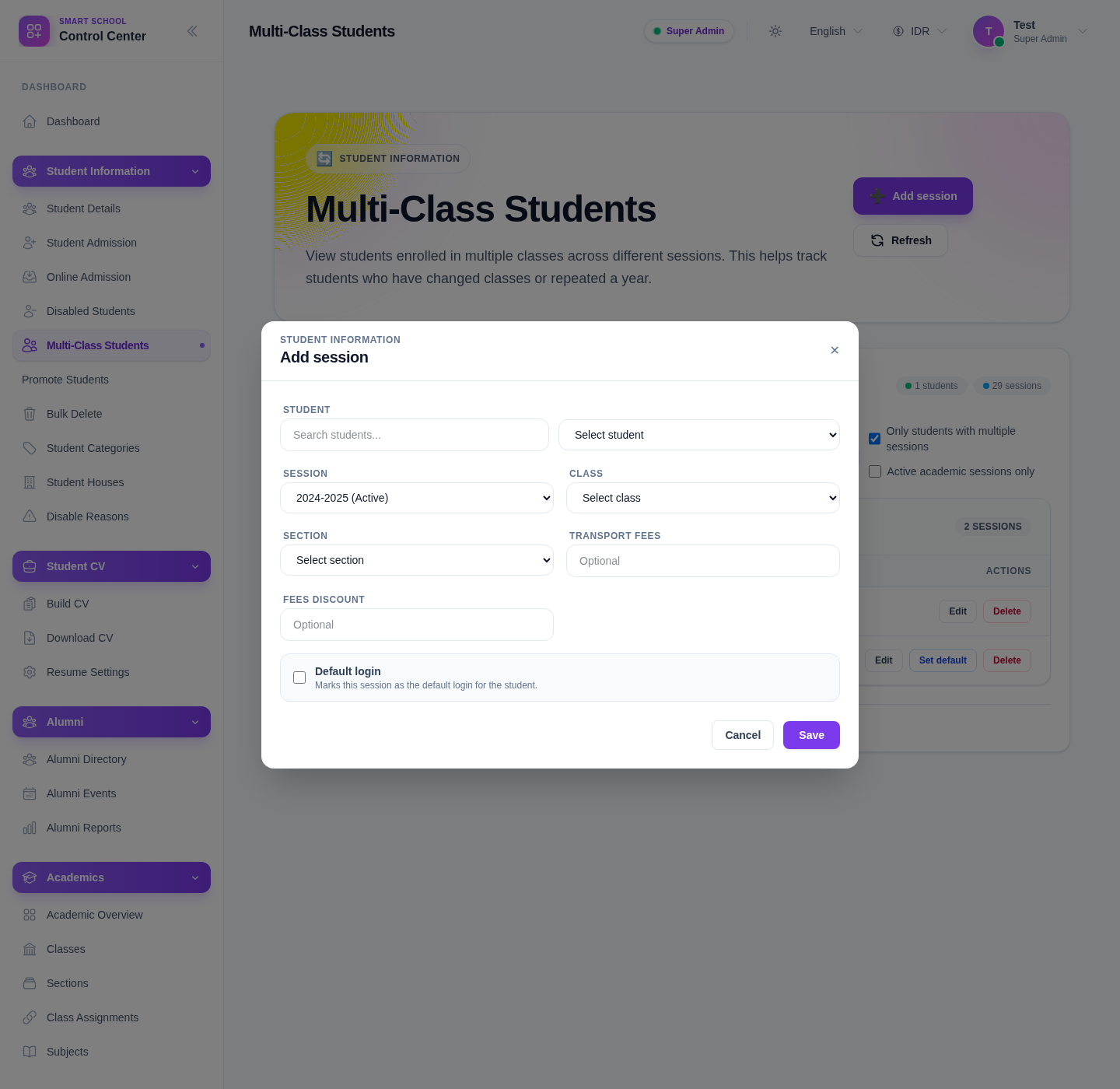
The add-session panel in the current UI includes these fields:
- Student
- Session
- Class
- Section
- Transport fees
- Fees discount
- Default login
The panel also includes Cancel and Save actions.
Step 5: Fill the new linked-session record
Complete the fields in a controlled order:
- Select the student.
- Choose the academic session.
- Choose the class.
- Choose the section.
- Enter transport fees if your school uses them in this context.
- Enter a fee discount if needed.
- Enable Default login only if this new row should become the student’s main login context.
The section selector depends on the class you choose, so confirm the class before expecting the correct section options.
Step 6: Save and review the updated session list
Click Save when the panel matches the intended enrolment.
After saving, review the student’s linked-session table again and confirm:
- the new session row appears under the correct student
- class and section are correct
- the default login flag is assigned intentionally
- the row does not duplicate an existing session by mistake
Step 7: Maintain the default login context
If a student already has more than one session row, review the Default login column. Use Set default on the correct row when the student’s main operational context should move to another linked session.
This matters because the default login context can affect how the student is treated in day-to-day workflows.
Verify the result
Use this checklist after any update:
- the correct student shows the expected number of linked sessions
- the new or edited session row has the right class and section
- the default login marker appears on the intended row
- duplicate or outdated links were not left behind accidentally
Expected result: the student's multi-session record accurately reflects their academic history, and the default session is set to the intended operational context.
Troubleshooting
| Issue | Likely cause | What to do |
|---|---|---|
| The student is hard to find | The page is showing too many sessions or historic rows | Search by student name and narrow by session |
| The wrong rows are visible | Filters are too broad | Review the session filter and the two checkboxes before editing |
| Section choices do not look right | Class was not chosen correctly first | Recheck the class before selecting section |
| Default login is on the wrong row | The wrong linked session was marked as primary | Use Set default on the intended row and recheck the table |
| A duplicate session was almost created | Existing linked-session history was not reviewed first | Check the student’s current rows before saving a new session |