This guide explains how to use Content Share List inside Download Center to review which uploaded items have been shared and who received them.
Before you start
- Confirm which share record you need to inspect.
- Decide whether you want to review the recipients, copy the link, or remove the share.
- Keep the permission boundary in mind before deleting a published share.
Important: deleting a share can remove access to a published file. Confirm the audience and the use case before you remove a record.
Navigation path
Download Center -> Content Share List
Step 1: Open the Content Share List page
Go to Download Center and open Content Share List.
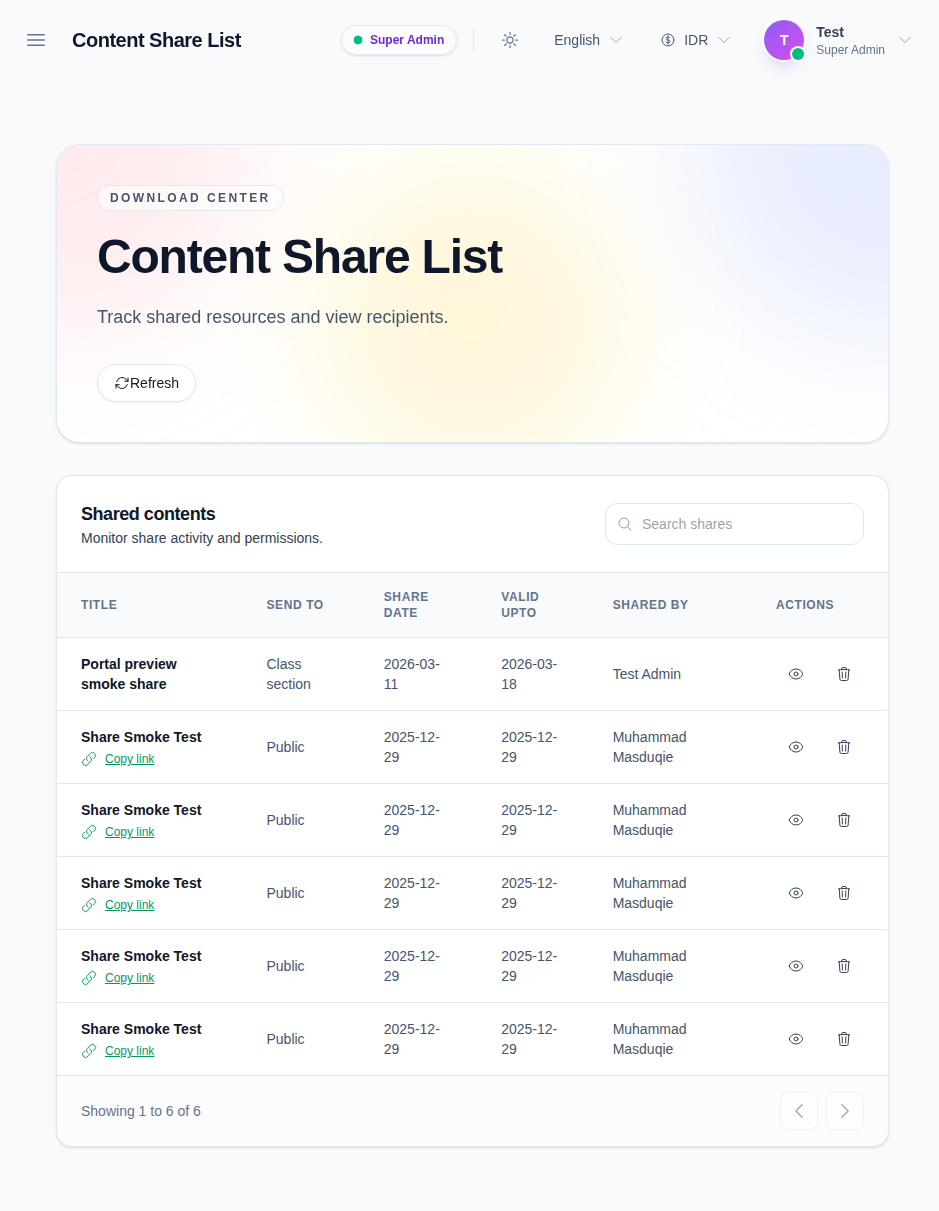
The page includes:
- a searchable share table
- row-level view and delete actions
- copy-link support from the share title area
Step 2: Search the share list
Use the search field to find a share by title or share-related text.
This is useful when the share list becomes long and you need to track a specific content release.
Step 3: Open the share detail drawer
Click the view action on a row to open the share detail drawer.
The drawer shows:
- the share title
- the share and valid-until dates
- the share description
- attachments
- recipients
Use the drawer when you need to confirm exactly who can access the shared material.
Step 4: Copy the share link
If a share includes a public or usable link, use the Copy link action from the row title area.
This is the quickest way to reuse the same shared content in another workflow without generating a new record.
Step 5: Delete a share when access should end
Use the delete action only when the share no longer needs to exist.
After deletion, refresh the list and verify that the record is gone.
Verify the result
Use this checklist after reviewing shares:
- the correct share record is open in the detail drawer
- recipients match the expected audience
- the link can be copied when needed
- deleted share records no longer appear in the list
Expected result: shared content records stay traceable, and you can inspect or revoke access from the same list.
Troubleshooting
| Issue | Likely cause | What to do |
|---|---|---|
| A share does not appear | The search filter is too narrow | Clear the search and review the full list |
| The detail drawer does not load | The share record could not be fetched | Refresh the page and open the row again |
| Copy link fails | The share does not expose a usable link | Open the detail drawer and confirm the share has a link |
| Delete feels unsafe | Other users may still depend on the shared link | Confirm the audience before removing the share |