This guide explains how to use Pickup Points to maintain the transport stops that routes and student assignments depend on.
Short summary
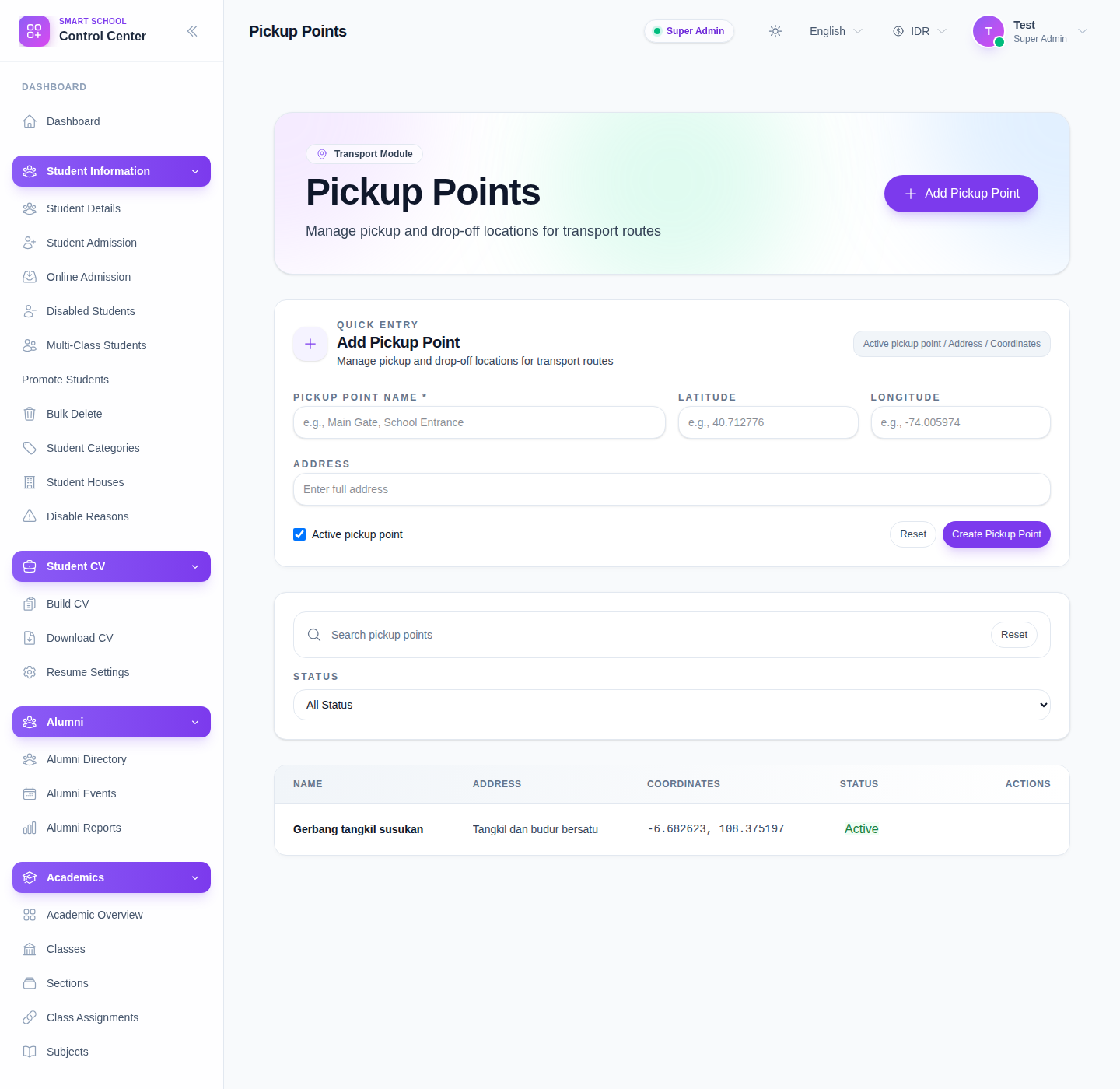
The Pickup Points page combines a quick-entry form, search and status filters, a pickup-point table, and a detail drawer for view or edit work.
Before you start
- Decide how pickup points should be named.
- Prepare address and coordinate details if your team uses them.
- Keep only active pickup points available for live transport operations.
Navigation path
Transport -> Pickup Points
Step 1: Open Pickup Points
In the sidebar, open Transport and choose Pickup Points.
Step 2: Review the quick-entry form
The quick-entry section currently includes:
- Pickup Point Name
- Latitude
- Longitude
- Address
- active pickup-point toggle
Use coordinates only when your team actually relies on mapped stop locations.
Step 3: Create a pickup point
Enter the pickup-point name first, then fill the optional location details that are useful for operators.
The name field is required, while coordinates are validated only when values are entered.
Step 4: Search and filter the table
Use the page controls to review the stop list:
- search by pickup-point name
- filter by active or inactive status
- reset to return to the full list
The table currently shows:
- Name
- Address
- Coordinates
- Status
- Actions
Step 5: Use row actions for maintenance
The row actions support normal stop maintenance:
- View
- Edit
- Delete
Use edit when the address, name, or status needs correction. Use delete only when the stop should no longer exist in the transport setup.
Step 6: Recheck route and student dependencies
After saving, continue to Route Pickup Mapping or Student Transport if you need to verify that the stop can be linked downstream.
This prevents transport setup from drifting into disconnected route or assignment data.
Verify the result
- the pickup point appears in the table
- name and address are understandable to operators
- coordinates are valid when present
- the status matches whether the stop should stay in live use
Troubleshooting
| Issue | Likely cause | What to do |
|---|---|---|
| Save fails | The pickup-point name is empty or coordinates are invalid | Fill the required name and correct any latitude or longitude value |
| Search does not find the stop | The wrong keyword or status filter is active | Clear filters and search again with the pickup-point name |
| Operators cannot select the stop later | The pickup point is inactive or not mapped yet | Activate the pickup point and then continue with route-pickup mapping |
| Deleting a stop feels unsafe | Routes or students may still rely on it | Review route mappings and student transport assignments before deleting |