This guide explains how to use the Daily Collection branch inside Tuition Fees Reports to review daily fee totals and, when receipts exist, open the matching day-level receipt details.
Before you start
- Use this guide for fee collection activity only. General finance analytics are documented separately in the Finance Reports guides.
- Set the reporting dates first, because the daily rows are generated from the active
fromandtorange. - Expect every day in the range to appear in the table, even when the amount and receipt count are zero.
- The details drawer only opens when a day has one or more linked fee deposits.
Important: the current local dataset used for documentation can show a valid zero-receipt state across the whole range. In that state, the View Details buttons remain disabled because there are no fee-deposit IDs to open.
Navigation path
Reports -> Tuition Fees Reports -> Daily Collection
Step 1: Open Tuition Fees Reports and keep Daily Collection active
Open Tuition Fees Reports from the Reports menu. The workspace uses one shared shell for:
- Daily Collection
- Search Fees Payment
- Search Due Fees
Stay on Daily Collection when you want a date-by-date collection summary rather than one receipt ledger or an outstanding-balance list.
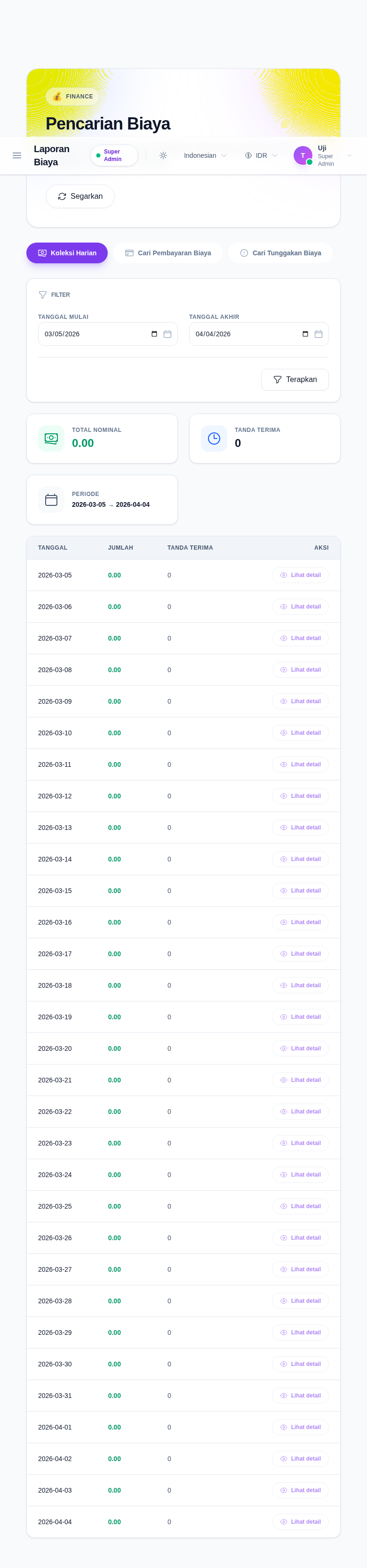
Step 2: Apply the date range for the collection window
The Daily Collection branch uses only two report filters:
- Start Date
- End Date
Click Apply after changing the range. The backend returns one row for each day in that window and calculates:
- total amount per day
- receipt count per day
- the linked
student_fee_deposit_idsfor any day with real receipts
Step 3: Read the summary cards before reading the table
The top cards show:
- Total Amount
- Receipts
- Period
Use them first to confirm whether the selected period contains any fee activity before reading the rows below.
Step 4: Review the day-by-day table
The table below the cards includes:
- Date
- Amount
- Receipts
- Action
Use it to answer questions such as:
- Which specific day had collection activity?
- How many receipts were posted that day?
- Does the period contain only zero-activity days?
Because the table lists every day in the selected range, zero rows are meaningful rather than accidental.
Step 5: Open View Details only for days that contain receipts
When a day has linked fee deposits, View Details opens a drawer with:
- date
- receipt count
- total amount
- receipt-level rows including receipt number, student, admission number, class, amount, payment mode, status, and received by
When a day has no linked deposits, the button stays disabled. That is the current correct behavior in the local environment used for this audit.
Verify the result
Use this checklist after reviewing the report:
- confirm the selected dates match the intended collection window
- confirm the summary cards align with the day rows shown below
- confirm zero-activity days are expected before assuming the report is broken
- confirm the details drawer is only used for days with actual receipt counts
Expected result: you can review fee collection totals by day and, when receipts exist for a given date, open the day-level drawer to inspect the matching fee receipts.
Troubleshooting
| Issue | Likely cause | What to do |
|---|---|---|
Every row shows 0.00 and 0 receipts | No fee deposits exist for the selected date window | Broaden the date range or confirm receipt data exists in the source system |
| View Details is disabled | That day has no linked fee-deposit IDs | Use a date with non-zero receipt count |
| The table looks too long | The selected date range is broad | Narrow the date range to one week or one month |
| The cards do not change | The new date range has not been applied | Update the dates and click Apply again |