This guide explains how to use the Library Catalog workspace to maintain book records, review availability, add books quickly, and export or import catalog data.
Short summary
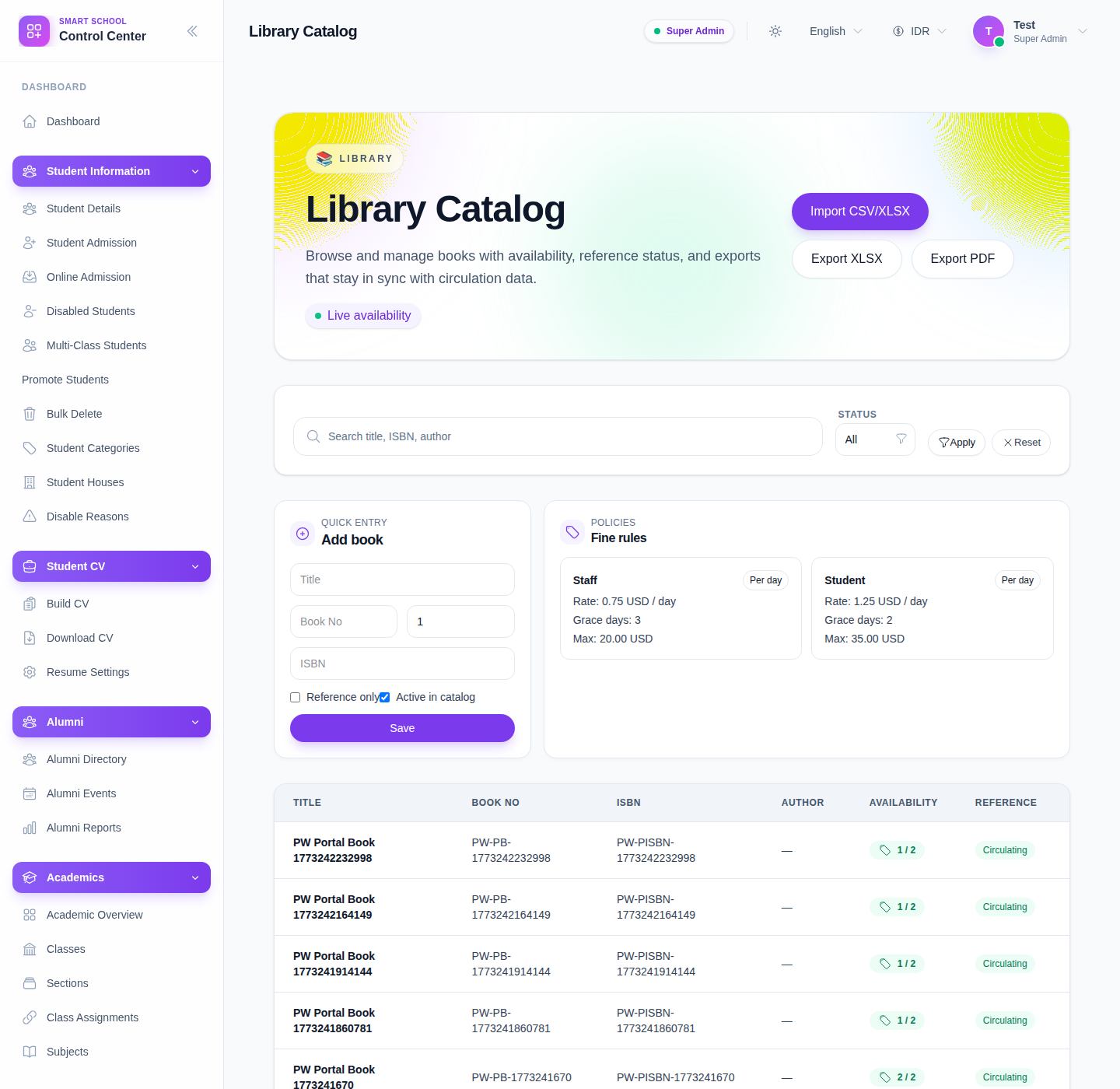
The live catalog page combines top-level import and export actions, status filtering, a quick-entry panel for new books, a visible fine-rules reference area, and a book table where each title opens a detail drawer.
Before you start
- Decide whether the book should be Circulating or Reference Only.
- Prepare the book title, book number, quantity, and ISBN before using quick entry.
- Use import only when your CSV or XLSX columns follow the workspace format exactly.
Navigation path
Library -> Catalog
Step 1: Open Library Catalog
In the sidebar, open Library and choose Catalog.
Step 2: Review the top controls
At the top of the page, the current UI exposes:
- Import CSV/XLSX
- Export XLSX
- Export PDF
- a Status filter with All, Active, and Inactive
- Apply and Reset
Use these controls first when you need to narrow the catalog, export the current list, or prepare a bulk import.
Step 3: Add a book with quick entry
The quick-entry card on the left lets you create a book without leaving the page.
Fill the currently visible fields:
- Title
- Book No
- Quantity
- ISBN
- Reference only
- Active in catalog
Then click Save.
Use Reference only when the item should appear in the catalog but should not behave like a normal circulating book.
Step 4: Use the fine-rules panel as a policy cross-check
The right-side panel shows the currently visible fine rules for library usage.
Review it when you need quick context about:
- member type
- rate type
- per-day or fixed fine value
- grace days
- maximum cap
This section is not where books are created, but it helps staff confirm that the library policy context is still healthy while maintaining the catalog.
Step 5: Review the book list
The table currently shows these columns:
- Title
- Book No
- ISBN
- Author
- Availability
- Reference
Use the table to confirm whether a book is active in the catalog, how many copies are available, and whether the item is marked as reference-only or circulating.
Step 6: Open a book detail drawer
Click a book title in the table to open its detail drawer.
From the drawer, the current UI exposes:
- the availability badge
- circulation or reference-only status
- rack, subject, and publisher details
- unit cost and added date
- category chips when assigned
- barcode or label copy support
This is the best place to verify the book record before staff rely on it in issue, reservation, or reporting workflows.
Step 7: Import or export when needed
Use Import CSV/XLSX when you need to load many books at once.
The current import flow includes:
- file selection
- imported-book status selection
- preview and validation
- import summary with imported and failed rows
Use Export XLSX or Export PDF when the library team needs an offline list, a reporting attachment, or a review copy outside the UI.
Verify the result
- the new or updated book appears in the catalog table
- availability reflects the expected quantity
- the reference-only state is correct
- the detail drawer shows the expected identifying information
- exported files match the visible catalog scope when filters are applied
Troubleshooting
| Issue | Likely cause | What to do |
|---|---|---|
| Save does not create the book | Required fields are incomplete | Recheck Title, Quantity, and identifying values before saving |
| Imported rows fail | The file columns or row values do not match the expected import format | Review the preview step and correct the source file before re-importing |
| Availability looks wrong | Quantity or circulation state is not aligned with actual issues | Open the detail drawer and compare the book record against active issue workflows |
| A book should not circulate | The item was not marked as reference-only | Update the book record so staff do not treat it as a normal loanable item |