This guide shows how to use Homework Reports to monitor homework volume, evaluation progress, status distribution, and export jobs.
Short summary
Use Homework Reports as the analytics and oversight page for homework operations. It summarizes how many homework items exist, how many were submitted or evaluated, and whether any export jobs need follow-up.
Before you start
- Know whether you are checking operational health, evaluation backlog, or export status.
- Confirm recent homework activity exists, otherwise the cards may show low or empty counts.
- Decide which metric matters most for your review: total volume, submitted work, evaluated work, pending items, or late submissions.
Navigation path
Homework -> Homework Reports
Step 1: Open Homework Reports
In the sidebar, open Homework and choose Homework Reports.
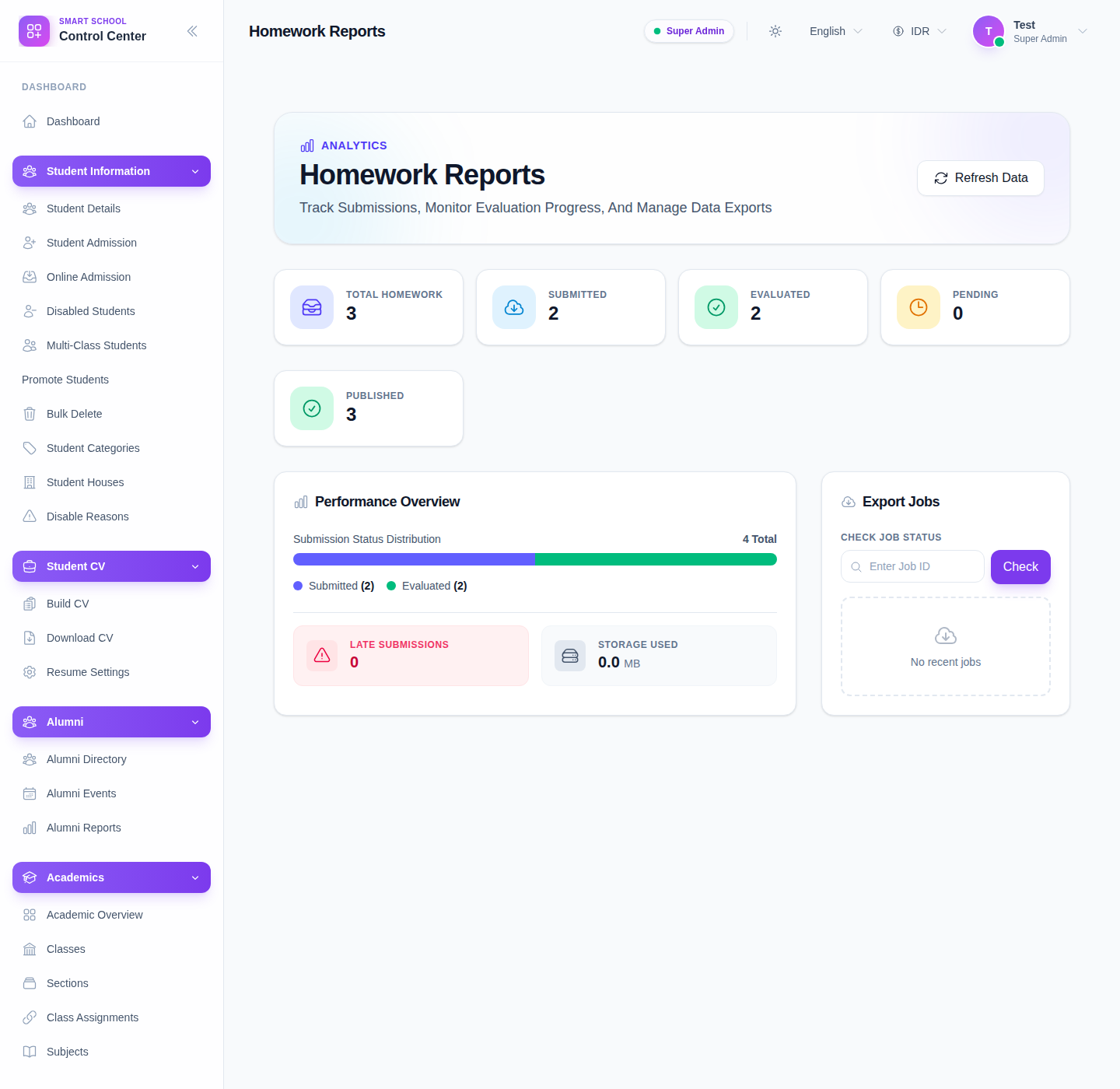
The page includes:
- Total Homework
- Submitted
- Evaluated
- Pending
- additional dynamic metrics such as status counts, late submissions, or storage indicators
- a performance section
- an export-jobs area
Step 2: Read the top summary cards first
Start with the first row of cards to understand the current workload:
- Total Homework
- Submitted
- Evaluated
- Pending
Use these counts to answer fast operational questions such as:
- Are teachers assigning work consistently?
- Are students submitting on time?
- Is evaluation keeping up with submission volume?
Step 3: Review the deeper performance panels
Below the cards, inspect the performance blocks for trend context.
These panels can show:
- status distribution
- submission and evaluation mix
- late-submission indicators
- storage or output metrics
Treat these sections as management insight rather than row-level homework editing tools.
Step 4: Check export jobs when staff expect report output
Use the Check Job Status tool when someone is waiting on an export or data job.
The workflow is:
- enter a numeric job ID
- click Check
- review the refreshed job status
If recent jobs exist, refresh them directly from the list instead of re-entering the ID each time.
Step 5: Refresh the whole report when needed
Click Refresh Data when:
- you know new homework was assigned recently
- evaluation status changed
- staff completed a submission review cycle
- an export job may have just finished
Important notes
Local dataset note: the current local environment showed real summary values for homework volume and evaluation progress, but the export-job panel had no recent jobs. The guide documents the verified controls and the empty-state behavior directly.
Important: this page is for monitoring and follow-up, not for editing homework records. If staff need to change an assignment or evaluate a student task, send them back to the operational Homework pages.
Verification checklist
- summary cards reflect recent homework activity
- submitted and evaluated counts make sense for the current cycle
- pending items are understood and not ignored
- any visible late-submission metrics are reviewed
- export jobs are checked if staff are waiting on generated output
Troubleshooting
| Issue | Likely cause | What to do |
|---|---|---|
| Counts look stale | The page has not been refreshed since recent activity | Click Refresh Data |
| Export status is unknown | Job ID was not checked or no recent job row is visible | Use Check Job Status with the correct numeric job ID |
| The report is mostly empty | Local or school data is limited for the current period | Confirm whether homework has actually been assigned and submitted recently |
| Staff try to edit homework from this page | Reports page is being used as an operations page | Redirect staff to Homework or Student Tasks for action work |