This guide shows how to use the Postal Dispatch workspace inside Front Office.
Short summary
Postal dispatch keeps outgoing letters and courier items visible for front desk follow-up. The workspace separates the list, filters, and create drawer so staff can log who the item was sent to and what attachment or note belongs to it.
Before you start
- Prepare the recipient or destination title.
- Decide whether the item needs an attachment before opening the drawer.
- Keep the reference number or note available if your reception team uses one.
Navigation path
Front Office -> Postal Dispatch
Step 1: Open the Postal Dispatch workspace
Go to Front Office and select Postal Dispatch.
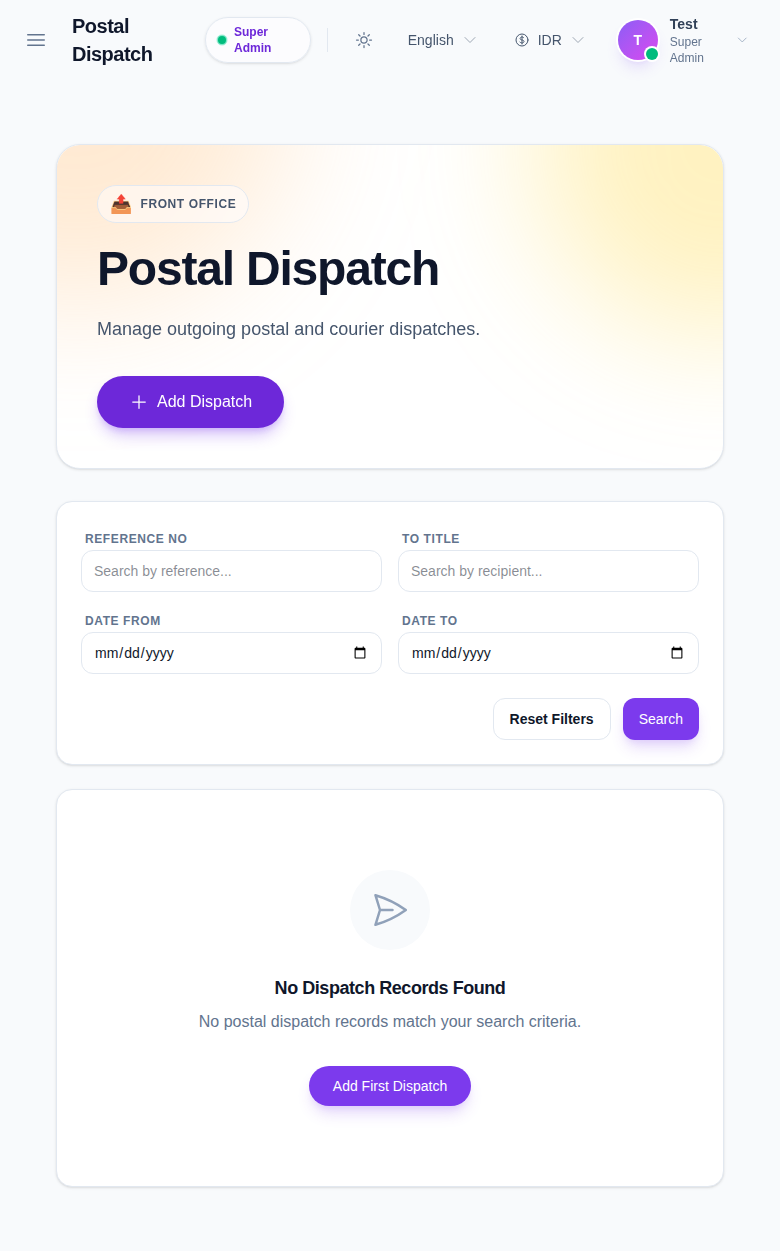
Use this page to:
- review outgoing mail and courier history
- filter by reference number, recipient title, and date range
- open a row for edit or delete
Step 2: Create or update a dispatch record
Click Add Dispatch to open the drawer.
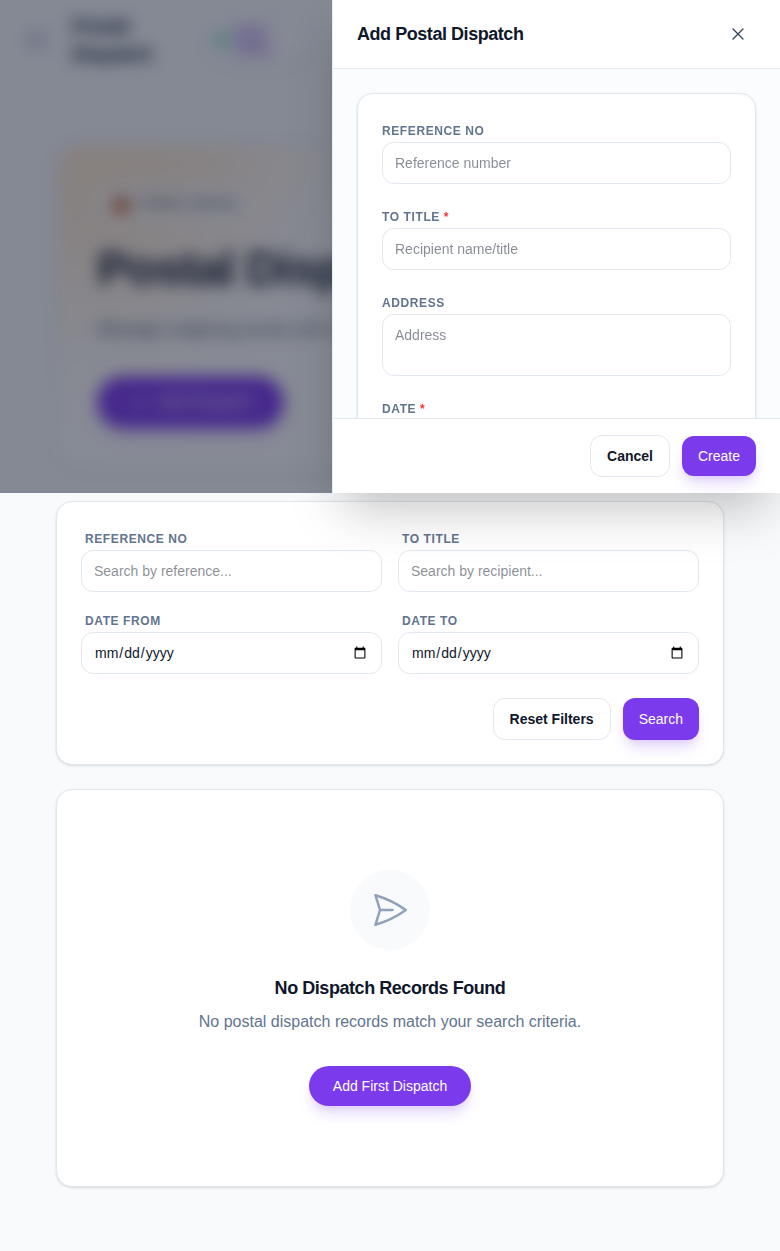
Complete the main fields:
- Reference No
- To Title
- Address
- Date
- Note
- Attachment
Use Create to save the outgoing record.
Step 3: Review the saved dispatch record
After saving:
- Return to the list view.
- Use the filters to find the outgoing item again.
- Confirm the recipient and reference data are correct.
- Download the attachment if you need to verify the stored file.
Important notes
Important: Postal Dispatch is an internal tracking log. It should reflect the actual outgoing item, not a draft note that never left the office.
Verification checklist
- The dispatch record has the correct recipient title.
- The reference number and date are correct.
- The saved row appears in the Postal Dispatch table.
Expected result: outgoing mail records are stored in Front Office and ready for review.
Troubleshooting
| Issue | Likely cause | What to do |
|---|---|---|
| Save fails | A required field is empty | Fill the recipient title or date field |
| The attachment is missing | No file was uploaded | Reopen the drawer and attach the required file |
| No rows appear after save | Filters are too narrow | Reset the filters and search again |
| Wrong recipient title was entered | The item was saved before review | Edit the row and correct the title |