This guide documents the current Exam Templates workspace in the local Smart School UI.
Short summary
Use Exam Templates to review admit-card and marksheet template readiness, then generate or email output from the render form once the required templates exist.
Before you start
- Confirm the exam group, exam, session, class, and section already exist.
- Confirm you know whether the output should be Admit Card or Marksheet.
- Confirm your role can print or email exam documents.
- Check template availability before promising output to school staff.
Navigation path
Examinations -> Exam Templates
Step 1: Open Exam Templates and review the workspace blocks
Open Examinations in the sidebar, then choose Exam Templates.
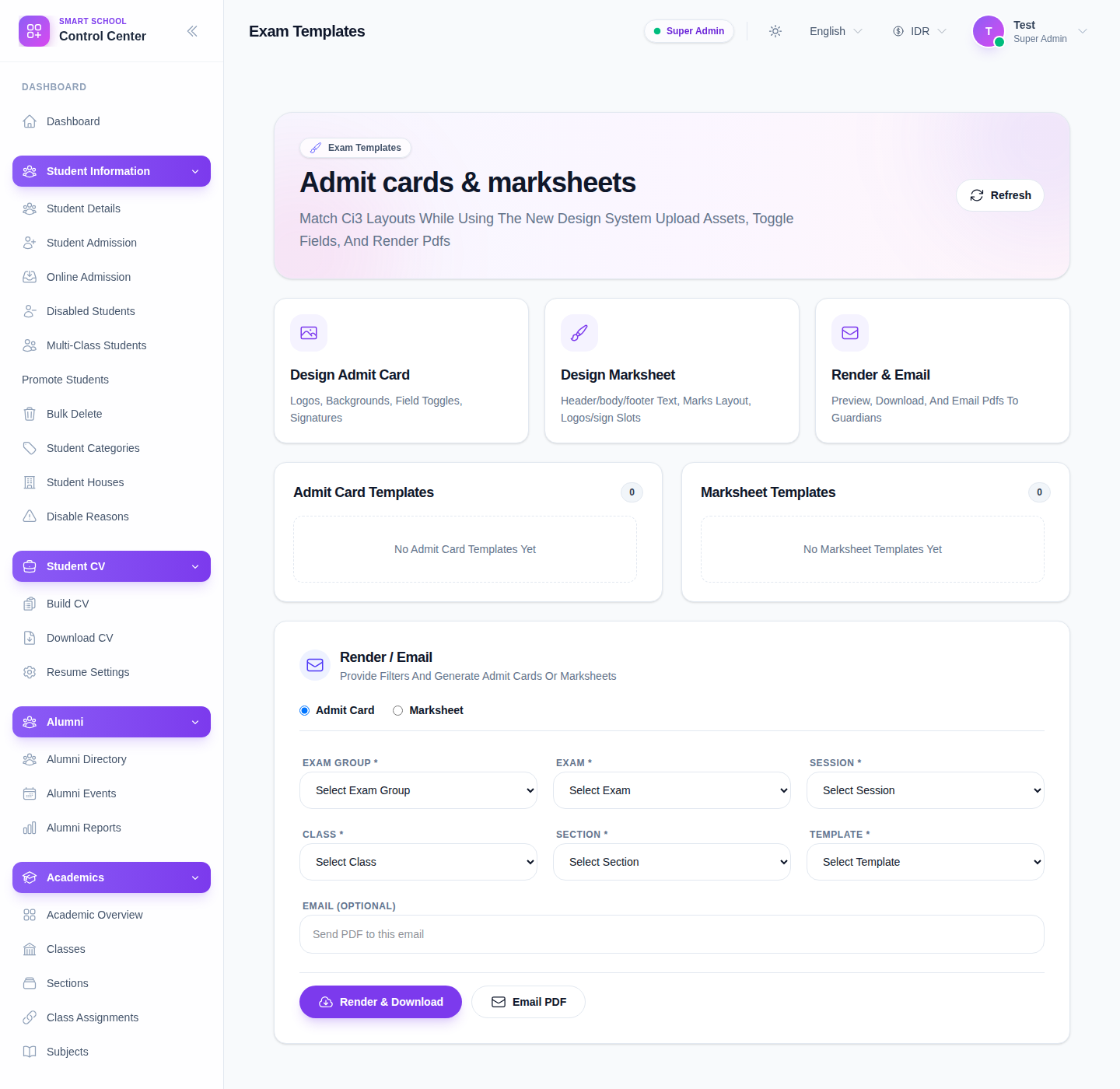
The current page is organized around three areas:
- Design Admit Card
- Design Marksheet
- Render & Email
This means the page is used both as a readiness check and as the final output surface.
Step 2: Review the template counters first
Before filling any render fields, inspect the two template panels:
- Admit Card Templates
- Marksheet Templates
Use them to confirm whether the school already has reusable layouts configured.
Step 3: Choose the output mode
In the Render / Email card, select one mode:
- Admit Card
- Marksheet
The selected mode controls which template type should be available in the Template dropdown.
Step 4: Fill the render context
The current form expects:
- Exam Group
- Exam
- Session
- Class
- Section
- Template
- Email (optional)
Use the same academic context that was used when the exam itself was created.
Step 5: Render or email the document
After all required fields are available and selected:
- click Render & Download to generate a file
- use Email PDF when the output should be sent directly to a recipient
If the form is incomplete or no template exists for the selected mode, the action buttons remain unavailable.
Important notes
Local limitation: during this audit, both template counters were zero and the Template dropdown stayed empty. The workspace and all fields were verified, but the local environment could not complete a successful render because no admit-card or marksheet template was configured.
Important: treat this page as the operational publish surface for printed exam output. If staff ask where to publish admit cards or marksheets, this workspace is the current answer in the shipped UI.
Verification checklist
- the correct output mode is selected
- exam group and exam belong to the intended class flow
- the session, class, and section are aligned
- the correct template type is available for the selected mode
- the render or email action becomes available only after the form is complete
Troubleshooting
| Issue | Likely cause | What to do |
|---|---|---|
| Template dropdown is empty | No template exists for the selected mode | Configure the required admit-card or marksheet template before returning to this page |
| Exam dropdown stays disabled | Exam Group is not selected yet | Select the exam group first |
| Render buttons stay unavailable | Required context is incomplete | Recheck exam, session, class, section, and template |
| Wrong document type is about to be produced | Mode and template type do not match | Switch mode or choose the correct template category |
| Staff expect a separate publish page | Team is looking in the wrong place | Direct them to Exam Templates for render and email output |