This guide explains how to use the Search Due Fees route to find students with outstanding balances.
Short summary
Use Search Due Fees to filter unpaid or overdue balances by academic context, review outstanding-fee rows, and print due-fee statements or due-fee remark sheets when needed.
Before you start
- Decide which session, class, and section should be reviewed.
- Decide whether you are searching all dues or only overdue balances beyond a threshold.
- Confirm whether the next action is review only, a balance statement, or a due-fee remark printout.
Navigation path
Fees Collection -> Search Due Fees
Step 1: Open the dues search route
In the sidebar, open Fees Collection and choose Search Due Fees.
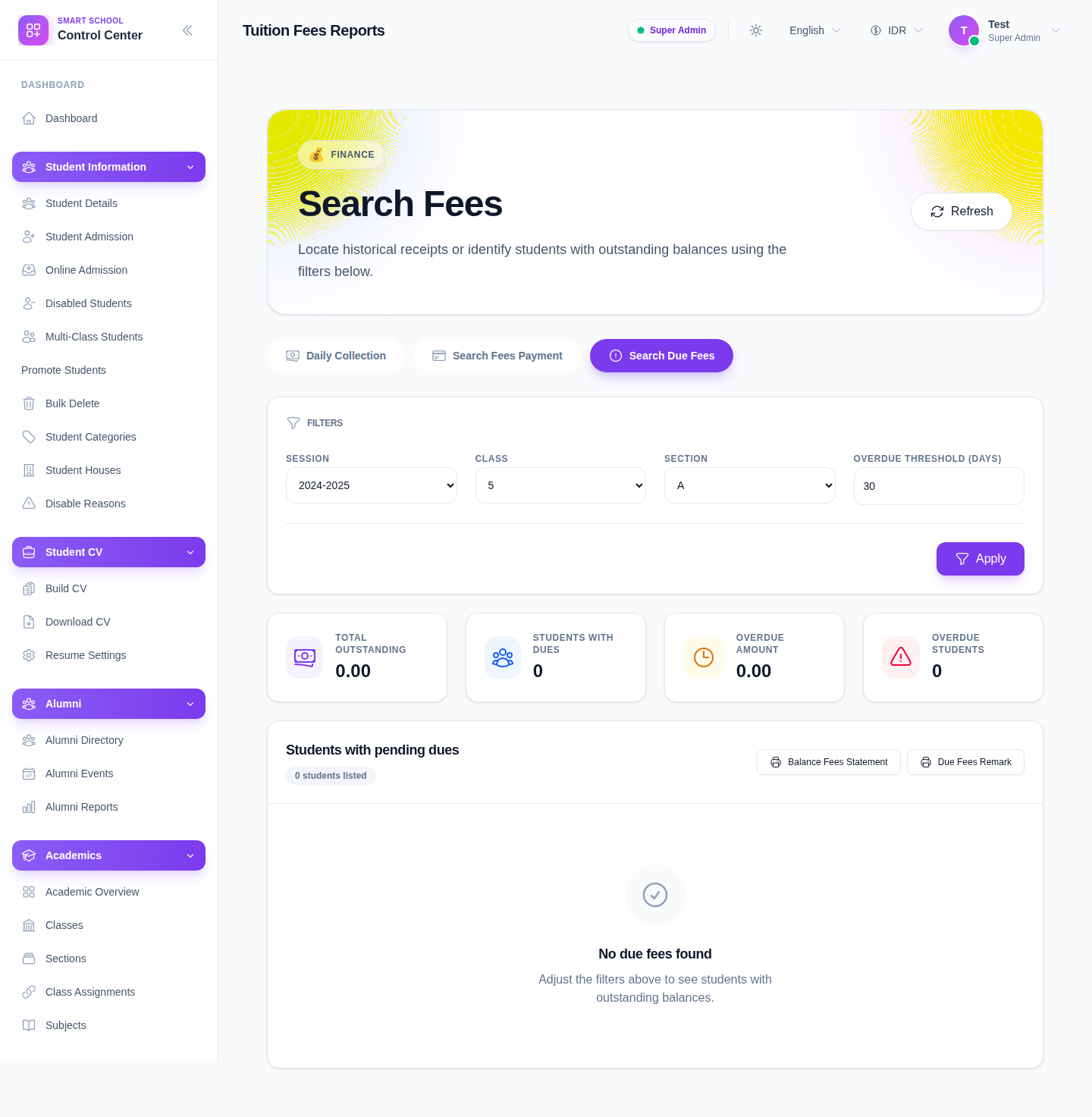
The route opens the shared Search Fees page directly on the Search Due Fees tab.
Step 2: Apply the outstanding-balance filters
Use the dues filter panel to narrow the result set:
- Session
- Class
- Section
- Overdue threshold (days)
Then click Apply.
This filter set is intended for balance review, so use it before printing any statement or remark sheet.
Step 3: Review the due summary and table
After applying filters, review the outstanding-balance area.
Use the page to understand:
- how many students still have dues
- which cohort carries the current outstanding amount
- whether the selected overdue threshold actually returns the students you expect
Then inspect the due-fee table to verify the named students and their outstanding balances.
Step 4: Print the right due document when needed
The current page provides two print-focused actions:
- Balance Fees Statement
- Due Fees Remark
Use the statement when finance staff need a structured balance summary.
Use the due-fee remark printout when the process requires a remark sheet tied to the filtered overdue set.
Important notes
Route note: just like payment search, this workflow runs on the shared Search Fees page. The due-fee behavior is controlled by the active tab.
Local dataset note: the current local filter set can return an empty due list even though the page and print controls are working. Treat that as a data condition first, not automatically as a broken workflow.
Verification checklist
- the due-fees tab is active
- session, class, and section are correct
- overdue threshold matches the reporting intent
- the returned due rows match the intended cohort
- any printed statement or remark uses the correct filtered set
Troubleshooting
| Issue | Likely cause | What to do |
|---|---|---|
| No due rows appear | Filters or overdue threshold are too restrictive | Lower the overdue threshold or broaden the academic filters |
| The wrong students appear | The class or section filter is too broad | Tighten the academic context before printing |
| The balance statement would print the wrong cohort | Filters were not reviewed before printing | Recheck the due table, then print |
| Staff open the wrong Search Fees tab | Shared route is being misread as a separate page | Confirm the active tab before reviewing results |