This guide explains how to work from the Student Period-Wise Attendance page in Migdafa Smart School.
Before you start
- Confirm the class and section already have timetable data.
- Choose the date you want to mark.
- Know which subject period should be used for attendance.
- Expect this workflow to remain blocked until timetable integration is available for the selected filters.
Important: period-wise attendance depends on timetable integration. In the current local environment, the page exposes the filter flow and timetable dependency clearly, but the subject-period selector can remain disabled when no matching timetable period is available.
Navigation path
Attendance -> Student Period-Wise Attendance
Step 1: Open Student Period-Wise Attendance
Go to Attendance in the sidebar and choose Student Period-Wise Attendance.
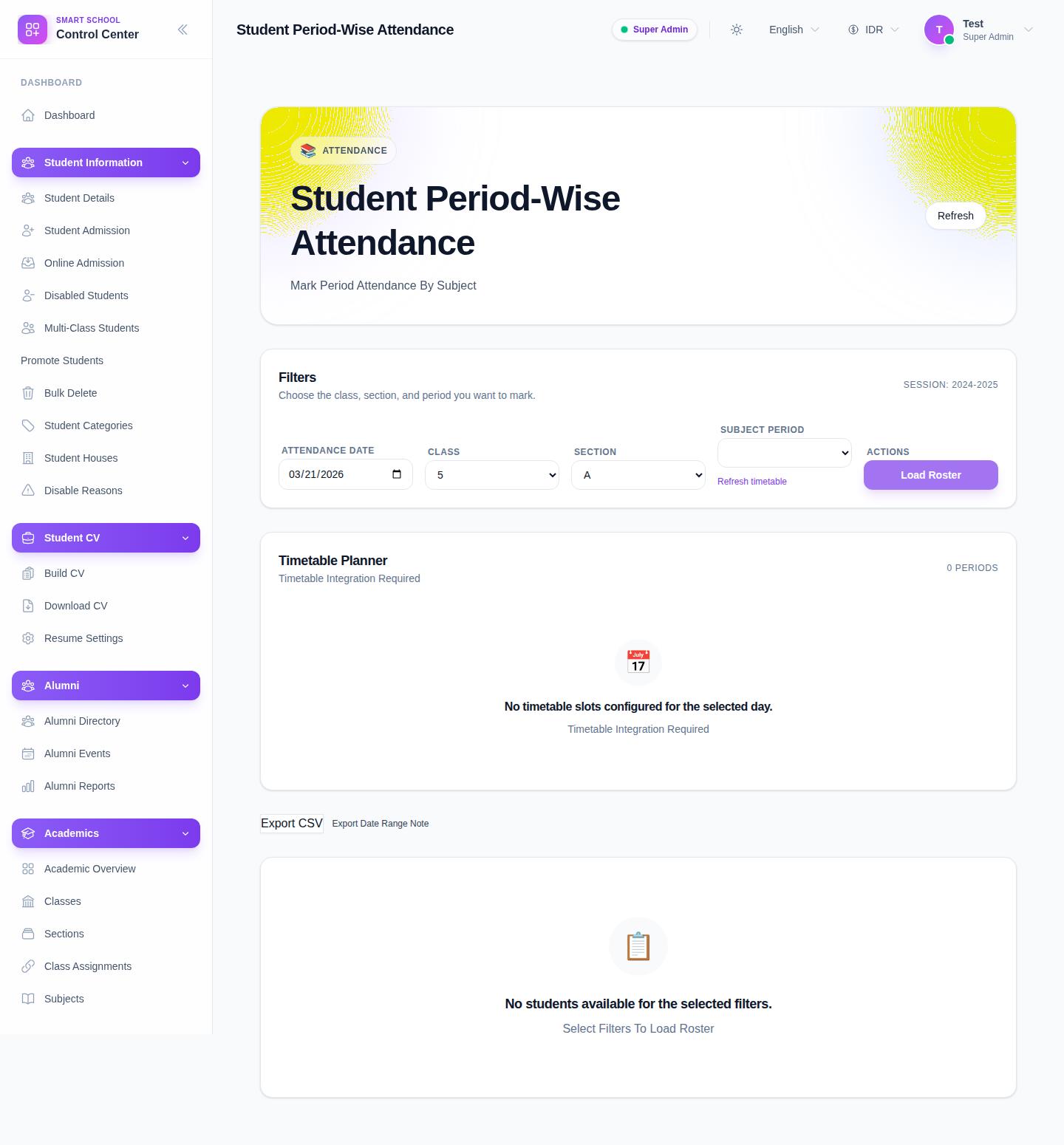
The current UI exposes:
- Attendance Date
- Class
- Section
- Subject Period
- actions for Refresh, Refresh timetable, Load Roster, and Export CSV
Step 2: Set the filter context
Choose the filter values in this order:
- Attendance Date
- Class
- Section
- Subject Period
The page copy in the current UI explains that you should choose the class, section, and period you want to mark.
Step 3: Check timetable dependency before loading
Review the guidance cards shown on the page, especially:
- Timetable Integration Required
- Select Filters To Load Roster
These signals matter because the page will not become operational until the selected class-section has an available subject period for the chosen date context.
Step 4: Load the roster when a subject period is available
When the Subject Period selector becomes available:
- pick the correct period
- click Load Roster
- review the returned attendance roster before making updates
If no subject period can be selected, use Refresh timetable and confirm the related timetable setup first.
Step 5: Export when the report context is correct
Use Export CSV only after the correct period context has been loaded. This keeps exported data aligned with the intended subject-period attendance window instead of a partial or empty filter state.
Verify the result
Use this checklist after preparing the workflow:
- the date, class, and section are correct
- the selected class-section has timetable support
- the subject period corresponds to the intended lesson
- the roster or export action is used only after the correct period context is available
Expected result: the period-wise attendance page is configured with the right date, class, section, and subject-period context so a lesson-specific roster can be loaded and used.
Troubleshooting
| Issue | Likely cause | What to do |
|---|---|---|
| Subject Period stays disabled | No timetable period is available for the selected class-section context | Recheck timetable setup and try Refresh timetable |
| The roster does not load | Filter context is incomplete or timetable integration is missing | Complete the filters and confirm the period exists first |
| Export is empty or not useful | The period context was not loaded before export | Load the correct roster first, then export |
| Class and section look correct but the page still shows no students | The selected period is not linked to an active timetable record | Review the timetable planner and class-section mapping |