This guide explains how to use Alumni Reports to review the current alumni list that is available in the Laravel and Vue application.
Before you start
- Prepare the admission number if you are searching for one known alumnus.
- Decide whether you need to narrow the list by academic session, class, or section.
- Expect the report to show only students already marked as alumni and linked to alumni records.
Navigation path
Alumni -> Alumni Reports
Step 1: Open Alumni Reports
Open Alumni Reports from the Alumni section.
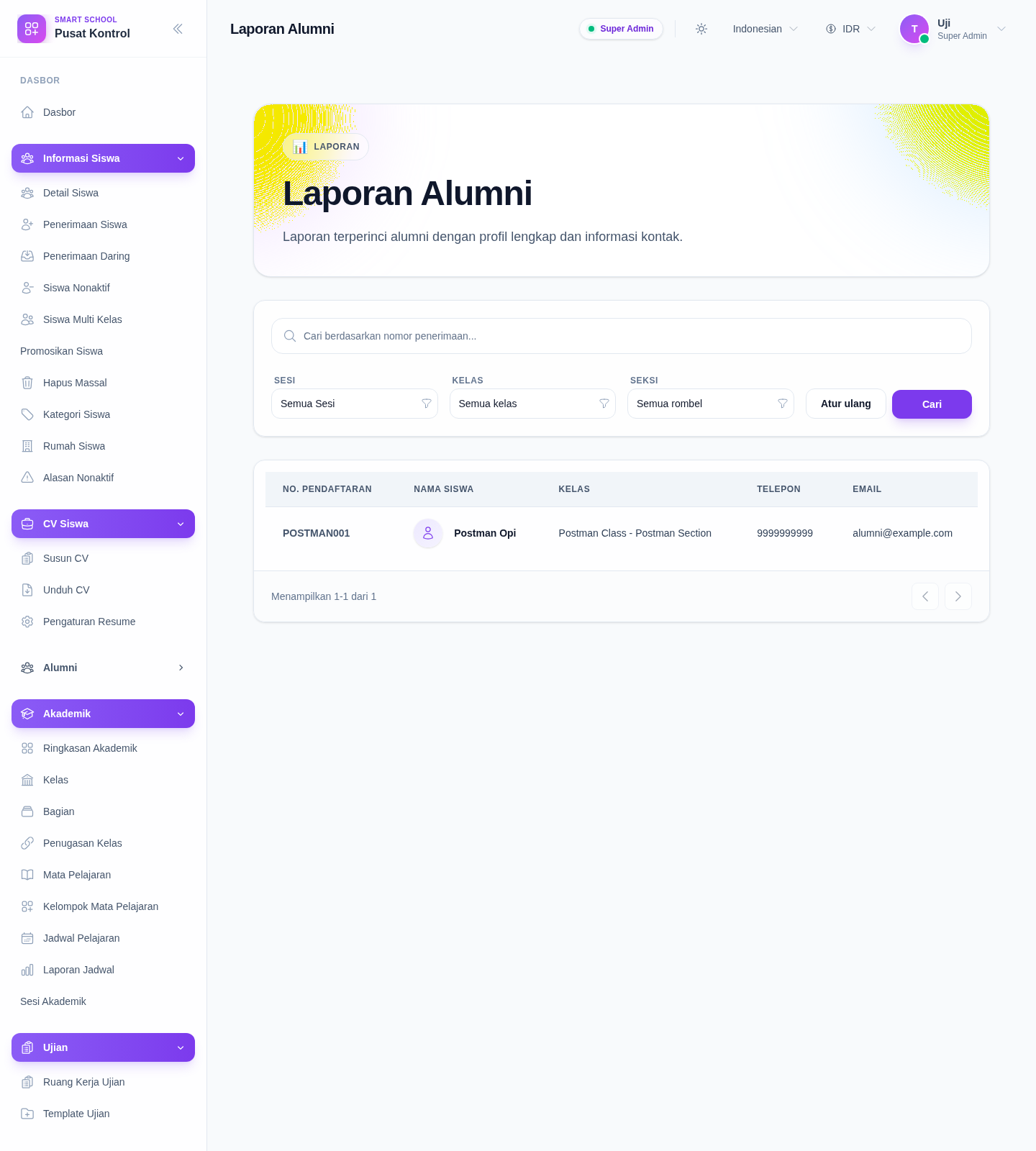
Step 2: Apply the search and filters
The current workspace provides these controls:
- search by admission number
- Session
- Class
- Section
- Reset
- Search
Use Reset to clear the filters and return to the broader alumni list.
Step 3: Review the alumni list
When results are available, the report table shows:
- Admission No
- Student Name
- Class
- Phone
The route also keeps the filter state in the page query so pagination and reloads stay aligned to the current report context.
Verify the result
- the search term and academic filters match the alumni slice you intended to review
- the rows only include alumni records that match the current filters
- the contact details shown are the records you expected to review
Troubleshooting
| Issue | Likely cause | What to do |
|---|---|---|
| The table is empty | No alumni records match the current search or filters | Clear the filters, then search again more broadly |
| The section filter is disabled or empty | A class has not been selected yet | Select a class first, then choose the section |
| You cannot open the page | Your role does not have the alumni reports permission | Ask an admin to check the alumni report permission |