This guide explains how to manage the master list on the Student Categories page.
Before you start
- Decide on category names before creating them.
- Avoid duplicate meanings such as two names that describe the same policy group.
- Coordinate with finance if categories affect fee structures or discounts.
- Review the current list first so you do not create near-duplicate entries.
Important: categories are shared reference data. Inconsistent naming here will create messy reporting and confusion later in student management.
Navigation path
Student Information -> Student Categories
Step 1: Open Student Categories
Go to Student Information and choose Student Categories. The page is split into two working areas:
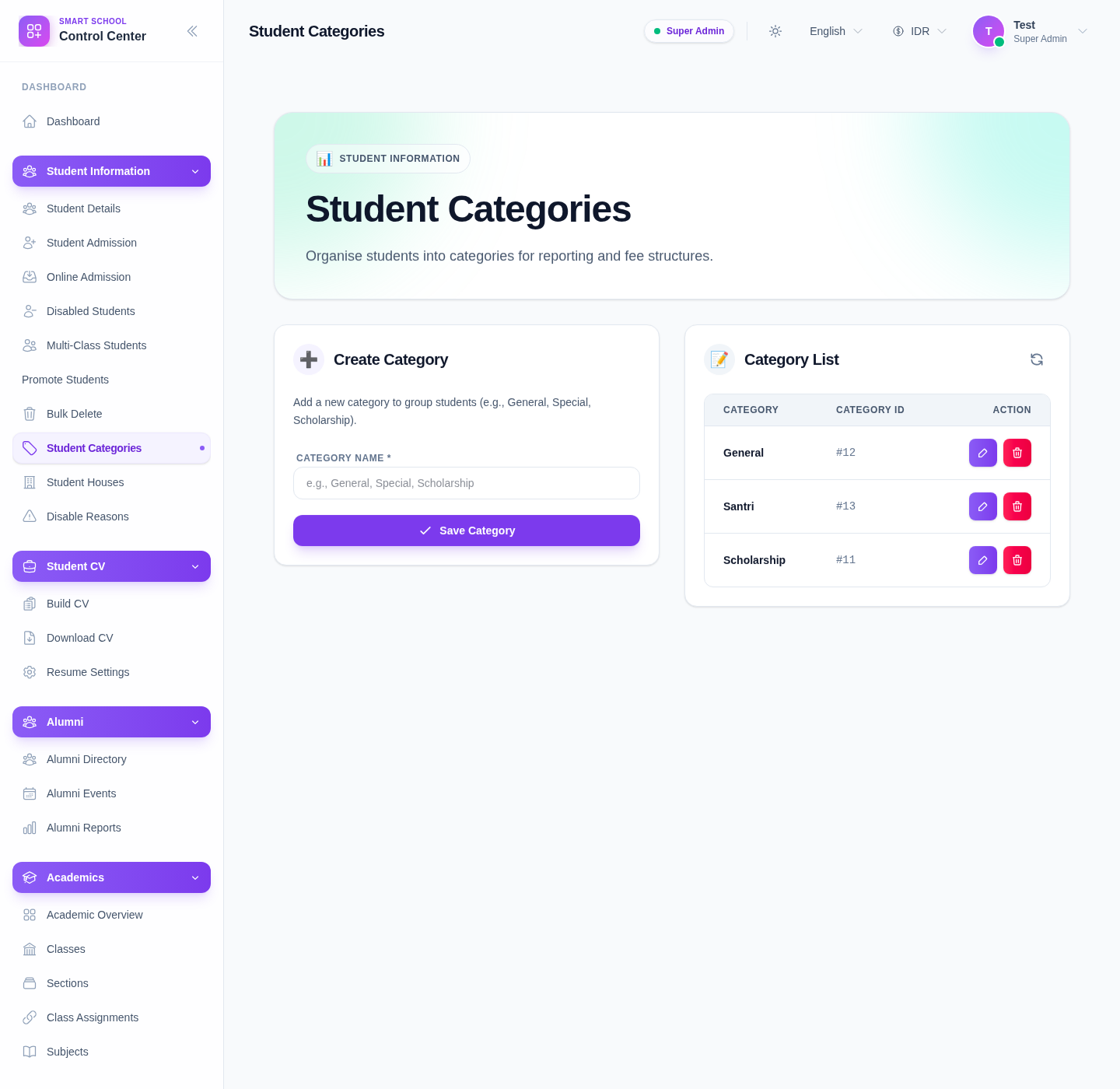
- Create Category
- Category List
The current UI describes the page as a way to organise students for reporting and fee structures.
Step 2: Review the existing category list
Before adding anything, inspect Category List.
The list includes:
- category name
- category ID
- action controls
Use this review to catch categories that already exist under a similar name such as General, Special, or Scholarship.
Step 3: Create a new category
Use the input field in Create Category and enter the new category name.
The placeholder in the current UI suggests examples such as:
- General
- Special
- Scholarship
After entering the new name, click Save Category.
Step 4: Confirm the new category appears correctly
After saving, review the Category List again and confirm:
- the name appears as intended
- the system assigned a category ID
- the new entry does not duplicate an older one with only a minor spelling difference
If the new category will be used operationally right away, notify the staff who handle admissions and fees.
Step 5: Edit or delete categories carefully
The list provides row-level Edit and Delete actions.
Use Edit when:
- the category name has a typo
- the school wants to standardise naming
Use Delete only when:
- the category is unused or obsolete
- you have confirmed that removing it will not disrupt current student classification
Verify the result
Use this checklist after any change:
- the category name is clear and standardised
- there is no accidental duplicate
- staff can identify which category should be used during admission or maintenance
- any fee-related category logic is still aligned with finance expectations
Expected result: the student category master list stays clean, intentional, and usable for admission, reporting, and finance-related workflows.
Troubleshooting
| Issue | Likely cause | What to do |
|---|---|---|
| A new category seems redundant | A similar name already exists | Review the list first and standardise instead of creating a duplicate |
| Staff are unsure which category to use | Naming is vague or overlapping | Rename the categories to clearer operational terms |
| A category should not be deleted yet | It may still be used in student records or fee logic | Pause and confirm with admissions or finance before deleting |
| Reporting looks inconsistent | Categories were created without a naming convention | Audit the list and merge or rename categories where needed |
| The category list grows too quickly | Too many one-off categories are being created | Limit the list to approved, reusable student groupings |