This guide explains how to review and update topic-completion progress from Manage Syllabus Status.
Short summary
Use Manage Syllabus Status to see which lesson topics are complete or incomplete, filter them by session or lesson, and update completion state directly from the topic table.
Before you start
- Confirm lessons and topics already exist for the session you want to review.
- Decide whether you are doing a monitoring pass or updating completion status.
- If you plan to use bulk status updates, confirm which topics should move together.
Navigation path
Lesson Plan -> Manage Syllabus Status
Step 1: Open Manage Syllabus Status
In the sidebar, open Lesson Plan and choose Manage Syllabus Status.
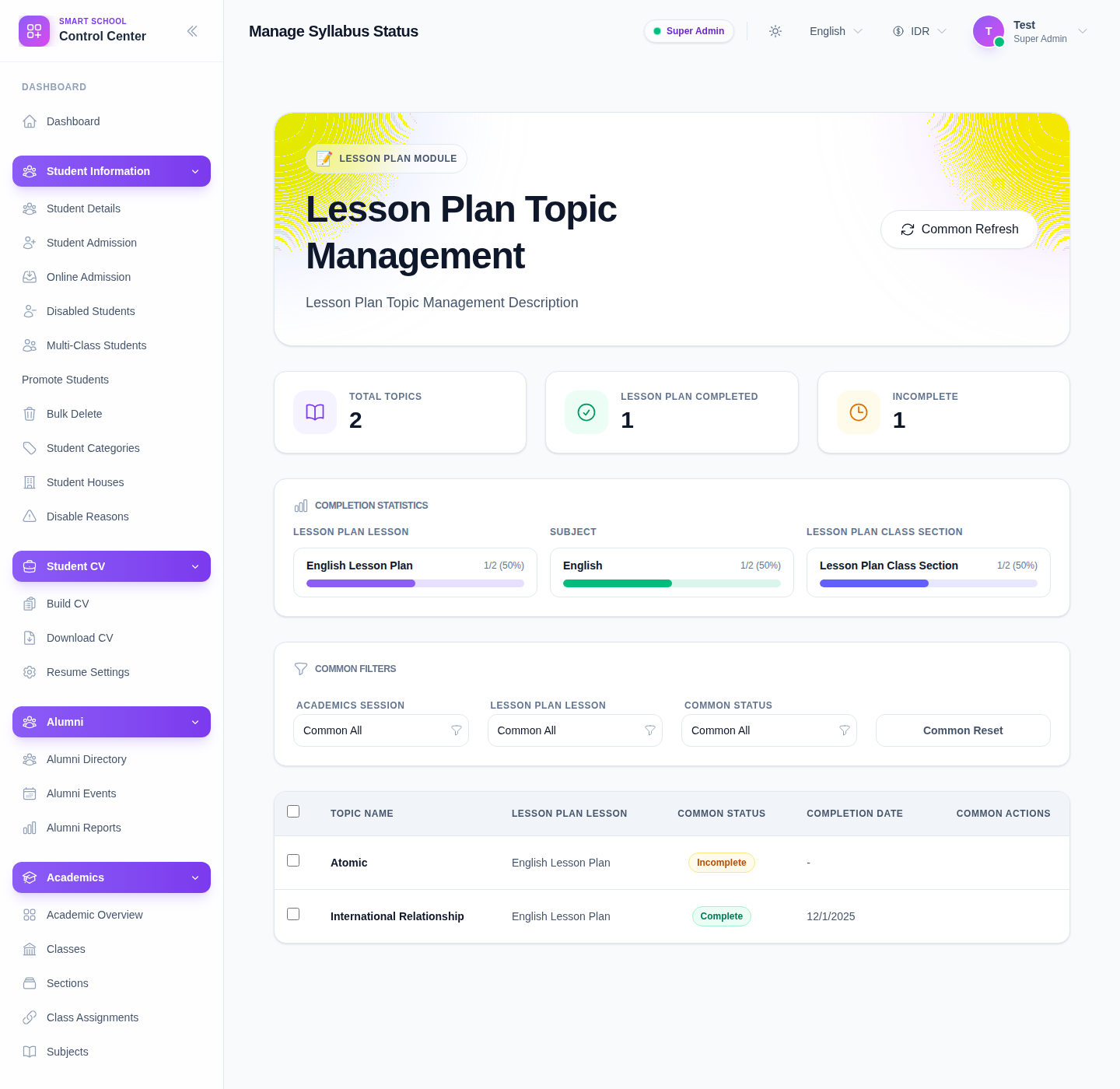
The page includes:
- top-level topic counters
- progress breakdowns
- filters for Session, Lesson, and Status
- a topic table with status and completion-date columns
- direct status and delete actions
Step 2: Read the summary cards and progress blocks
Before changing anything, review the summary area to understand:
- how many topics exist
- how many are complete
- how many are incomplete
- which lesson, subject, or class-section has stronger or weaker coverage
This helps you decide whether the page should be used for status correction or simply for reporting.
Step 3: Filter the topic table
Use filters to narrow the table to the exact academic slice you want:
- Academic Session
- Lesson Plan Lesson
- Status
Then review the topic rows that remain.
This is the safest way to work when the school has many topics across multiple lessons.
Step 4: Update topic completion status
For each topic row, review:
- Topic Name
- Lesson Plan Lesson
- Status
- Completion Date
Then use the direct status control to:
- mark an incomplete topic as complete
- mark a completed topic as incomplete when it was closed too early
The current page also supports topic selection for bulk actions when multiple rows should move together.
Step 5: Use bulk actions carefully when several topics move together
When multiple topics belong to the same operational change:
- select the relevant topic rows
- choose the bulk status action
- set or confirm the completion date when marking complete
- verify the affected row count before finalizing
Use bulk actions only when all selected topics truly share the same new status.
Important notes
Operational note: this page is the active topic-status workspace, not just a passive report. Staff can update completion directly here, so filter carefully before using status actions.
Local dataset note: the current local environment showed a small but usable topic set with both complete and incomplete rows, which was enough to verify the status workflow directly.
Verification checklist
- the correct session and lesson filters are selected
- the topic rows shown belong to the intended teaching context
- status changes reflect real teaching completion
- completion dates are sensible
- bulk actions were used only on matching topics
Troubleshooting
| Issue | Likely cause | What to do |
|---|---|---|
| The wrong topics are visible | Filters are too broad | Narrow by session, lesson, and status |
| A topic was marked complete too early | Direct status action was used on the wrong row | Switch it back to incomplete and verify the intended row |
| Bulk action would affect mixed topics | Selection is too broad | Clear selection and reselect only matching topics |
| Staff expect lesson creation here | They are in the status layer, not the lesson-creation layer | Use Manage Lesson Plan for lesson creation or review |