This guide explains how to export student CV PDFs from the Download CV workspace in Migdafa Smart School.
Before you start
- Confirm the student already has enough CV content to export.
- Review global CV settings if certain sections should appear in the PDF.
- Use admission number or class-section filters when the roster is large.
- Build or update the CV first if the student has missing resume data.
Important: downloading the PDF does not fix missing resume content. If the exported CV looks incomplete, return to the Build CV workspace and update the student's resume before exporting again.
Navigation path
Student CV -> Download CV
Step 1: Open Download CV
Go to Student CV and choose Download CV. The current UI opens a student list with search, class, and section filters plus a row-level Download CV action.
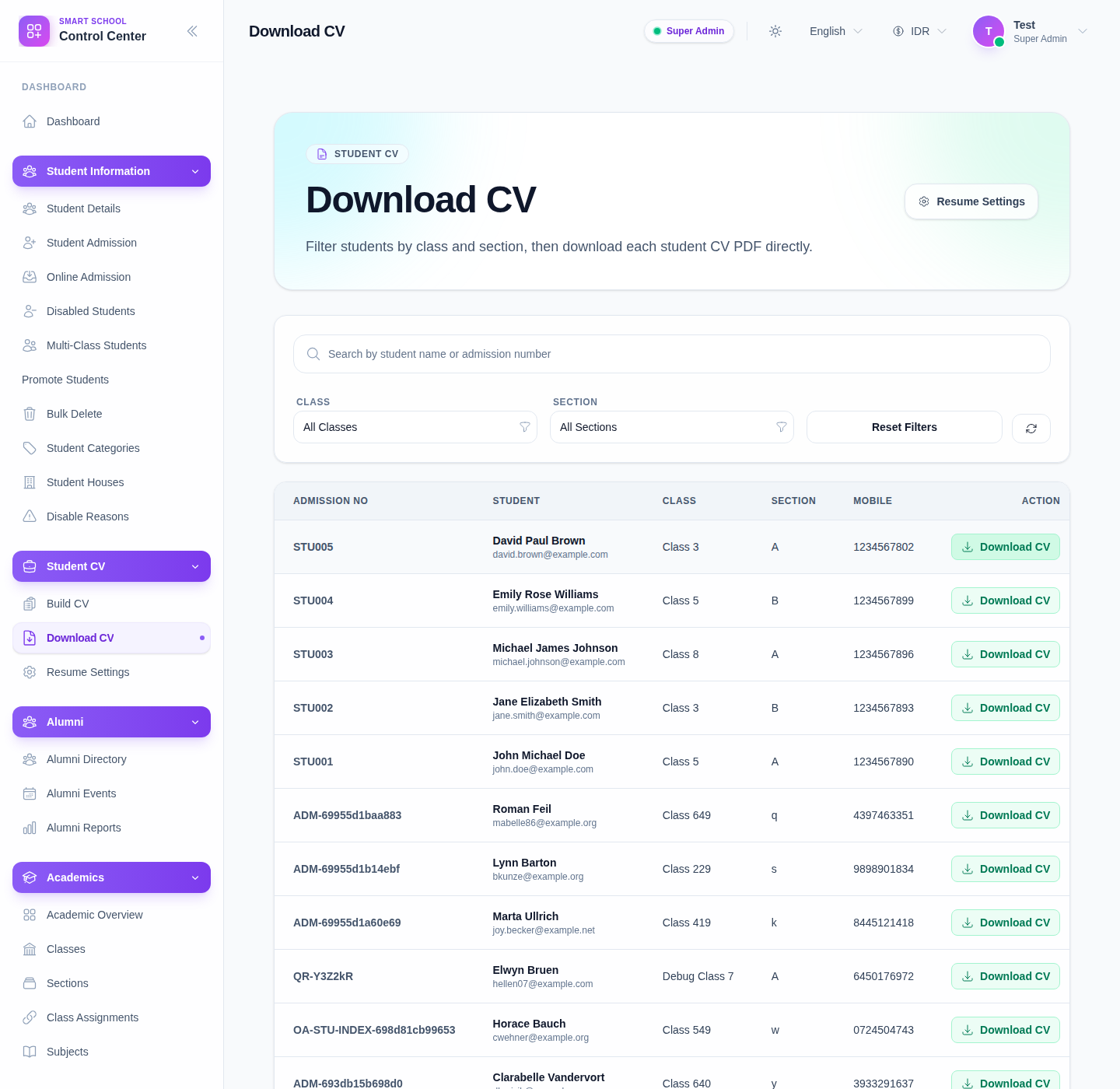
The list includes:
- admission number
- student identity
- class
- section
- mobile
- action
Step 2: Find the correct student
Use the filters at the top of the page:
- Search by student name or admission number.
- Select Class to narrow the list.
- Select Section after the class is chosen.
- Use Reset Filters when you want to clear the current selection state.
In the current UI, the Section selector remains disabled until a class has been selected.
Step 3: Start the PDF export
Click Download CV on the correct student row.
Before clicking, confirm:
- the row belongs to the intended student
- class and section look correct
- the student likely has complete enough data for export
This reduces the chance of downloading the wrong CV or generating an incomplete document.
Step 4: Review the exported file
After the download starts, open the PDF and review:
- identity details
- contact information
- parent and guardian information
- extended resume sections such as experience, qualifications, skills, references, or narrative summary
If a section is absent, the issue is usually either missing saved resume data or disabled resume settings.
Step 5: Correct the source data if needed
If the file is not usable:
- return to Build CV to edit the resume content
- return to Resume Settings to confirm section visibility
- download the PDF again after the correction
This keeps the export workflow aligned with the real source data rather than relying on repeated downloads alone.
Verify the result
Use this checklist after export:
- the downloaded file belongs to the intended student
- the PDF includes the expected profile and resume sections
- the file can be shared or archived as needed
- no unexpected fields are missing because of settings or incomplete data
Expected result: the selected student's resume is downloaded as a PDF with the expected CV content and structure.
Troubleshooting
| Issue | Likely cause | What to do |
|---|---|---|
| The wrong student CV was downloaded | The wrong row action was clicked | Recheck admission number and download the correct row |
| Section filter is disabled | No class has been selected yet | Choose the class first |
| The PDF is missing content | Resume content was not saved or settings hide some sections | Update Build CV content and review Resume Settings |
| The student is difficult to find | The list is too broad | Search by admission number or narrow with class and section |
| The PDF is not ready for sharing | Profile or resume data is incomplete | Correct the source data before exporting again |