This guide explains how to maintain the reference list on the Disable Reasons page.
Before you start
- Decide which disable reasons should be officially available.
- Keep the reason labels short and easy to understand.
- Review the current list before creating anything new.
- Check whether a reason already exists before adding a similar one.
Important: disable reasons are master data for the inactive-student workflow. Poor naming here leads to weak reporting and inconsistent communication with guardians or staff.
Navigation path
Student Information -> Disable Reasons
Step 1: Open Disable Reasons
Go to Student Information and choose Disable Reasons. The page contains:
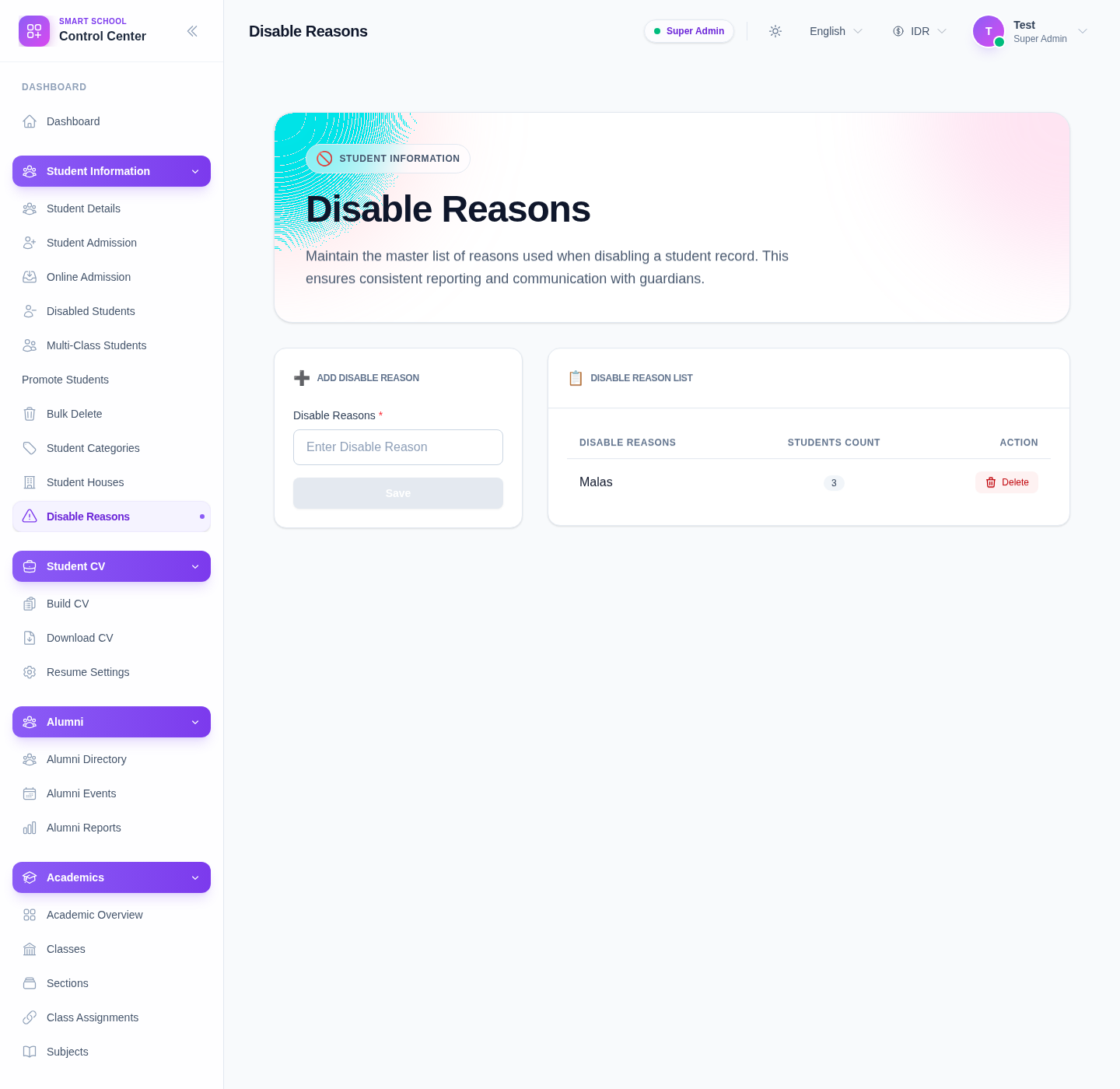
- an Add Disable Reason form
- a Disable Reason List
The current page description explains that this list is used to keep disabling decisions consistent for reporting and communication.
Step 2: Review the current reason list
Before adding a new reason, inspect Disable Reason List.
The table includes:
- disable reason
- students count
- action controls
The Students Count column is especially useful because it shows whether a reason is already in active use.
Step 3: Add a new disable reason
Enter the new reason in Enter Disable Reason, then click Save.
Use short, operationally clear labels rather than long explanations. Good reason names are easier to apply consistently in the disabled-student workflow.
Step 4: Review usage before deleting anything
Because the list also shows Students Count, use that information before removing a reason.
Delete a reason only after checking:
- whether the reason is already attached to inactive students
- whether reporting still depends on that label
- whether staff need the label for future cases
If a reason is still meaningful but poorly named, renaming or standardising may be better than deleting it.
Step 5: Keep the disabled-student workflow aligned
After any update to the master list, make sure the staff who disable or restore students understand which labels should be used going forward.
This keeps the Disabled Students list readable and makes later review easier.
Verify the result
Use this checklist after maintenance:
- the reason list contains only approved, understandable labels
- duplicate or confusing reasons are removed or corrected
- active reasons still needed by staff remain available
- the disabled-student workflow can use the updated list consistently
Expected result: the disable-reason master list stays standardised, and inactive student records can be classified with clear, reusable labels.
Troubleshooting
| Issue | Likely cause | What to do |
|---|---|---|
| Two reasons mean almost the same thing | The list grew without naming rules | Standardise the wording and keep one approved label |
| A reason should not be deleted yet | The students count shows active usage | Review existing inactive students before removing the reason |
| Staff type inconsistent reasons elsewhere | The master list is not being used intentionally | Reconfirm the approved labels and train staff on the correct options |
| Reporting on inactive students looks messy | Similar reasons were added over time | Audit the list and reduce overlapping labels |
| The reason name is too vague | The label is not operationally clear | Rename it to a simpler, clearer term if the workflow allows |