This guide explains how to maintain academic-year records from the Academic Sessions page in Migdafa Smart School.
Before you start
- Confirm the academic year naming format the school uses.
- Know whether you are creating a future session or changing the current active one.
- Review promotion and enrollment timing before changing active status.
- Search the existing list first so you do not create a duplicate year.
Important: only one academic session can be active at a time. Changing the active session affects how many academic workflows interpret the current school year.
Navigation path
Academics -> Academic Sessions
Step 1: Open Academic Sessions
Go to Academics and choose Academic Sessions. The page contains:
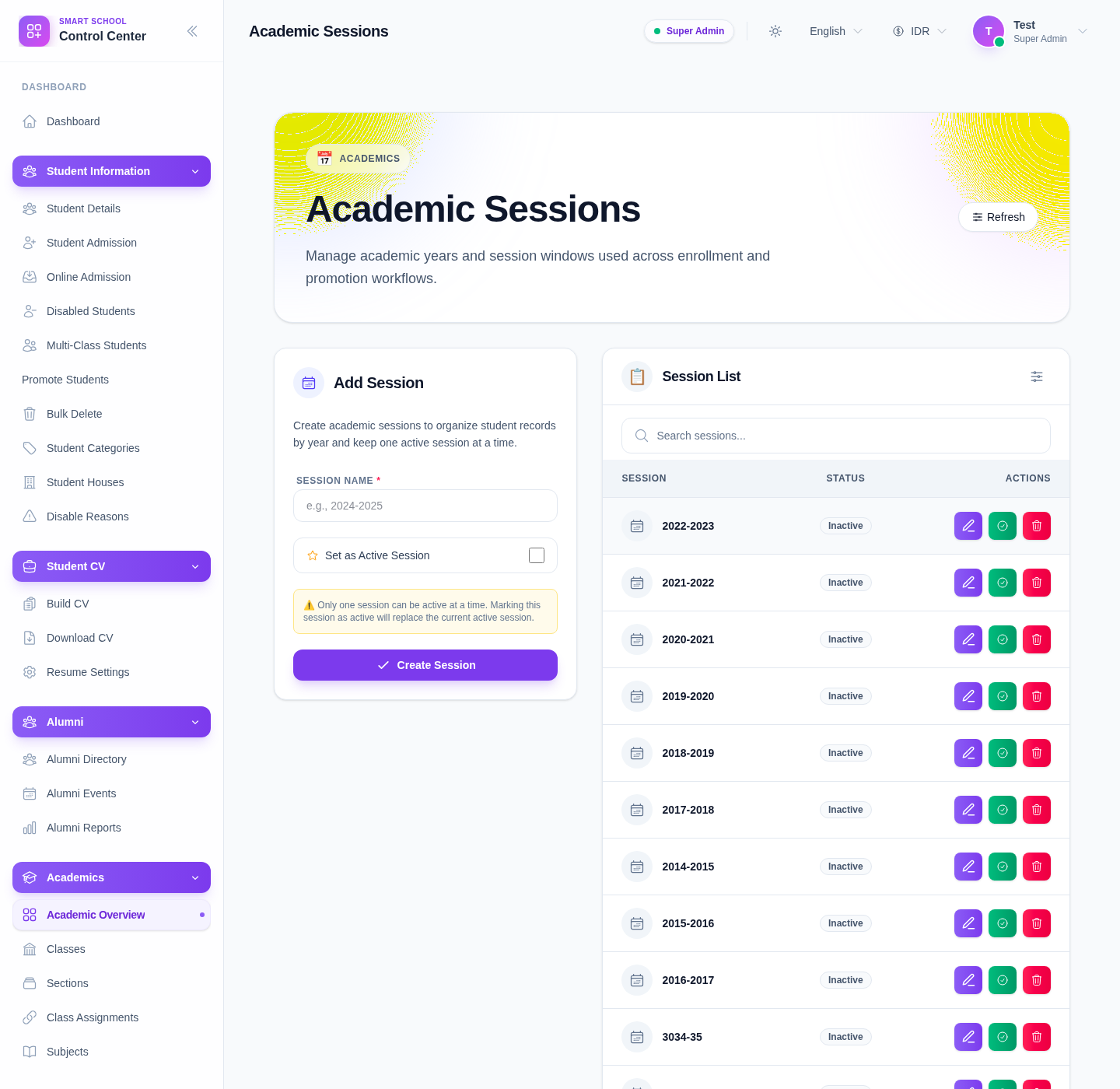
- an Add Session form
- a searchable Session List
The current page explicitly warns that marking a session as active will replace the current active session.
Step 2: Review the existing sessions
Use Search sessions… before creating a new record.
Check the list for:
- existing session years
- current active session
- older inactive sessions that should remain for history
This prevents duplicate year labels and helps you plan active-session changes more safely.
Step 3: Create a new academic session
Use the Add Session form:
- Enter Session Name.
- Enable Set as Active Session only if the new session should become current immediately.
- Click Create Session.
Use Refresh if the list does not update right away.
Step 4: Maintain the active session carefully
The current session list provides row-level actions such as:
- Edit Session
- Set as Active
- Delete Session
Use Set as Active only after confirming:
- the school is ready to move operationally into that session
- promotion, admissions, and reporting teams understand the timing
- the current active session should genuinely be replaced
Step 5: Review the result across the list
After any change, inspect the session list and confirm:
- the intended session exists
- only one session is active
- older sessions remain available for historical reference if needed
This is especially important during annual rollover periods.
Verify the result
Use this checklist after session maintenance:
- the session naming is correct
- the active marker is on the intended row
- no duplicate session year exists
- the school’s operational context matches the selected active session
Expected result: the session list remains organized and the correct academic year is active for current enrollment, promotion, and academic workflows.
Troubleshooting
| Issue | Likely cause | What to do |
|---|---|---|
| The wrong session is active | Set as Active was used too early or on the wrong row | Recheck the intended year and switch the active session carefully |
| A duplicate year was nearly created | The existing list was not reviewed first | Search the session list before creating a new row |
| You are unsure whether to change active session now | Promotion or enrollment timing is not aligned | Confirm with academic leadership before changing active status |
| A session should not be deleted | Historical records may still depend on it | Keep older inactive sessions unless there is a clear reason to remove them |
| The new row is hard to find | Search state is hiding it | Clear the search and refresh the list |