This guide explains how to use Backup & Restore inside Administration to protect the school database and queue controlled restore jobs.
Before you start
- Confirm which backup action you need before you touch the page.
- Make sure you understand whether the goal is to create a backup, download one, restore one, or rotate the cron secret key.
- Keep the backup files in a secure location after download.
- Treat restore operations carefully because they can overwrite live data.
Important: restore jobs affect the whole database. Always verify the target environment and file before you queue a restore or upload a new SQL file.
Navigation path
Administration -> Backup & Restore
Step 1: Open the Backup & Restore page
Go to Administration and open Backup & Restore.
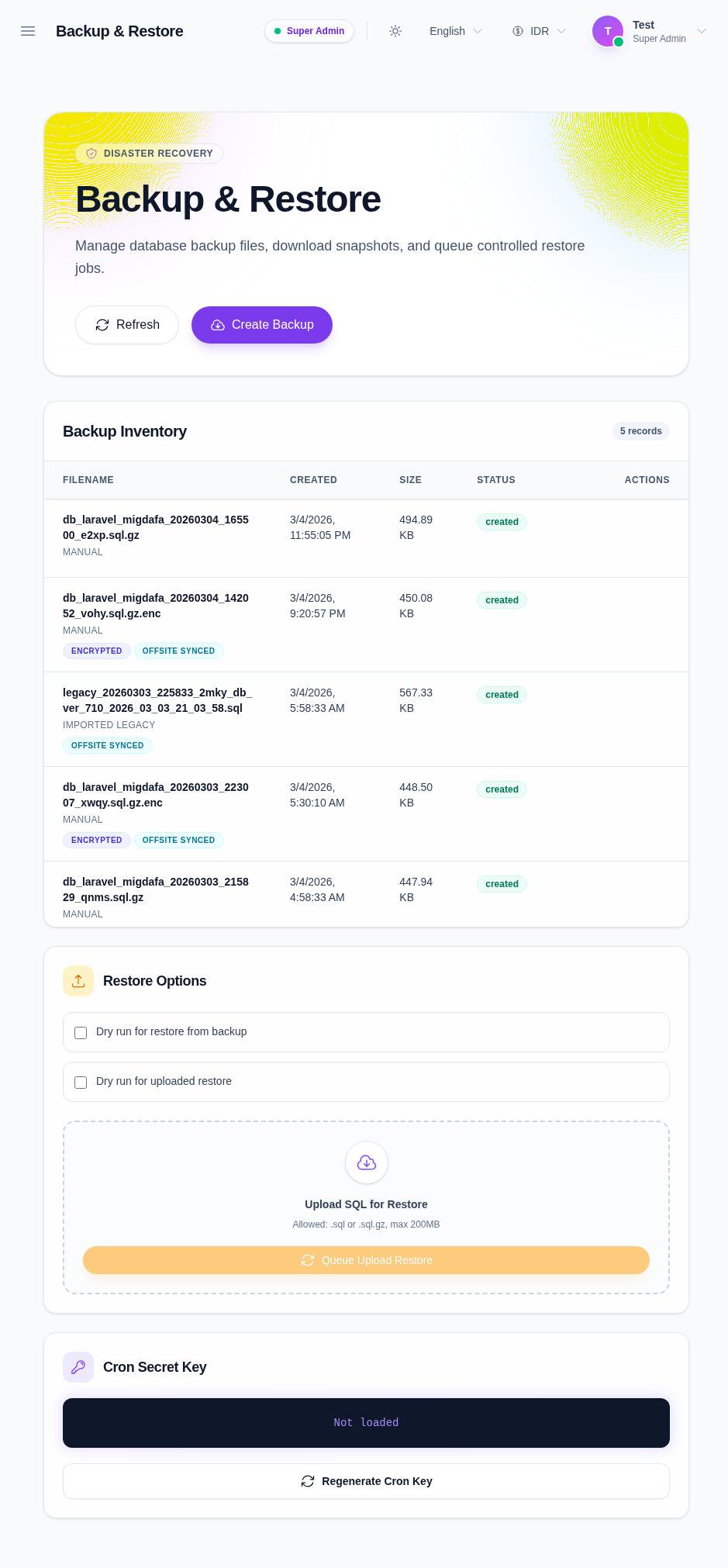
The page includes:
- Refresh
- Create Backup
- Backup Inventory
- Restore Options
- Queue Upload Restore
- Cron Secret Key
Step 2: Review the backup inventory
Start with the backup table in the main area.
Each backup row shows:
- filename
- created date
- size
- status
- row actions
The status badge helps you distinguish a usable backup from a failed one. Only created backups should be treated as ready for download or restore.
Step 3: Create a new backup
Click Create Backup when you need a fresh database export.
The button starts a backup job and adds the new file to the inventory when the export is complete. Use Refresh to confirm the new file appears in the list.
Step 4: Download, restore, or delete an existing backup
Use the row actions in the backup inventory to:
- download the backup file
- queue a restore from that backup
- delete an obsolete backup
Only created backups are eligible for these actions. Failed backups should be reviewed, not restored.
Step 5: Use the restore options for controlled recovery
The Restore Options panel on the side lets you queue restore jobs in two ways:
- restore from an existing backup row
- upload an
.sql,.gz, or.sql.gzfile and queue a restore from that file
The panel also includes dry-run toggles for both restore paths. Use dry run when you want to validate the process without executing the destructive change immediately.
After you choose a backup or upload file:
- review the file name again
- decide whether the dry-run option should stay enabled
- queue the restore only when you are confident about the target environment
Step 6: Manage the cron secret key
The Cron Secret Key panel shows the current secret value or a masked version of it.
Use Regenerate Cron Key when you need to rotate the secret for scheduled backup automation or related background jobs.
Regenerate the key only when you understand the downstream effect, because any integration that relies on the old key will need to be updated.
Verify the result
Use this checklist after working with backups:
- the inventory still shows the expected backup rows
- the backup you needed is downloadable and has the correct status
- the restore job was queued only for the intended file
- the dry-run choice matches your recovery plan
- the cron secret key reflects the current automation setup
Expected result: backups are visible in the inventory, restore jobs can be queued safely, and the cron secret key is managed from the same workspace.
Troubleshooting
| Issue | Likely cause | What to do |
|---|---|---|
| Create Backup is unavailable | Your role does not have backup-create permission | Recheck your administration permissions |
| Download or restore is disabled | The selected backup is not in a created state | Wait for a valid backup or create a new one |
| SQL upload is rejected | The file extension is not accepted | Use .sql, .gz, or .sql.gz |
| Restore queue does not start | The file or backup selection was not confirmed | Recheck the target backup and the dry-run toggle |
| Cron secret looks incorrect | The key was not regenerated or the masked display is stale | Refresh the page or rotate the secret again if needed |