This guide explains the Front CMS → Banners workspace. Banners are the hero slider images shown on the school’s public FrontCMS homepage.
Before you start
- Decide whether the banner will be uploaded directly or selected from the media library.
- Prepare an image that fits the public homepage slider well.
- Check whether the current banner should be removed before you upload a replacement.
Navigation path
Front CMS -> Banners
Step 1: Open the banner workspace
Open Front CMS in the sidebar and choose Banners.
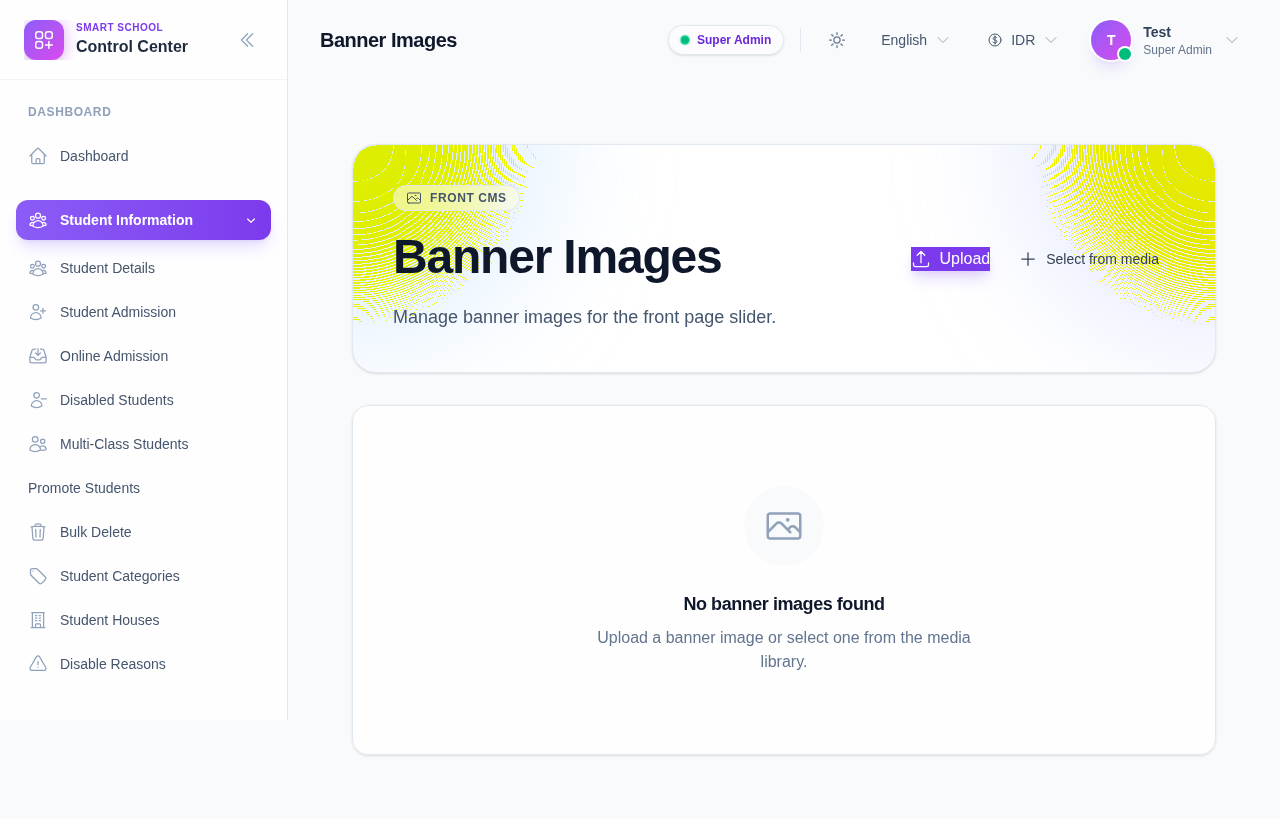
Step 2: Add a banner
Choose one of the two upload paths:
- Upload to send a file directly from your device.
- Select from media to reuse an existing media asset from the library.
The current UI accepts only one banner at a time from the media picker, so select the image that should appear first in the slider.
Step 3: Review the current banner list
After a banner is saved, it appears in the grid with:
- the image preview
- the banner name or file name
- file size information
- a delete button in the card corner
Use the delete button only when the image should no longer appear on the public homepage.
Step 4: Replace or remove an image
If a banner is outdated:
- Delete the old banner image.
- Upload the new image.
- Verify the public FrontCMS homepage shows the updated slider.
Verify the result
- The banner appears in the workspace card grid.
- The banner image is visible on the public FrontCMS homepage.
- The homepage slider uses the new image after the page reloads.
Important: the banner workspace is separate from the general media library. Use Media Library if you want to keep the file available for other Front CMS pages as well.
Troubleshooting
| Issue | Likely cause | What to do |
|---|---|---|
| No banner appears after upload | The file was not saved successfully | Upload again and confirm the card appears in the grid |
| Wrong image opens in the slider | A different banner was selected or the old banner was not removed | Remove the outdated banner and upload the correct image |
| You cannot find a reusable image | The asset is not in the banner list yet | Upload it first or add it through the media library |