This guide explains how to use the Templates Manager inside Communications to maintain reusable email and SMS template content.
Short summary
Templates Manager keeps channel copy organized in one place. Use the email tab for email-ready messages, the SMS tab for short text templates, and the row actions to preview, edit, or duplicate an existing template before you save changes.
Before you start
- Decide whether you are working on an email template or an SMS template.
- Prepare the subject, body, message, and token placeholders before opening the drawer.
- Confirm you have permission to add or edit templates for the selected channel.
Navigation path
Communications -> Templates Manager
Step 1: Open Templates Manager
Go to Communications in the sidebar and open Templates Manager.
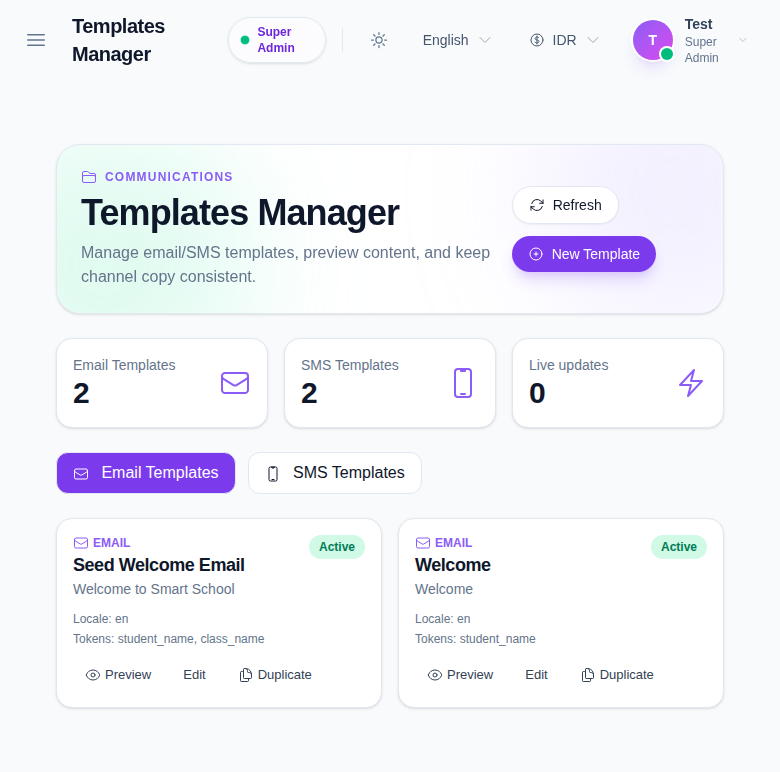
The top of the page shows:
- Email Templates
- SMS Templates
- Live updates
These cards give a quick summary of the current template inventory and recent communication activity.
Step 2: Switch between email and SMS templates
Use the tabs to switch between:
- Email Templates
- SMS Templates
Each tab shows the templates for that channel only. The page displays template cards with:
- template name
- status
- locale
- token list
- row actions
Step 3: Preview, edit, or duplicate an existing template
Use the row actions on any template card:
- Preview to review the current content
- Edit to change the stored template
- Duplicate to create a copy with a new name
Use Duplicate when you want to reuse an existing structure but change the wording for a new campaign or audience.
Step 4: Create a new template
Click New Template to open the template drawer.
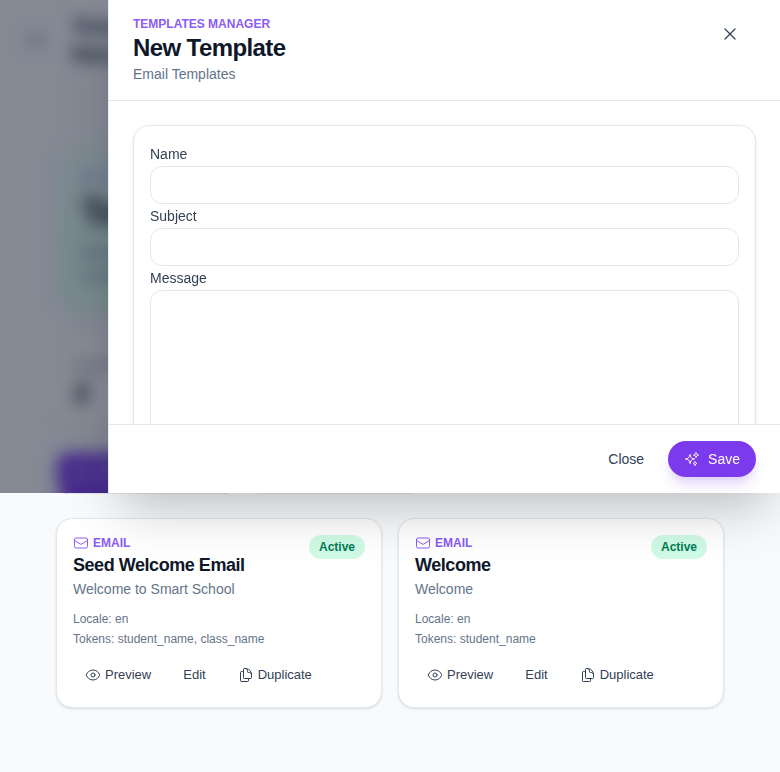
The drawer supports these fields:
- Name
- Subject for email templates
- Body for email templates
- Message for SMS templates
- Locale
- Status
- Tokens
- Provider Template ID for SMS use cases that map to a provider-side template
Fill the fields that match the channel you are editing, then save the record.
Step 5: Review the template after saving
After saving:
- Return to the relevant channel tab.
- Confirm the template row appears with the expected status.
- Check that the token list still matches the message placeholders.
- Preview the template once if you need to verify the final wording.
Important notes
Important: this workspace stores reusable copy, not delivered messages. Updating a template does not send anything by itself; it only changes the content that other communication workflows can use later.
Verification checklist
- The correct channel tab is selected.
- The template name and status are correct.
- Subject or message fields match the intended wording.
- Token placeholders were reviewed before saving.
- The copied template name changes when duplication is used.
Expected result: the communication template is saved in the correct channel tab and is ready for use in notification workflows.
Troubleshooting
| Issue | Likely cause | What to do |
|---|---|---|
| A template does not appear after saving | The wrong tab is open or the save did not complete | Refresh the page and recheck the email or SMS tab |
| Duplicate template name is confusing | The duplicated copy kept the original name structure | Rename the duplicated template before using it |
| Tokens do not match the message | Placeholder values were typed inconsistently | Reopen the template and align the token list with the body text |
| SMS mapping is missing | Provider-side template mapping was not set | Recheck the SMS provider configuration before trying again |