This guide explains how to use the Hostel Rooms workspace to review room inventory and open the room-creation drawer for new hostel capacity records.
Short summary
The Hostel Rooms page combines a room hero section, search and hostel filters, a room list with occupancy and cost data, and a New Hostel Room drawer for room setup fields such as hostel, room type, room number, bed count, and cost per bed.
Before you start
- Confirm the hostel record already exists.
- Confirm the room type already exists.
- Prepare the room number, bed count, and cost-per-bed values before opening the form.
Navigation path
Hostel -> Hostel Rooms
Step 1: Open Hostel Rooms
Go to Hostel in the sidebar and open Hostel Rooms.
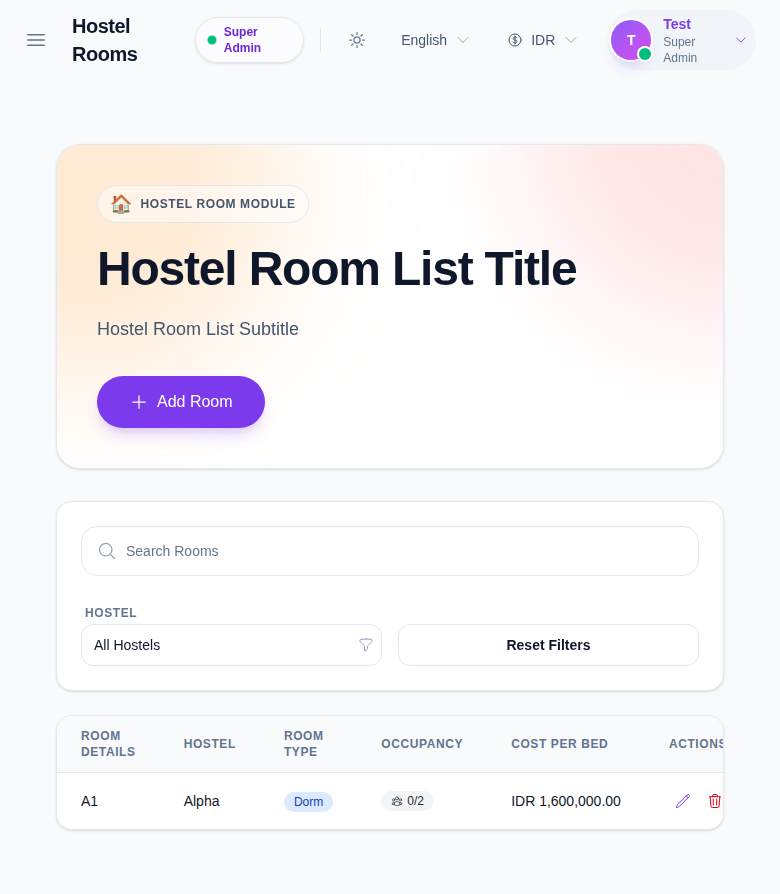
Step 2: Filter and review room inventory
Use the available controls to review current room records:
- Search Rooms
- Hostel
- Reset Filters
In the room list, check:
- room details
- hostel
- room type
- occupancy
- cost per bed
- action buttons
Step 3: Open the New Hostel Room drawer
Click Add Room.
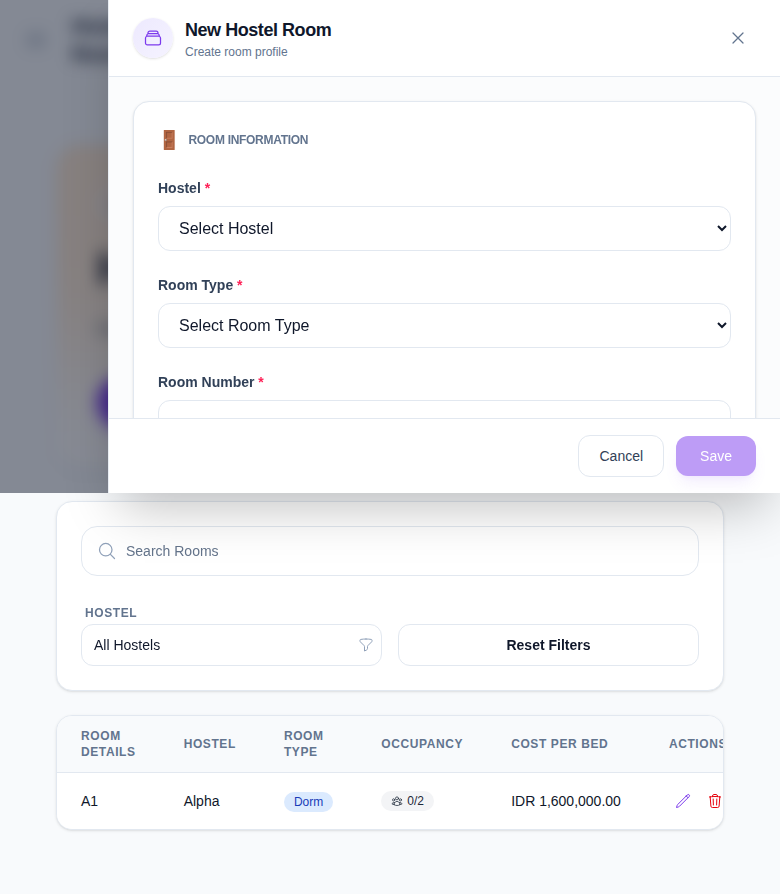
Step 4: Complete room information
Fill the fields shown in the drawer:
- Hostel
- Room Type
- Room Number
- Number Of Beds
- Cost Per Bed
- Title
- Description
Then click Save to create the room, or Cancel to exit without saving.
Step 5: Verify the room in the list
After saving:
- Return to the room list.
- Confirm the new room appears under the expected hostel.
- Check occupancy and cost-per-bed values.
- Use the row actions when you need to edit or delete an existing room record.
Important notes
Important: the local audit confirmed the room-management workflow works, but some visible labels on the Hostel Rooms page still fall back to translation keys in the current environment. Review the saved data itself rather than relying only on the hero-copy text.
Verification checklist
- Hostel and room type are selected correctly.
- Room number and number of beds match the intended room setup.
- Cost per bed is reviewed before saving.
- The room appears in the list with the expected hostel, type, occupancy, and cost values.
Expected result: the hostel room record is available in the Hostel Rooms list and can be managed through the standard room actions.
Troubleshooting
| Issue | Likely cause | What to do |
|---|---|---|
| Save cannot proceed | Required hostel, room type, room number, or bed fields are missing | Complete all required fields before saving |
| Room does not appear in the list | Search or hostel filter is hiding the new record | Reset filters and search by room number |
| Room type or hostel list is empty | Source setup records are missing | Create the hostel or room type first, then reopen the room drawer |
| Page labels look unusual | Some text currently falls back to untranslated keys in the local environment | Validate the room table data and form fields rather than only the hero copy |