This guide explains how to manage section records from the Sections page in Migdafa Smart School.
Before you start
- Confirm the school’s section naming rules.
- Review whether an existing section can be reused.
- Decide whether the new section should be active immediately.
- Coordinate with academic staff before deactivating a section that may still be in use.
Important: sections are reused across class assignments, admissions, and promotions. Avoid one-off naming unless it is part of the school's real academic structure.
Navigation path
Academics -> Sections
Step 1: Open Section Directory
Go to Academics and choose Sections. The page includes an Add New Section form and a searchable Section Directory list.
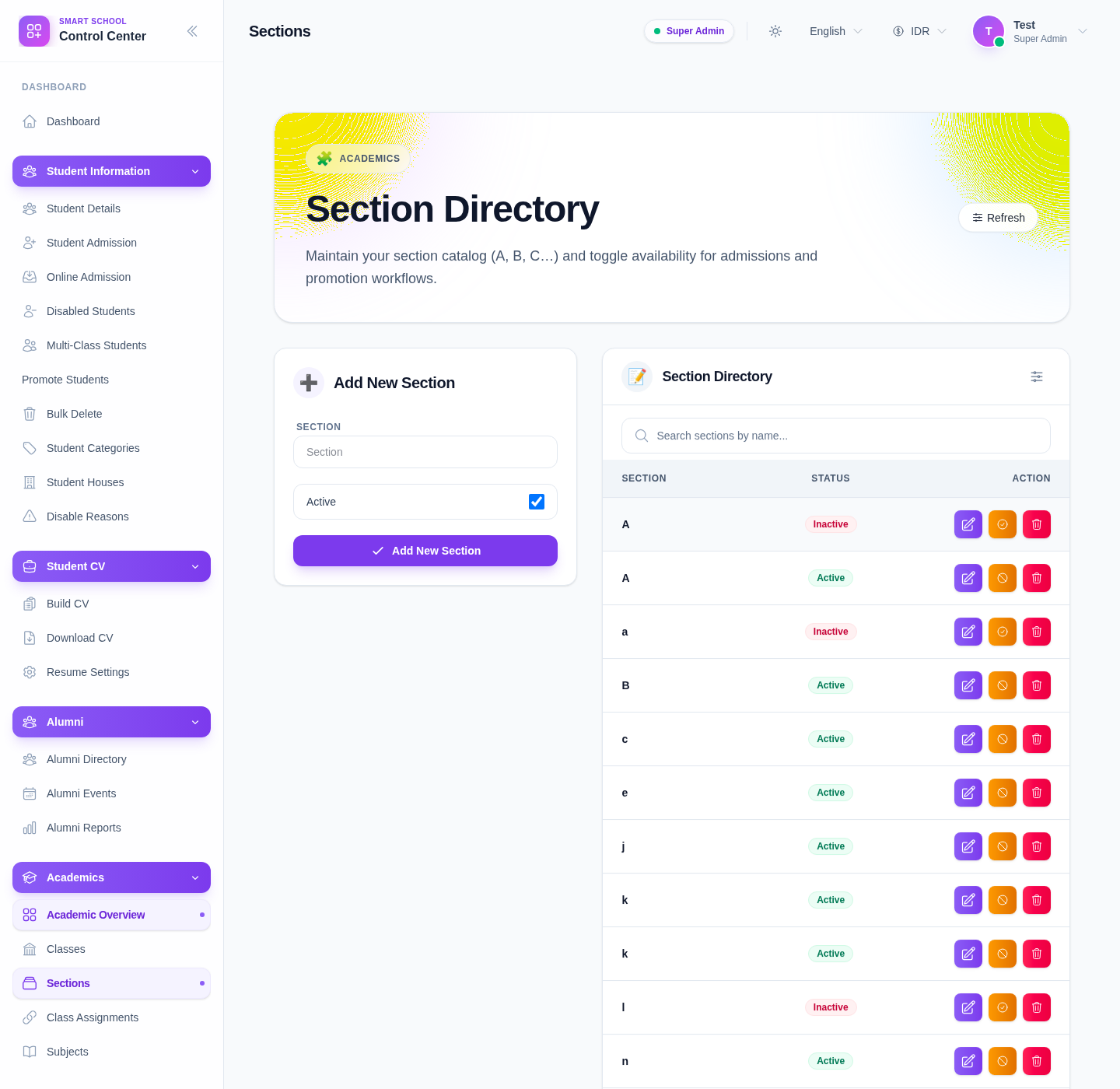
The current table includes:
- section
- status
- actions
Step 2: Search the existing section list
Use Search sections by name… before creating a new record.
This helps avoid:
- duplicate sections
- inconsistent capitalization
- unnecessary recreation of inactive sections that could be reactivated
Step 3: Add a section
Use the form at the top of the page:
- Enter the Section name.
- Decide whether Active should stay enabled.
- Click Add New Section.
Use Refresh if you need to reload the directory after changes.
Step 4: Review and maintain the directory
After saving, inspect the row and confirm:
- the section label is correct
- the status matches the intended operational state
The current directory also exposes row-level actions:
- Edit
- Activate or Deactivate
- Delete
Use those actions carefully when cleaning or standardizing the section list.
Verify the result
Use this checklist after any section update:
- the section name is standard and easy to recognize
- the active status is correct
- no duplicate section was created
- the section is ready for class linking in the next workflow
Expected result: the section directory remains standardized and ready to support class assignments, admissions, and promotions.
Troubleshooting
| Issue | Likely cause | What to do |
|---|---|---|
| A section appears more than once | The list was not reviewed first | Search the directory before creating a new section |
| The wrong status is shown | Activate/Deactivate was applied to the wrong row | Recheck the row label and adjust the status |
| A section should not be deleted | It may still be used in class assignments | Confirm with academic staff before deleting |
| Search results look inconsistent | Section naming has drifted over time | Standardize capitalization and naming across the directory |
| A new section does not appear immediately | The view needs to be refreshed | Use Refresh and clear the search box if necessary |