This guide explains how to use the Staff Leave Management page in Migdafa Smart School.
Before you start
- Decide whether you are working on requests, leave types, or allocations before opening the page.
- Expect the current local environment to contain many QA or test leave-type rows from previous internal runs.
- Confirm which staff member and leave type should be involved before approving or allocating anything.
- Treat approvals and allocations as operational records, not temporary notes.
Important: the Staff Leave page mixes three responsibilities in one surface. Stay conscious of the active tab so you do not confuse request approval with leave-type maintenance or allocation editing.
Navigation path
Human Resource -> Leave Management
Step 1: Open Staff Leave Management
Go to Human Resource and choose Leave Management.
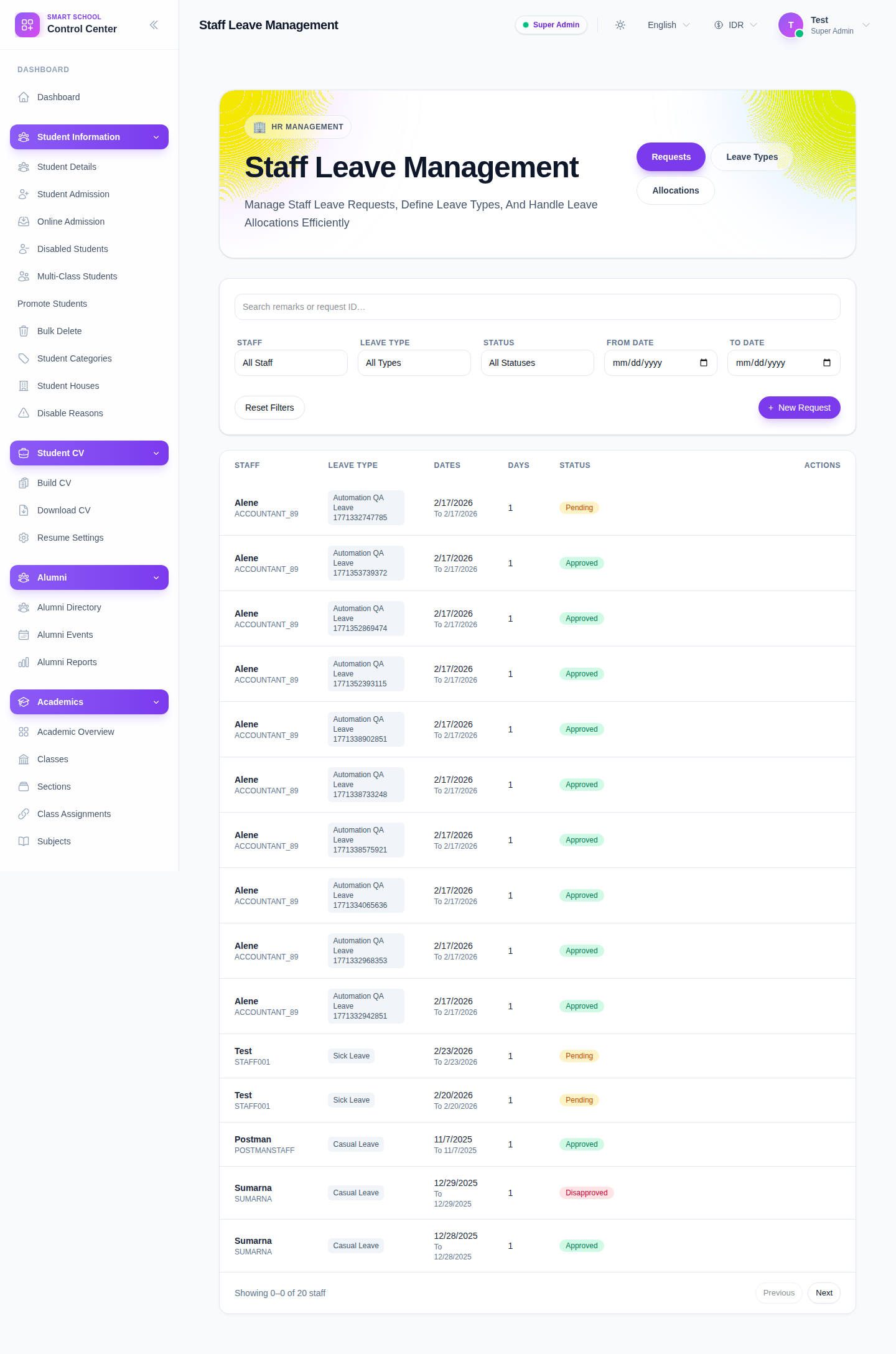
The current page opens with three tabs:
- Requests
- Leave Types
- Allocations
Step 2: Review and filter leave requests
Use the Requests tab when you need to inspect current leave activity.
The current filter bar includes:
- search by remark or request ID
- Staff
- Leave Type
- Status
- From Date
- To Date
The request table currently shows:
- staff identity
- leave type
- leave dates
- number of days
- status
- actions such as View, Approve, Reject, and Delete
Use these filters before approving or rejecting so you are working in the correct request context.
Step 3: Create a new leave request
Use + New Request from the Requests tab to open the submission dialog.
The current request form includes:
- Staff Member
- Leave Type
- From Date
- To Date
- Reason / Remark
- Attachment
Use Submit Request to save it or Cancel to exit without saving.
Step 4: Maintain leave types
Switch to the Leave Types tab when the system needs a new leave category or when an old one needs cleanup.
From the current UI you can:
- review the leave-type list
- use + Add Type
- create a type with Leave Type Name
- control whether the type is Active
- edit or delete an existing type
This is where the system-level leave vocabulary is maintained, separate from individual requests.
Step 5: Maintain leave allocations
Use the Allocations tab to control staff leave balances.
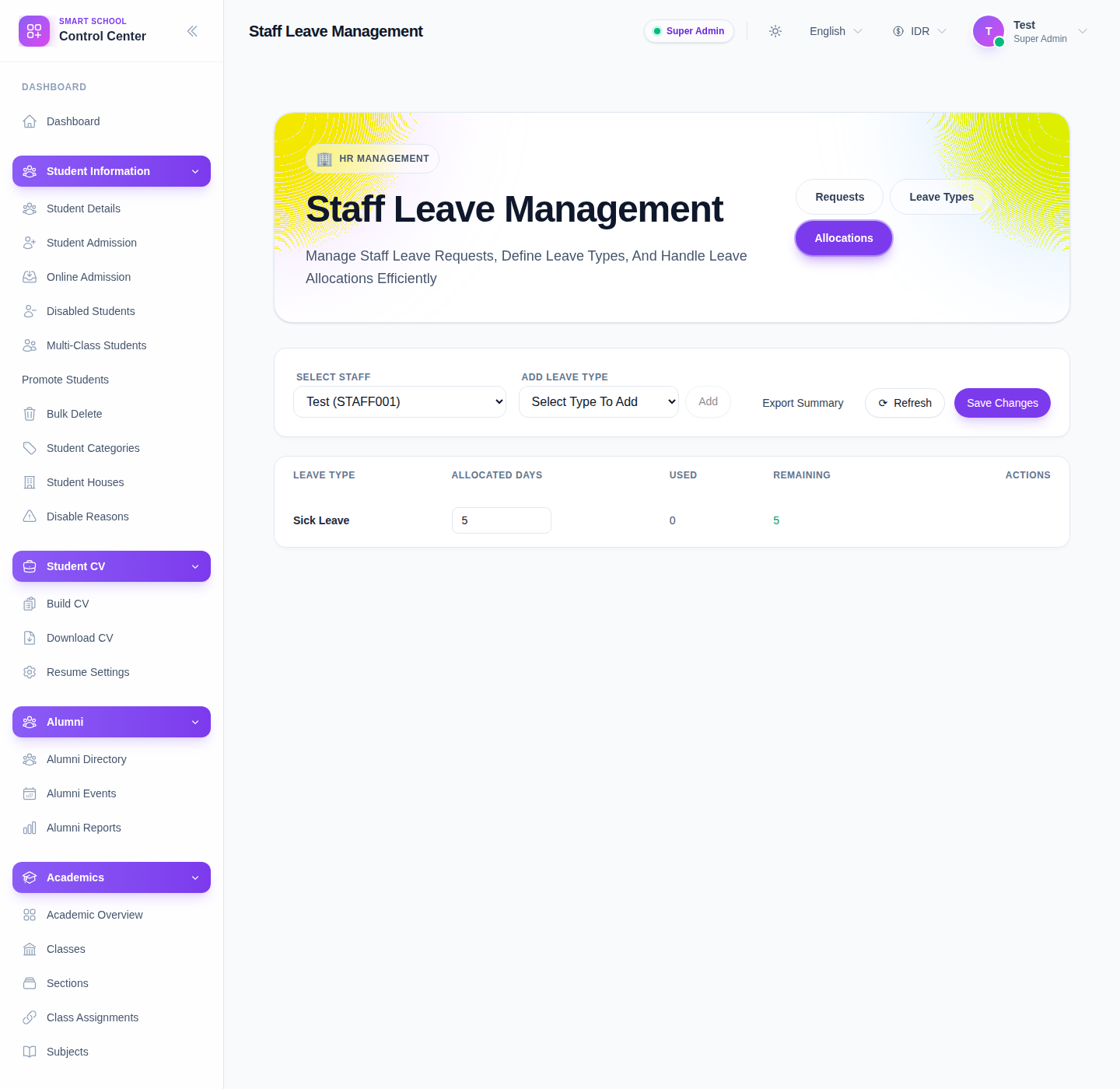
The current allocation workflow includes:
- Select Staff
- Add Leave Type
- Add
- editable Allocated Days
- calculated Used and Remaining
- Export Summary
- Refresh
- Save Changes
Select the staff member first. The page then enables allocation controls and loads the current leave balance rows.
Step 6: Save only after the request, type, or balance is confirmed
Before finalizing any change:
- confirm you are on the correct tab
- recheck the staff member
- recheck the leave type
- confirm the status or allocated-day change is intentional
This prevents accidental edits in the wrong leave context.
Verify the result
Use this checklist after staff-leave maintenance:
- the right request, type, or allocation was updated
- request status matches the intended decision
- leave types reflect the current operational policy
- staff allocations show the intended allocated, used, and remaining values
Expected result: staff leave requests, leave types, and per-staff allocations are maintained accurately from one HR workspace without losing track of the active leave-management context.
Troubleshooting
| Issue | Likely cause | What to do |
|---|---|---|
| The wrong operation is being performed | The wrong tab is active | Recheck whether you are in Requests, Leave Types, or Allocations before continuing |
| Allocation controls stay disabled | No staff member is selected yet | Choose the staff member first, then manage their leave balances |
| The leave-type list looks noisy | The local environment contains QA or test records | Focus on the active operational type and clean up obsolete rows deliberately |
| A request is hard to find | Filters are too narrow or a search term is still active | Reset the filters and start again from a broader request view |
| Remaining days look wrong | The allocation or leave type was edited against the wrong staff record | Recheck the selected staff member and the loaded allocation rows before saving |