This guide explains how to use the Payroll workspace to review staff payroll readiness and open the payslip generator for individual employees.
Short summary
The Payroll workspace combines month-based filters, payroll summary cards, and a staff table with row-level Generate actions. After choosing the target payroll period, you review employee status and open the payslip drawer to enter salary details and internal notes before creating the slip.
Before you start
- Confirm the target Month and Year for the payroll run.
- Verify department and designation assignments are correct if you plan to filter a subset of staff.
- Decide the basic salary amount and any internal note you want printed or stored with the payslip.
Navigation path
Human Resource -> Payroll
Step 1: Open Payroll workspace
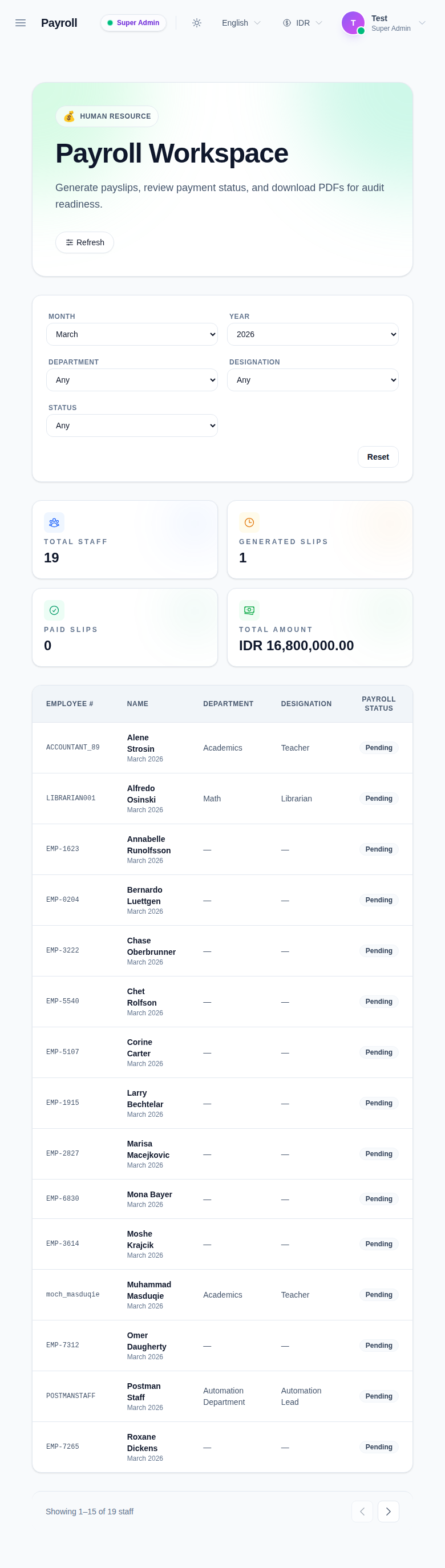
Go to Human Resource in the sidebar and open Payroll.
Step 2: Set the payroll period and filters
Use the top filters to narrow the run context:
- Month
- Year
- Department
- Designation
- Status
Click Reset if you need to return to the full employee list for the current month.
Step 3: Review payroll readiness
Before generating a payslip, review:
- Total Staff
- Generated Slips
- Paid Slips
- Total Amount
Then inspect the table to confirm the employee row shows the intended month, department, designation, and payroll status.
Step 4: Open the Generate payslip drawer
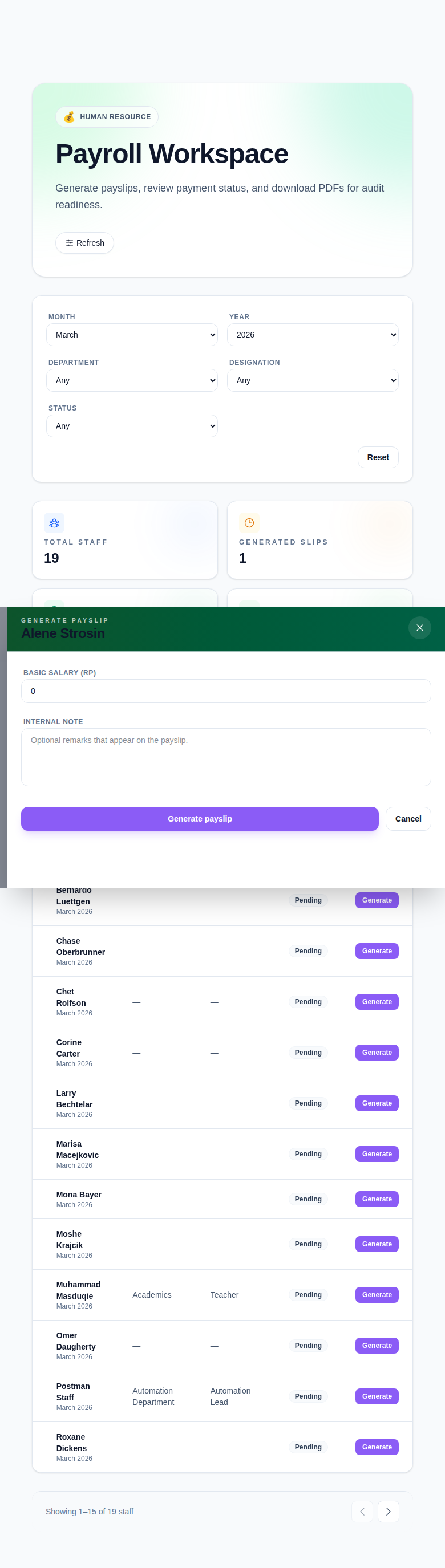
Click Generate on the target employee row.
Step 5: Complete payslip details
Fill the available fields in the drawer:
- Basic salary (Rp)
- Internal note
Then click Generate payslip to create the slip for that employee, or Cancel if you need to return to the list without saving.
Step 6: Verify the payroll state
After generating:
- Return to the employee table.
- Confirm the employee status no longer shows as pending for the current payroll period.
- Recheck the summary cards if you expect the generated count to increase.
- Use Refresh when the workspace data needs to be reloaded from the server.
Important notes
Important: payroll is period-sensitive. If you switch month or year after generating a payslip, the row status and summary totals may change because you are viewing a different payroll cycle.
Verification checklist
- The correct month and year are selected.
- The intended employee row is identified before opening the drawer.
- Basic salary and note values are reviewed before saving.
- The employee payroll status reflects the updated state after generation.
Expected result: the staff member now has a generated payslip workflow entry for the selected payroll period.
Troubleshooting
| Issue | Likely cause | What to do |
|---|---|---|
| Employee is not visible in the list | Department, designation, or status filters are too narrow | Reset filters, then reapply only the necessary values |
| Wrong payroll month appears in the row | Month/year filters were changed after the list loaded | Reconfirm the payroll period and refresh the workspace |
| Generate drawer opens for the wrong person | The wrong table row was selected | Cancel the drawer and reopen the correct employee row |
| Generated count does not change immediately | Workspace data is stale | Click Refresh to reload payroll summary and row status |