This guide explains how to use Chat inside Communications to start direct conversations and follow the current message thread.
Short summary
Chat is a direct messaging workspace. Use the search box to find participants by name, ID, email, or phone, select a result to open or start a conversation, then send messages from the thread pane. The workspace also shows unread counts, timestamps, and read indicators.
Before you start
- Confirm you have access to the Communications module and chat permission.
- Know the participant name, ID, email, or phone you want to search for.
- Decide whether you want to continue an existing thread or start a new one.
Navigation path
Communications -> Chat
Step 1: Open Chat
Go to Communications in the sidebar and open Chat.
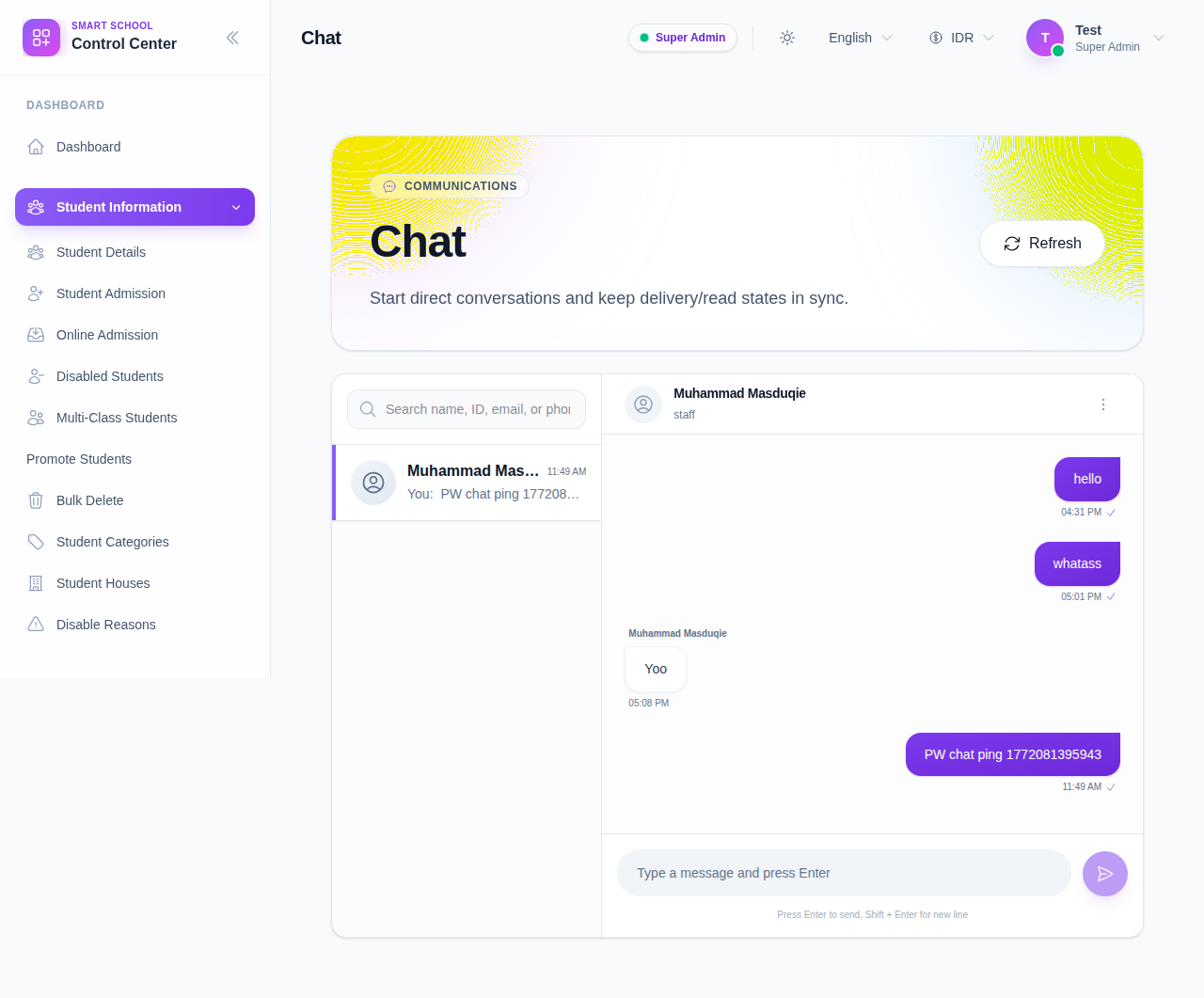
The page includes:
- a conversation list on the left
- an active conversation pane on the right
- a message composer at the bottom
- a refresh action in the header
Step 2: Search for a participant
Use the search field to find a person by:
- name
- ID
- phone
The search box starts showing results after you enter at least two characters.
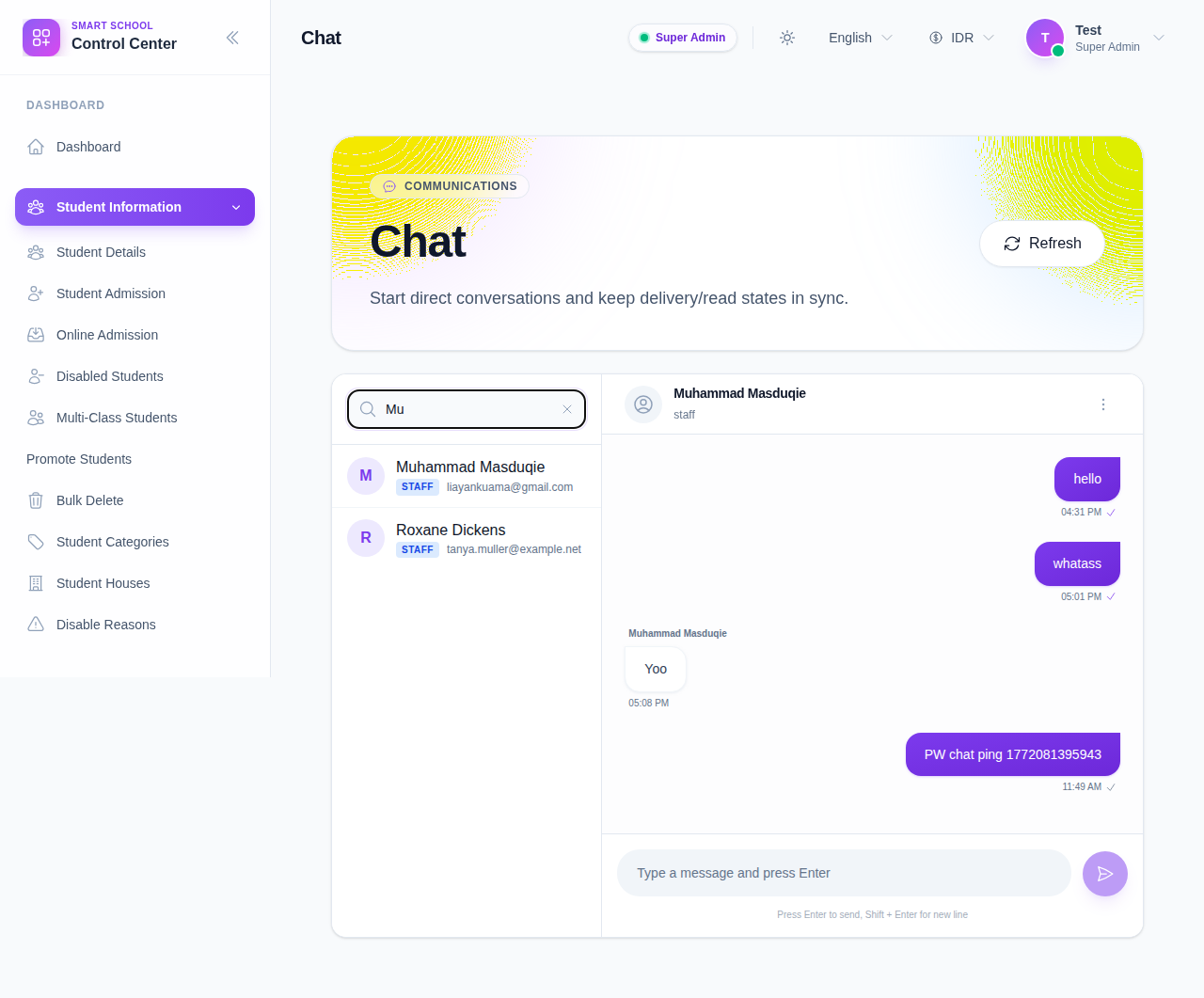
Search results show:
- participant name
- role badge
- email or identifier
Step 3: Open or start a conversation
Click a search result to open the thread or start a new one.
If the conversation already exists, the thread opens in the right pane. If the conversation does not exist yet, the workspace creates it and switches to the new thread.
The conversation list also shows:
- avatar or initial
- unread badge count
- latest message preview
- last message time
Step 4: Send a message
Type a message in the composer at the bottom of the thread.
Use:
- Enter to send
- Shift + Enter to create a new line
After sending, the message appears in the thread with a timestamp and read indicator when delivery is confirmed.
Step 5: Load earlier messages when needed
If the thread has older history, use Load earlier messages to bring earlier messages into view.
This is useful when:
- you need to review the full conversation context
- you are checking an older delivery decision
- you need to confirm a previous reply before sending a new one
Step 6: Watch delivery and read state
The thread pane shows message bubbles with:
- sender grouping
- timestamps
- read indicators on sent messages
The workspace also keeps polling for conversation updates so the thread stays current while you work.
Important notes
Important: Chat is a direct operational conversation tool, not a broadcast channel. Use Notification Center or the general Communications compose flow when you need one-to-many delivery.
Verification checklist
- The participant search returns the expected person.
- The correct conversation opens after selecting a result.
- The message composer accepts a new message.
- The thread shows timestamps and read state after sending.
- Earlier messages load correctly when the thread has history.
Expected result: you can search a participant, open a direct thread, and send follow-up messages from the same workspace.
Troubleshooting
| Issue | Likely cause | What to do |
|---|---|---|
| Search returns no results | The query is too short or does not match the participant | Enter at least two characters and try a different name, ID, email, or phone |
| Conversation does not open | You selected the wrong search result or do not have permission | Recheck the participant and retry from the search results |
| Message does not send | The composer is empty or the send action is unavailable | Type a message and try again |
| Earlier history is missing | The thread has no older messages or they are not loaded yet | Use Load earlier messages when the button appears |