This guide explains how to work with the Disabled Students page in Migdafa Smart School.
Before you start
- Confirm whether the student should stay inactive or be restored.
- Review the disable reason that was used when the record was marked inactive.
- Confirm the class and section if you plan to filter the list instead of searching directly.
- Coordinate with admissions or academics if the student is returning after a long gap.
Important: re-enabling a student should be a controlled decision. The disabled list is intended for records that are intentionally inactive, so restore only after checking the student's real status.
Navigation path
Student Information -> Disabled Students
Step 1: Open Disabled Students
Go to Student Information in the sidebar and choose Disabled Students. The page loads an inactive-student roster with the reason, disabled date, and row-level actions.
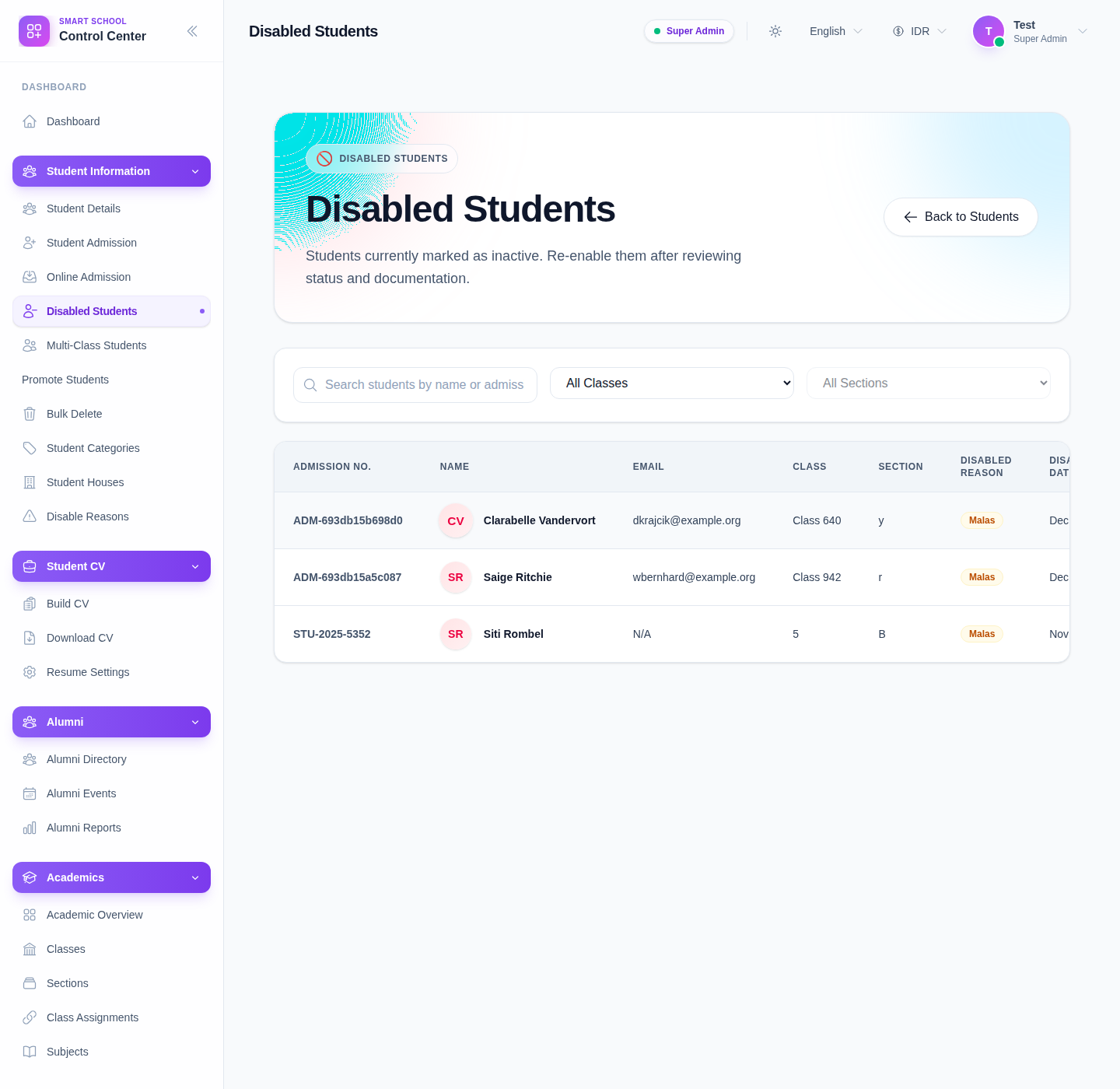
The current table includes:
- admission number
- student name
- class
- section
- disabled reason
- disabled date
- action buttons
Step 2: Narrow the list
Use the search and filters at the top of the page before acting on a record:
- Enter a name or admission number in Search students by name or admission number.
- Choose Class if you want to limit the list by class.
- Choose Section after selecting the class.
What to expect in the current UI:
- the Section selector stays disabled until a class is chosen
- search works well for direct lookups
- filters help when many inactive students share similar names
Step 3: Review the disabled record
Before changing anything, inspect the row carefully.
Key values to review:
- the exact student identity
- current class and section
- the recorded disable reason
- the disabled date
Use View when you need to inspect the student record first. This is the safer option when multiple students have similar names or when the disable date needs confirmation.
Step 4: Re-enable the student if they should return
Click Enable on the correct row when the student should move back into active use.
Use this action when:
- the student returned after temporary inactivity
- the record was disabled by mistake
- the school has completed the required approval or documentation review
After enabling, the student should no longer remain in the disabled list and should return to the normal student-management workflows.
Step 5: Recheck the active roster
After a successful restore:
- go back with Back to Students
- search for the student again in Student Details
- confirm the class and section still make sense for the student’s current status
If the student is returning in a different academic situation, coordinate the next actions with promotion, multi-class history, or admissions cleanup as needed.
Verify the result
Use this checklist after the update:
- the student no longer appears in the disabled roster
- the student can be found from the active student roster
- the student’s class and section are still valid
- staff who manage the record understand that the student is active again
Expected result: the correct inactive record is reviewed and, when appropriate, restored to the active student list without affecting other disabled students.
Troubleshooting
| Issue | Likely cause | What to do |
|---|---|---|
| The student is hard to find | Too many inactive records or similar names | Search by admission number first, then use class and section filters |
| Section filter is disabled | No class has been chosen yet | Select the class before trying to choose the section |
| You are unsure whether to enable the record | The disable reason or student status is not fully clear | Open View, check supporting documentation, and confirm with admissions |
| The wrong student was almost restored | Similar names or incomplete search criteria | Verify admission number, class, and disabled date before clicking Enable |
| The student returns but needs academic follow-up | The student is active again but may not be in the right academic flow | Review promotion, class placement, or multi-class history after restoration |