This guide explains how to manage individual student assignments from the Student Tasks workspace.
Short summary
Use Student Tasks to create short assignment records for individual students, filter the list by class or status, apply a saved template, and continue later with edit, evaluate, or delete actions.
Before you start
- Confirm which student should receive the task.
- Confirm the correct subject or subject-group-subject option.
- Decide whether you are creating a task manually or applying a reusable template first.
- Prepare any attachment file before opening the form.
Navigation path
Homework -> Student Tasks
Step 1: Open Student Tasks
In the sidebar, open Homework and choose Student Tasks.
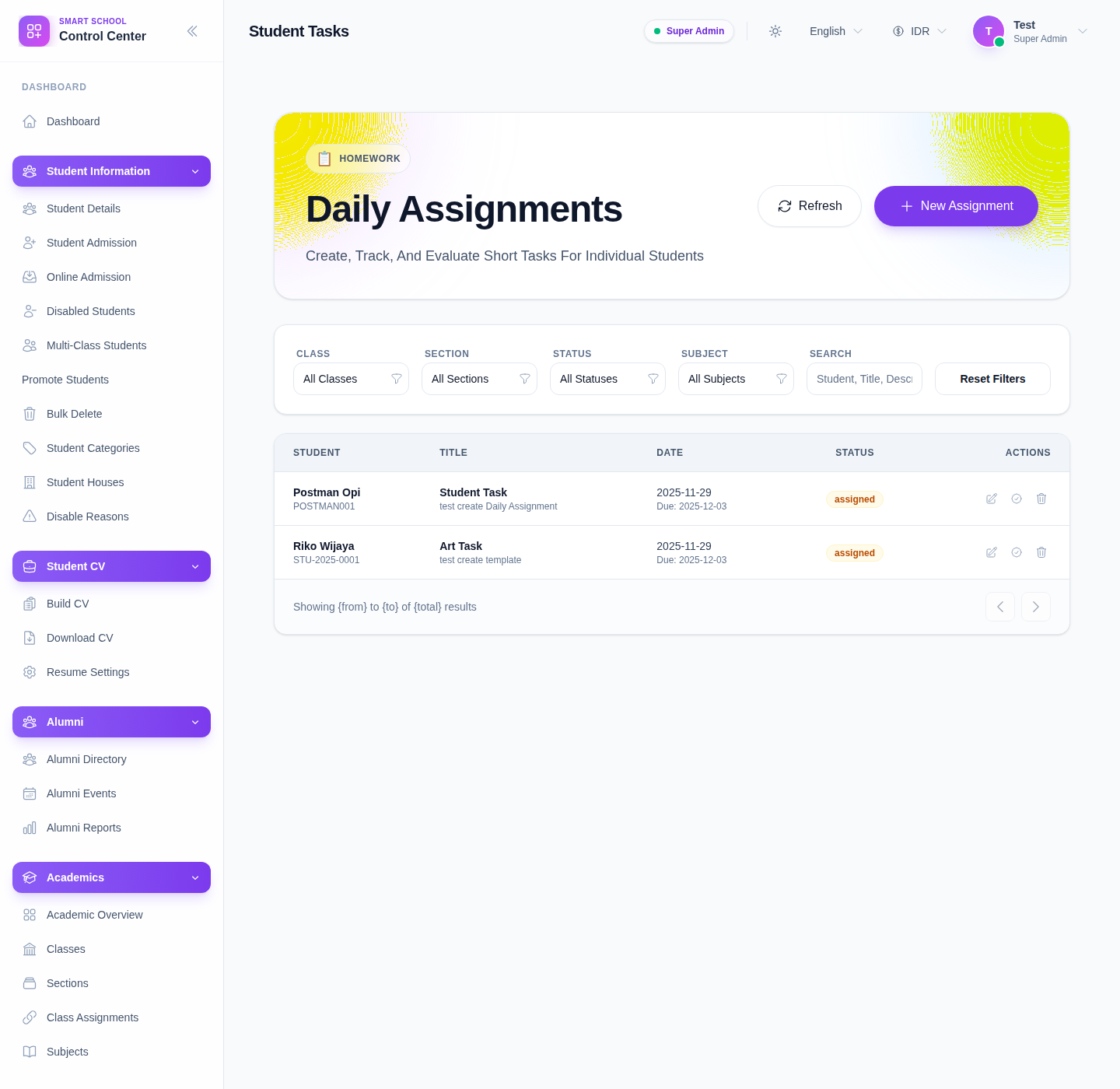
The visible workspace includes:
- Refresh
- New Assignment
- filters for Class, Section, Status, Subject, and Search
- Reset Filters
- row-level actions such as Edit, Evaluate, and Delete
Step 2: Filter the workspace before taking action
Use the top filters to narrow the list to the right work context.
Recommended order:
- Class
- Section
- Status
- Subject
- Search
This helps prevent editing or evaluating the wrong student’s task.
Step 3: Open the assignment drawer
Click New Assignment to create a new record.
The current drawer supports these main fields:
- Template and Apply Template
- Student
- Subject
- Title
- Description
- Date
- Due Date
- Attachment
Use Apply Template only after selecting a template when you want to prefill title, description, subject, and date values.
Step 4: Complete the assignment carefully
At minimum, provide:
- a valid Student
- a valid Subject
- a clear Title
- a valid Date
Then add:
- Description for instructions
- Due Date if the task should close on a specific deadline
- Attachment if the learner needs a file to work from
If you are using a template, review the prefilled values after applying it rather than saving immediately.
Step 5: Save and continue task management
After saving:
- confirm the new task appears in the filtered list
- use Edit when the task text or dates need revision
- use Evaluate when the work is ready for review
- use Delete only if the record was created in error or must be removed
Important notes
Naming note: the sidebar entry is Student Tasks, but the page hero still presents the workspace as Daily Assignments. Treat both labels as the same operational area in the current UI.
List-safety note: always filter to the correct class and section before using edit, evaluate, or delete actions. The page is built for frequent list work, so good filtering prevents mistakes.
Verification checklist
- the selected student is correct
- the subject matches the intended task
- title and description are clear
- date and due date are correct
- template values were reviewed after applying them
- the saved task appears in the correct filtered context
Troubleshooting
| Issue | Likely cause | What to do |
|---|---|---|
| Section filter is disabled | A class has not been selected yet | Choose the class first |
| The wrong title or dates appear after using a template | Prefilled values were not reviewed | Edit the title, description, or dates before saving |
| A saved task seems missing | Filters do not match the saved context | Reset filters or switch class, section, or status |
| Staff evaluate the wrong row | Too many rows are visible at once | Narrow the list with class, section, subject, and search first |