This guide explains how to use Video Tutorials inside Download Center to maintain class-specific YouTube learning links.
Before you start
- Decide which class and section should receive the tutorial.
- Prepare the YouTube link and a clear title.
- Confirm whether the tutorial should be shared to more than one section.
Important: tutorials are class-section aware. Make sure the selected class and sections match the audience before you save the record.
Navigation path
Download Center -> Video Tutorials
Step 1: Open the Video Tutorials page
Go to Download Center and open Video Tutorials.
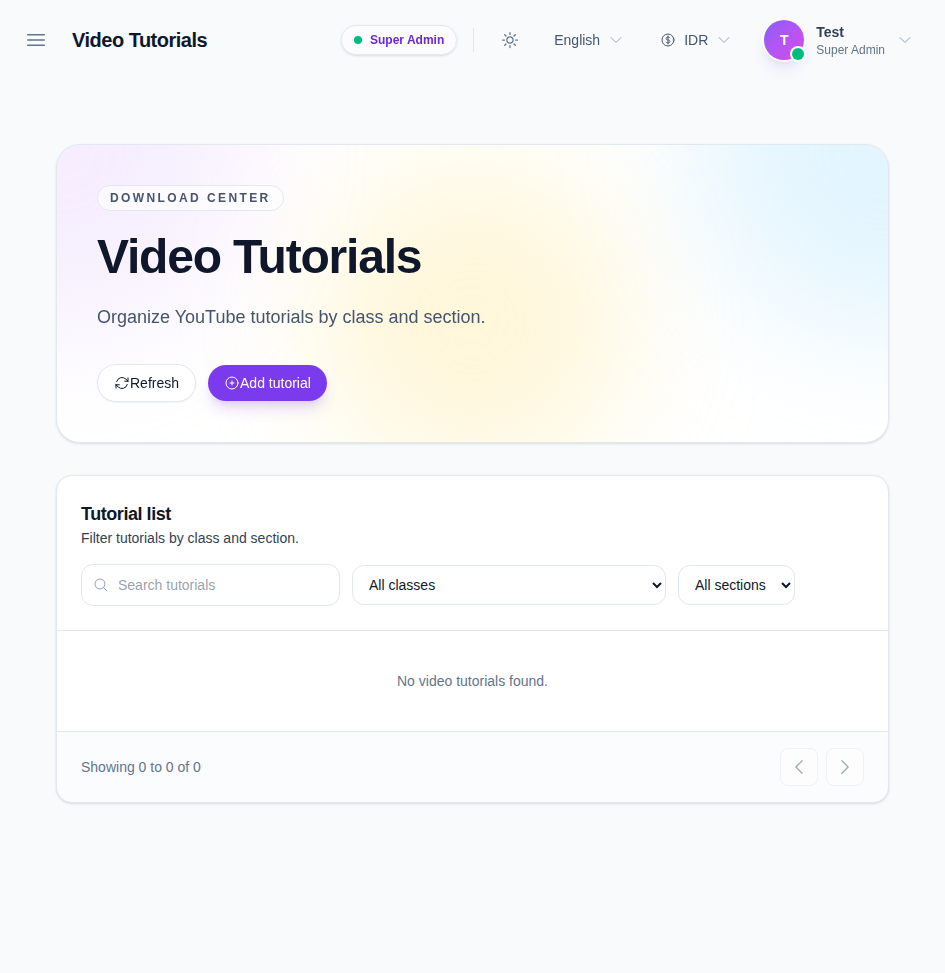
The page shows:
- Add tutorial
- search
- class filter
- section filter
- tutorial cards or empty state
Step 2: Filter the tutorial list
Use the search and filter controls to narrow the list by:
- keyword
- class
- section
This makes it easier to review the tutorials assigned to one class or section when the list is large.
Step 3: Add a new tutorial
Click Add tutorial to open the create modal.
Enter:
- a title
- the YouTube link
- a description if needed
- the class
- one or more sections
Then save the record.
Step 4: Edit or remove an existing tutorial
Use the row actions on a tutorial card to:
- open the video link
- edit the tutorial
- delete the tutorial
Use edit when the link or assignment changes. Use delete only when the tutorial should no longer be available.
Step 5: Open the tutorial link
Use the open action to launch the YouTube video in a new tab.
This is useful when you want to verify the tutorial before you share it more widely.
Verify the result
Use this checklist after maintaining tutorials:
- the tutorial title is easy to understand
- the YouTube link opens correctly
- the class and section assignments match the intended audience
- the tutorial card appears or disappears as expected after save or delete
Expected result: the tutorial list reflects the correct class and section assignments, and the video can be opened from the same workspace.
Troubleshooting
| Issue | Likely cause | What to do |
|---|---|---|
| Add tutorial is unavailable | Your role does not have tutorial-create permission | Recheck the Download Center permissions |
| The tutorial list is empty | No tutorials exist for the current filter | Clear the filters or add a new tutorial |
| The video does not open | The YouTube URL is invalid or missing | Reopen the modal and paste a valid link |
| Section selection is missing | The selected class has no loaded sections yet | Recheck the class filter or reload the class data |