This guide explains how to manage the dedicated Resume Settings page for student CV output in Migdafa Smart School.
Before you start
- Decide whether portal resume downloads should be allowed.
- Review which identity, personal, contact, and guardian fields should be shown.
- Confirm whether layout sections such as Personal Details and Parent & Guardian should stay visible.
- Agree on which extended sections, such as Work Experience or Reference, belong in the final resume PDF.
Important: these settings affect CV output for all relevant student resumes, not just one student. Review the policy carefully before saving changes.
Navigation path
Student CV -> Resume Settings
Step 1: Open Resume Settings
Go to Student CV and select Resume Settings. The page manages the CV contract separately from the wider system settings workspace.
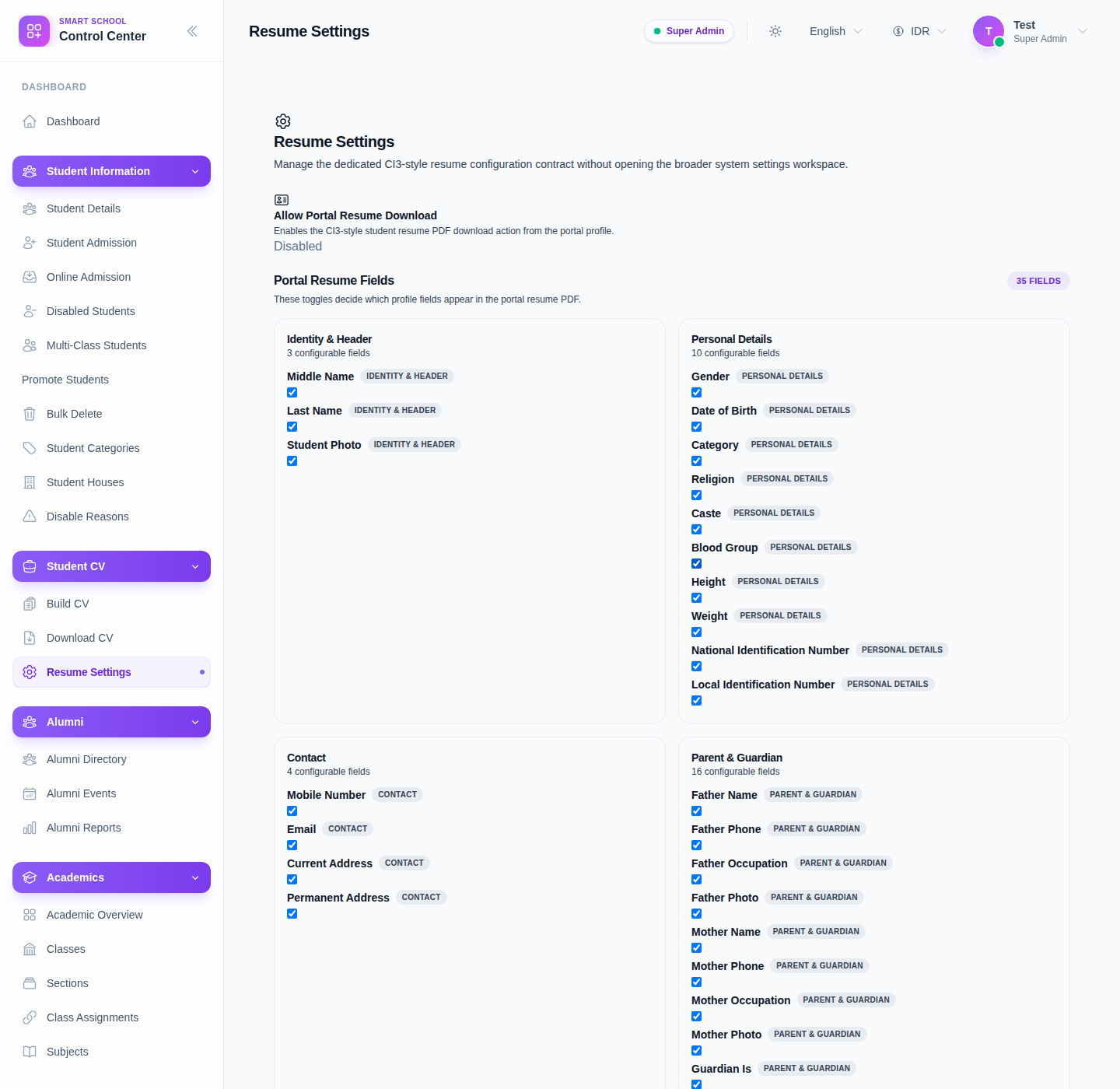
The verified page includes three major control areas:
- Allow Portal Resume Download
- Portal Resume Fields
- Portal Resume Sections
Step 2: Decide whether portal users can download resumes
Review the top toggle Allow Portal Resume Download.
Use this toggle when the school wants to control whether student resume PDFs can be downloaded from the portal profile itself.
Change it intentionally because it affects portal-facing availability, not just admin-side editing.
Step 3: Configure portal resume fields
Use Portal Resume Fields to control which profile fields appear in the PDF.
The current UI groups these fields into categories such as:
- Identity & Header
- Personal Details
- Contact
- Parent & Guardian
- Layout Sections
Verified field examples include:
- Middle Name
- Last Name
- Student Photo
- Mobile Number
- Current Address
- Permanent Address
- Father Name / Phone / Occupation / Photo
- Mother Name / Phone / Occupation / Photo
- Guardian fields that follow the Guardian Is controller relationship
- Personal Details Section
- Parent & Guardian Section
Step 4: Configure extended resume sections
Use Portal Resume Sections to decide whether the generated CV includes extended resume blocks.
The current page exposes these sections:
- Work Experience
- Educational Qualification
- Technical Skills
- Reference
- About / Designation
Disable any section the school does not want in the exported PDF. Leave sections enabled only if the related student data is expected to be maintained.
Step 5: Save and re-test the output
Click Save changes after reviewing the toggles.
Then test the result in practice:
- Open Build CV for a student with resume content.
- Save or review the resume if needed.
- Use Download CV or Download PDF to confirm the output matches the new settings.
This closes the loop between global configuration and actual CV rendering.
Verify the result
Use this checklist after saving:
- portal download policy matches school policy
- only the intended profile fields are visible
- the desired resume sections appear in the PDF
- removed fields or sections no longer show up in the output
Expected result: student CV PDFs follow the field and section rules defined in Resume Settings, and portal download behavior matches the current policy.
Troubleshooting
| Issue | Likely cause | What to do |
|---|---|---|
| A field still appears in the PDF | The setting was not changed or saved correctly | Recheck the toggle, save again, and export a fresh PDF |
| A whole section is missing unexpectedly | The section may have been disabled in Resume Settings | Review the section toggle and re-enable it if appropriate |
| Guardian fields behave differently | Some guardian fields follow the Guardian Is controller relationship | Review the guardian-related toggles and student profile source data |
| Portal users still can or cannot download resumes unexpectedly | The portal download toggle does not match policy | Recheck Allow Portal Resume Download and save again |
| PDF testing is inconclusive | The sample student lacks enough resume data | Use a student with complete CV content when verifying settings |