This guide explains how to use Search Due Fees inside Tuition Fees Reports to review student balances that remain unpaid and prepare follow-up output for finance operations.
Before you start
- Use this branch when the question is about unpaid balances, not paid receipts.
- The due-fee result depends on academic context, so confirm the correct session, class, and section first.
- The overdue threshold is configurable in days. Lower values make more rows count as overdue.
- Print actions are only useful when the current result set contains students with dues.
Navigation path
Reports -> Tuition Fees Reports -> Search Due Fees
Step 1: Open Tuition Fees Reports and switch to Search Due Fees
Open Tuition Fees Reports from the Reports menu, then select Search Due Fees.
This branch stays in the same shared fee-report shell as:
- Daily Collection
- Search Fees Payment
But its question is different: instead of showing what has been collected, it shows what still remains unpaid.
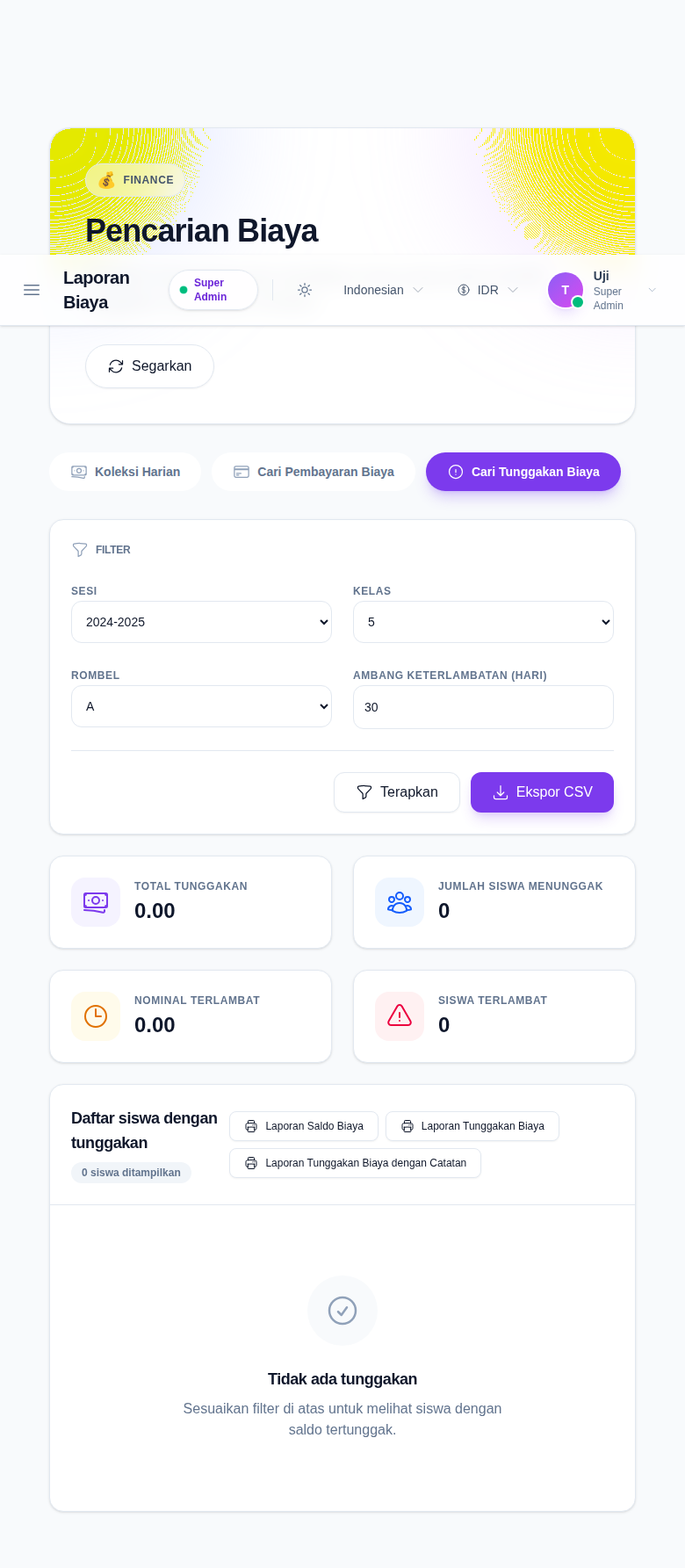
Step 2: Apply the academic and overdue filters
The current due-fees branch uses:
- Session
- Class
- Section
- Overdue Threshold (Days)
Use these filters to define the cohort and the overdue rule for the report.
Click Apply after changing the filters. The backend then computes:
- total outstanding amount
- students with dues
- overdue amount
- overdue students
Step 3: Read the summary cards before the student table
The top cards show:
- Total Outstanding
- Students With Dues
- Overdue Amount
- Overdue Students
Use them first to gauge the size of the collection problem for the selected cohort.
Step 4: Review the student dues table and print actions
Below the cards, the branch shows:
- a student due-fees table
- pagination when needed
- print actions for:
- Balance Fees Statement
- Balance Fees Report
- Balance Fees Report With Remark
The table includes:
- student name
- admission number
- class
- assigned amount
- paid amount
- outstanding amount
- overdue badge
Use the print buttons when the current due-fee slice is ready for follow-up communication or offline review.
Step 5: Export the due-fee result only after the filters are final
Use Export CSV after confirming:
- session, class, and section are correct
- the overdue threshold matches the follow-up rule you want
- the result set is the one you intend to keep
The export follows the current due-fee filters, so changing the cohort or overdue threshold changes the file contents.
Verify the result
Use this checklist after loading the report:
- confirm the branch is Search Due Fees
- confirm the academic context matches the intended cohort
- confirm the overdue threshold matches your collection rule
- confirm the summary cards align with the student table below
- confirm print or export actions are used only after the result set is final
Expected result: you can identify which students still have unpaid balances, understand how much of that balance is overdue, and generate follow-up output from the current due-fee slice.
Troubleshooting
| Issue | Likely cause | What to do |
|---|---|---|
| The due-fee table is empty | No students match the current academic and overdue filters | Recheck session, class, section, or lower the overdue threshold |
| The overdue counts look too low | The overdue threshold is too high | Reduce the overdue-days value and apply the filters again |
| Print buttons do nothing useful | There are no rows in the current due-fee result | Adjust the filters until students with dues appear |
| The CSV export is missing students | The cohort filters are too narrow | Widen the class or section scope and rerun the report |