This guide explains how to review and process bank-transfer payment submissions from Offline Bank Payments.
Short summary
Use Offline Bank Payments when guardians or students submit payment proof outside the direct online gateway flow. The page helps staff filter requests, inspect the submitted evidence, and then approve, reject, or retry posting as needed.
Before you start
- Confirm the school’s approval policy for bank-transfer proof.
- Prepare the bank reference number or audit note if one must be recorded.
- Review whether fine or adjustment values should be entered during approval.
- Use a narrow class, section, or status filter if many requests exist.
Navigation path
Fees Collection -> Offline Bank Payments
Step 1: Open Offline Bank Payments
In the sidebar, open Fees Collection and choose Offline Bank Payments.
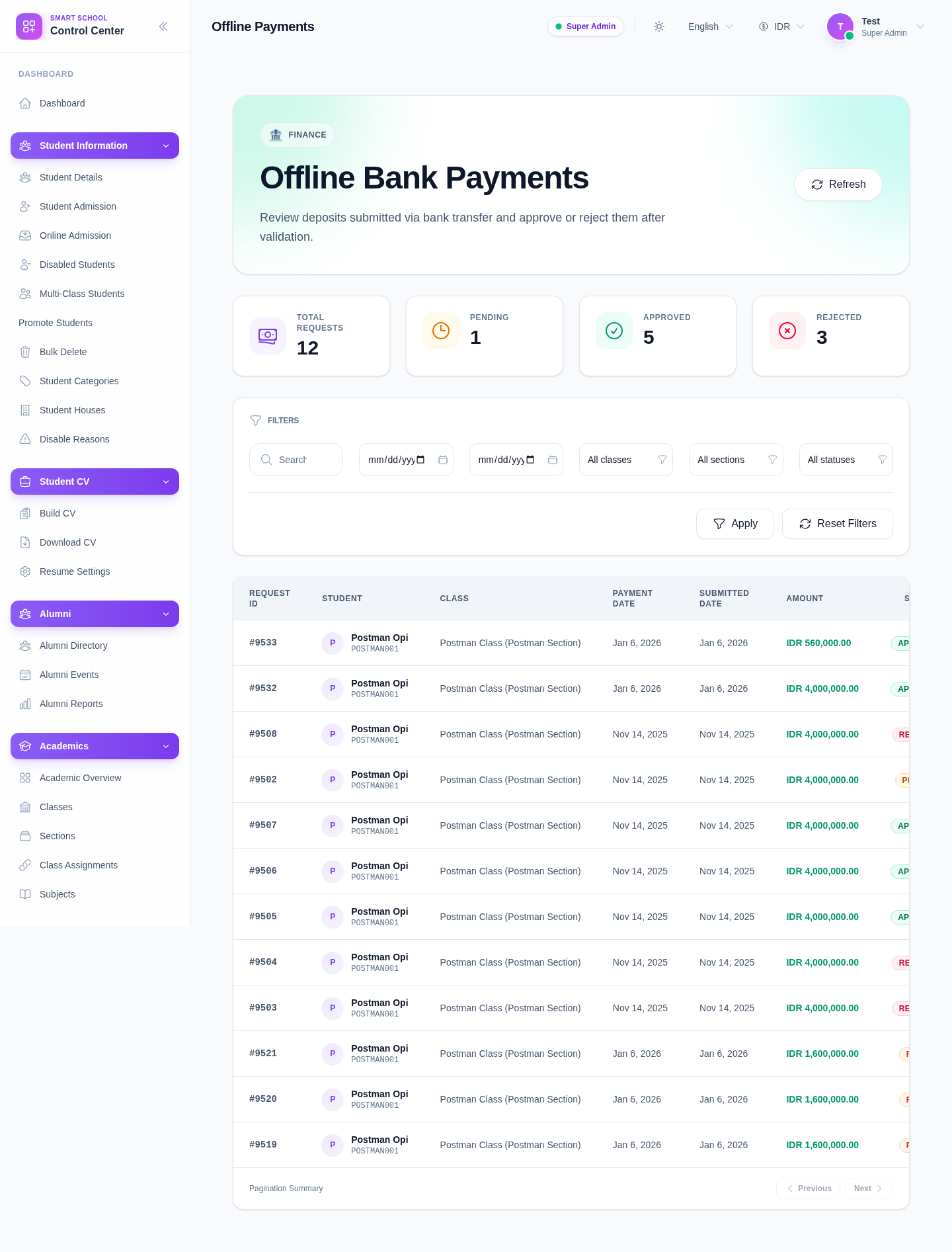
The page currently shows:
- request counters for total, pending, approved, and rejected
- filters for class, section, status, and date range
- a request table
- row-level actions such as View
Step 2: Narrow the request list
Use the page filters to isolate the relevant requests:
- Class
- Section
- Status
- Date From
- Date To
- search or query text where available
Then click Apply.
Use Reset Filters when the current filter mix becomes too restrictive.
Step 3: Review the request row before opening it
The table currently surfaces core request details such as:
- request ID
- student
- class
- payment date
- submitted date
- amount
- status
- invoice number
- reference number
- attachment presence
Check the current status first so you do not re-handle a request that has already been posted or rejected.
Step 4: Open the request and validate the evidence
Use View to inspect the selected request.
The current review drawer is built around:
- student identity
- amount and fine amount
- bank reference number
- remark
- reply
- attachment preview or download
- status history and date fields
Use the attachment preview or download workflow when the request includes bank-transfer proof.
Step 5: Approve, reject, or retry posting
For a pending request:
- approve it after verifying the amount, reference number, and remarks
- reject it when the proof is invalid or incomplete
For a failed posting state:
- use retry only if the original request is valid and the previous posting failure was operational rather than factual
Important notes
Local dataset note: the current local workspace contains a mix of pending, approved, and rejected requests. The table and counters were verified live, while the drawer-level approval and rejection fields were additionally checked against the related UI component to confirm the exact field set.
Operational note: use approval only after reviewing both the request details and the supporting attachment. Offline requests should not be treated like already-posted direct gateway transactions.
Verification checklist
- the request belongs to the correct student and invoice
- amount and submitted proof are consistent
- bank reference and remarks are captured when required
- the final status reflects the real review outcome
- approved requests are ready to appear in fee-payment history
Troubleshooting
| Issue | Likely cause | What to do |
|---|---|---|
| Too many requests appear | Filters are too broad | Narrow by class, section, status, and date |
| The attachment is missing or unclear | The submitter did not provide usable proof | Reject or request correction according to school policy |
| A request shows failed posting | The approval was valid but the posting step failed | Use retry only after confirming the request is legitimate |
| Staff treat approved and posted as the same review step | The status path is being oversimplified | Check the final row status after review rather than assuming approval finished all processing |