This guide explains how to maintain subject records from the Subjects page in Migdafa Smart School.
Before you start
- Confirm the official subject name and code format.
- Decide the correct Subject type for each record.
- Search the current directory before adding a new subject.
- Review older inactive subjects before creating a replacement.
Important: the local UI currently exposes some unfinished copy on the Subjects page, but the creation and management flow is still operational. Focus on the field meanings and row actions rather than the temporary label polish.
Navigation path
Academics -> Subjects
Step 1: Open Subjects
Go to Academics and choose Subjects. The page contains a creation form and a searchable subject list.
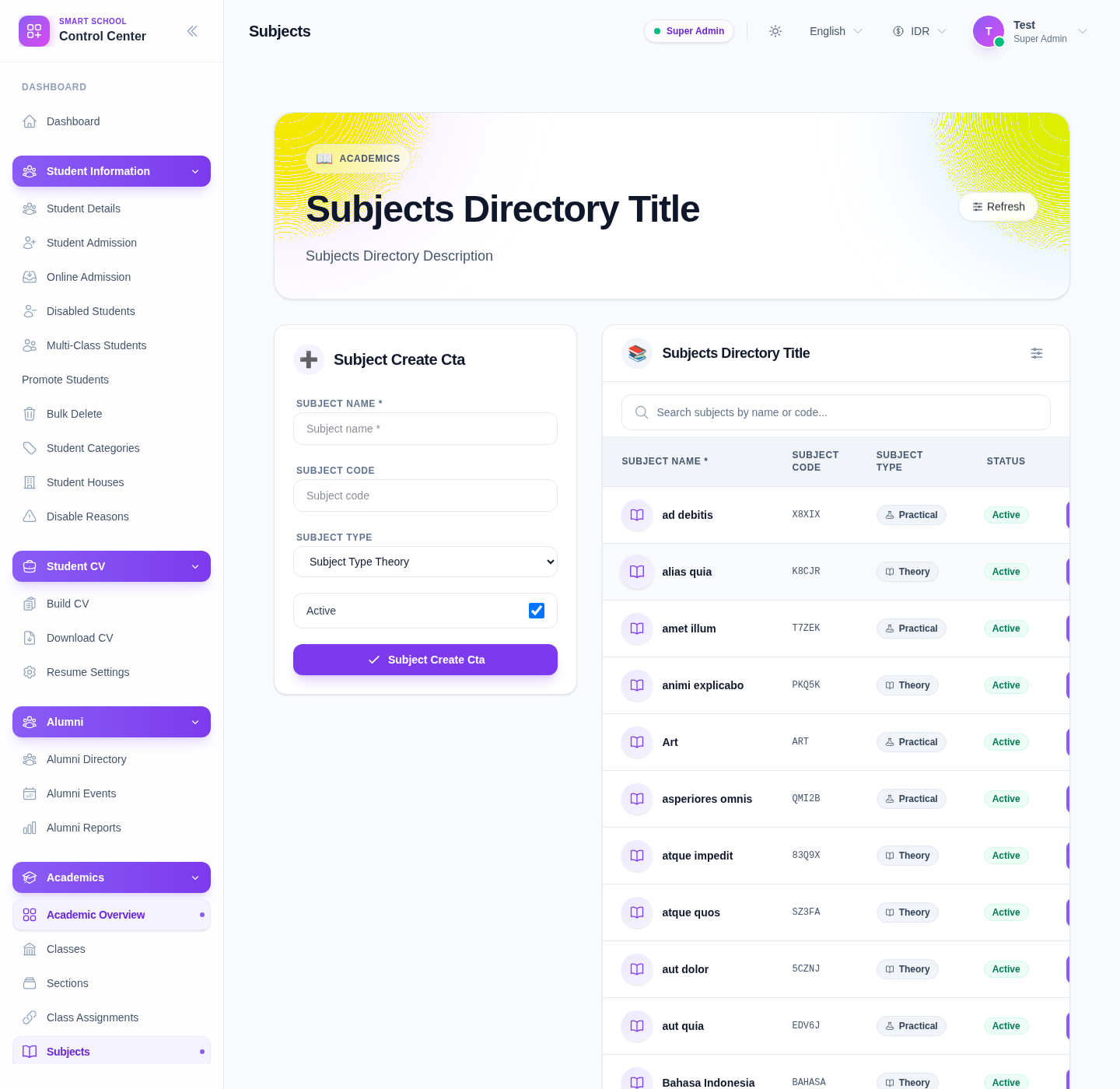
The verified table includes:
- subject name
- subject code
- subject type
- status
- actions
Step 2: Review the current directory
Use Search subjects by name or code… before adding anything new.
This helps you avoid:
- duplicate subjects
- code collisions
- unnecessary recreation of inactive subjects that could be reactivated or corrected
Step 3: Create a subject
Use the subject form at the top of the page:
- Enter Subject name.
- Enter Subject code if your school uses codes.
- Choose Subject type.
- Decide whether Active should stay enabled.
- Click the subject create action.
Use Refresh if the list does not immediately reflect the saved row.
Step 4: Review and maintain subject rows
After saving, inspect the row and verify:
- subject name
- subject code
- theory or practical classification
- active status
The current list also provides row actions:
- Edit
- Activate or Deactivate
- Delete
Use those actions intentionally because subjects feed into subject groups, timetables, and other academic setup.
Verify the result
Use this checklist after any subject update:
- subject names and codes follow the agreed convention
- the subject type is correct
- the active status reflects whether the subject should be available
- the subject is ready for grouping or scheduling
Expected result: the subject directory stays consistent, searchable, and ready for subject-group and timetable workflows.
Troubleshooting
| Issue | Likely cause | What to do |
|---|---|---|
| A subject seems duplicated | The list was not searched first | Search by subject name and code before creating a new row |
| The wrong subject type was selected | Theory/practical choice was not reviewed carefully | Edit the row and correct the subject type |
| Page labels look unfinished | Some local copy is still using placeholder text | Follow the field placeholders and table structure, which remain usable |
| A subject should not be deleted | It may already be used in subject groups or timetables | Confirm downstream usage before deleting |
| The new row does not seem visible | Search or page state is hiding it | Clear the search, refresh, and look again |